
Explore This Guide
Jump directly to any section of this article.
AI Photo Editing Prompts for Girls, Boys, Product and Ads
Select a category or browse all photo editing prompts below
1. Trending Long Hair ChatGPT Prompt 🔥⬇️
AI EDITING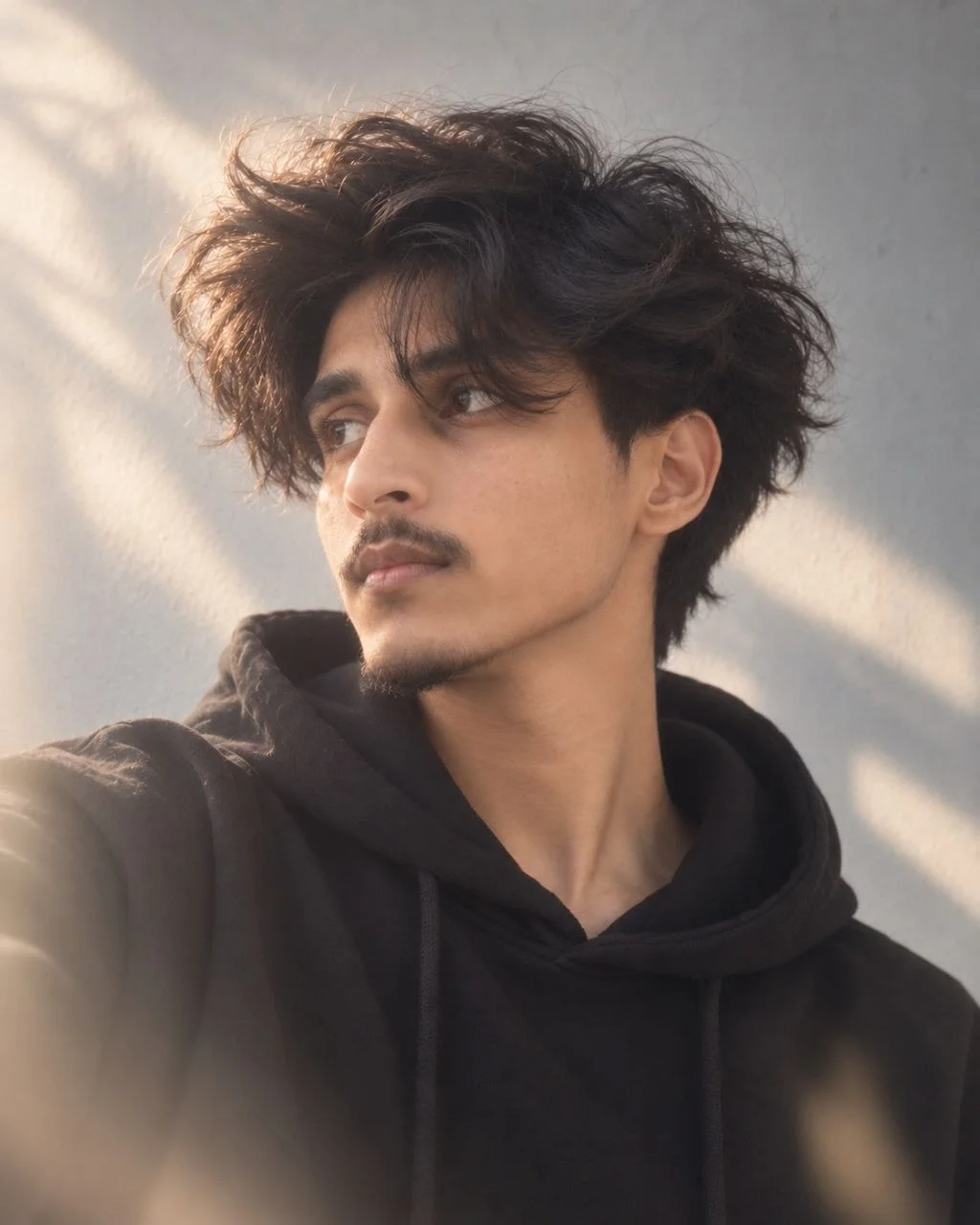
A medium close-up, profile portrait of a young person with voluminous, dark, wavy shaggy hair that partially obscures their face, looking subtly upwards and to the left, wearing a black hoodie and a thin silver chain necklace.
A medium close-up, profile portrait of a young person with voluminous, dark, wavy shaggy hair that partially obscures their face, looking subtly upwards and to the left, wearing a black hoodie and a thin silver chain necklace. The setting is a plain, light gray textured wall, softly illuminated by diffused, natural light that creates gentle shadows and highlights, emphasizing the contours of their face and the texture of their hair. The camera is at eye-level, capturing a realistic, clean, and modern photographic style with a cool-neutral color palette. The mood is contemplative and calm, evoking a sense of quiet introspection Aspect Ratio: 4:5. I will attach my photo to generate and design image. It should not look like Al-generated, it should looks natural - for a photographic image, like it was taken with an iPhone 16 camera. Generate image now.
A medium close-up, profile portrait of a young person with voluminous, dark, wavy shaggy hair that partially obscures their face, looking subtly upwards and to the left, wearing a black hoodie and a thin silver chain necklace. The setting is a plain, light gray textured wall, softly illuminated by diffused, natural light that creates gentle shadows and highlights, emphasizing the contours of their face and the texture of their hair. The camera is at eye-level, capturing a realistic, clean, and modern photographic style with a cool-neutral color palette. The mood is contemplative and calm, evoking a sense of quiet introspection Aspect Ratio: 4:5. I will attach my photo to generate and design image. It should not look like Al-generated, it should looks natural - for a photographic image, like it was taken with an iPhone 16 camera. Generate image now.
Recommended Tech Stack: Adobe Photoshop (Generative Fill / Firefly), Midjourney v6 (Vary Region / Inpainting), Lightroom, Magnific AI, and Topaz Photo AI. Choose tools according to the edit required; not every tool is needed for every image.
Quick Implementation Guide:
- Open the source image and select the target area or subject in your editor or generative tool.
- Apply this prompt for trending long hair chatgpt prompt, specifying the intended lighting, texture, object, or color changes while stating which details must remain unchanged.
- Blend the result with the original using masks and adjustment layers; refine edges, tonal curves, and color balance, then inspect the image at full size.
Real-World Use Case Example: Retouching studio portraits, professional headshots, wedding photographs, or creator profile images while preserving natural identity and skin texture.
2. Photorealistic Background Replacement
BACKGROUND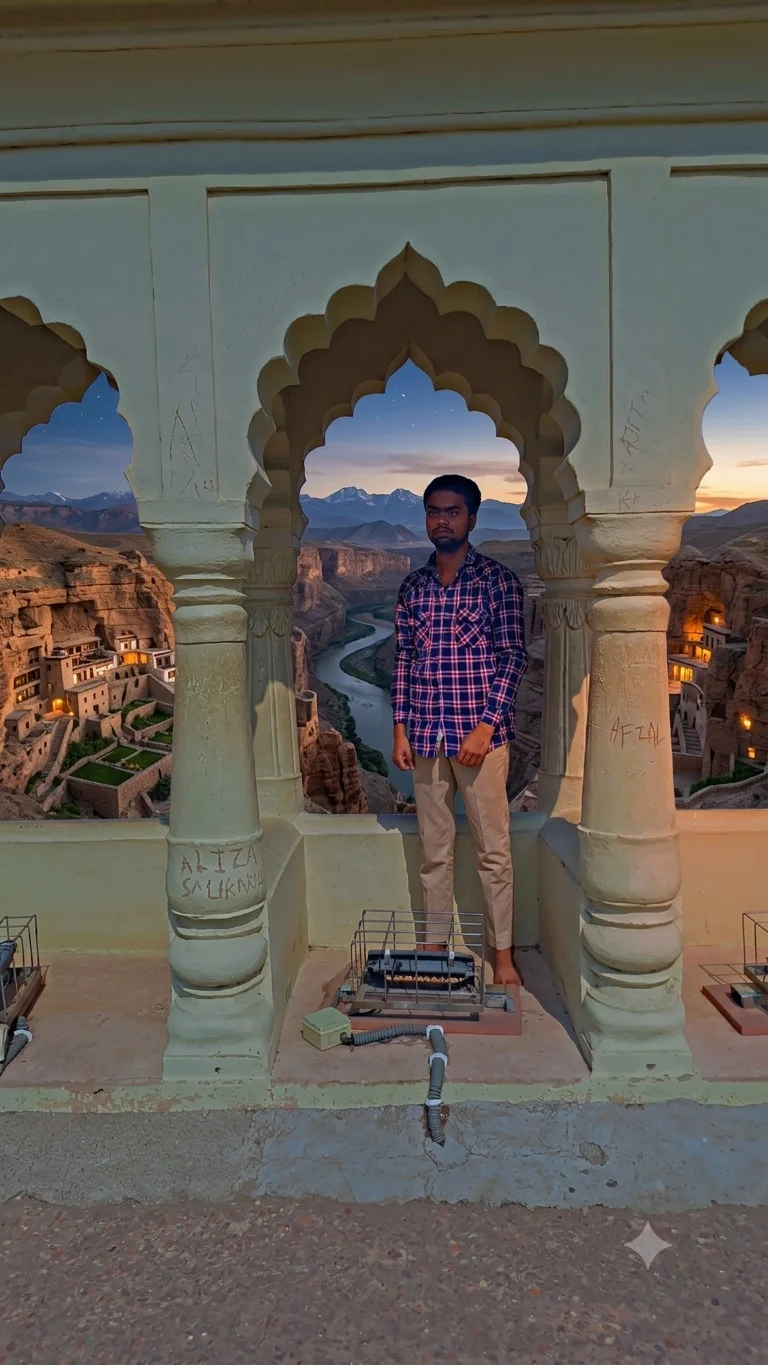
Replace an existing background with a completely new environment while keeping the original subject realistic and perfectly integrated.
Replace the existing background of this photograph with [describe the new environment in detail]. Preserve the main subject exactly as photographed, including facial identity, skin texture, hairstyle, clothing, body proportions, pose, accessories and important details.
Create a realistic environmental match between the subject and the new background. Carefully match the camera perspective, horizon line, focal length, depth of field, lighting direction, color temperature, atmospheric perspective and overall exposure.
Generate realistic contact shadows beneath and around the subject. Add subtle environmental reflections and color spill where appropriate. If the new environment contains sunlight, windows, neon lights, indoor lamps or other light sources, make sure they realistically illuminate the subject.
Keep the subject's edges clean, especially around hair, transparent materials, glasses and clothing. Remove halos, rough cutout edges, duplicated objects, unnatural blur and inconsistent shadows.
The final result should look like a single photograph captured in the new location rather than a manually composited image. Preserve realistic photographic depth, texture and natural imperfections.
Replace the existing background of this photograph with [describe the new environment in detail]. Preserve the main subject exactly as photographed, including facial identity, skin texture, hairstyle, clothing, body proportions, pose, accessories and important details. Create a realistic environmental match between the subject and the new background. Carefully match the camera perspective, horizon line, focal length, depth of field, lighting direction, color temperature, atmospheric perspective and overall exposure. Generate realistic contact shadows beneath and around the subject. Add subtle environmental reflections and color spill where appropriate. If the new environment contains sunlight, windows, neon lights, indoor lamps or other light sources, make sure they realistically illuminate the subject. Keep the subject's edges clean, especially around hair, transparent materials, glasses and clothing. Remove halos, rough cutout edges, duplicated objects, unnatural blur and inconsistent shadows. The final result should look like a single photograph captured in the new location rather than a manually composited image. Preserve realistic photographic depth, texture and natural imperfections.
Recommended Tech Stack: Adobe Photoshop (Generative Fill / Firefly), Midjourney v6 (Vary Region / Inpainting), Lightroom, Magnific AI, and Topaz Photo AI. Choose tools according to the edit required; not every tool is needed for every image.
Quick Implementation Guide:
- Open the source image and select the target area or subject in your editor or generative tool.
- Apply this prompt for photorealistic background replacement, specifying the intended lighting, texture, object, or color changes while stating which details must remain unchanged.
- Blend the result with the original using masks and adjustment layers; refine edges, tonal curves, and color balance, then inspect the image at full size.
Real-World Use Case Example: Cleaning up travel, event, or campaign photos while keeping subject edges, perspective, and lighting believable.
3. Natural High-End Portrait Retouching
PORTRAIT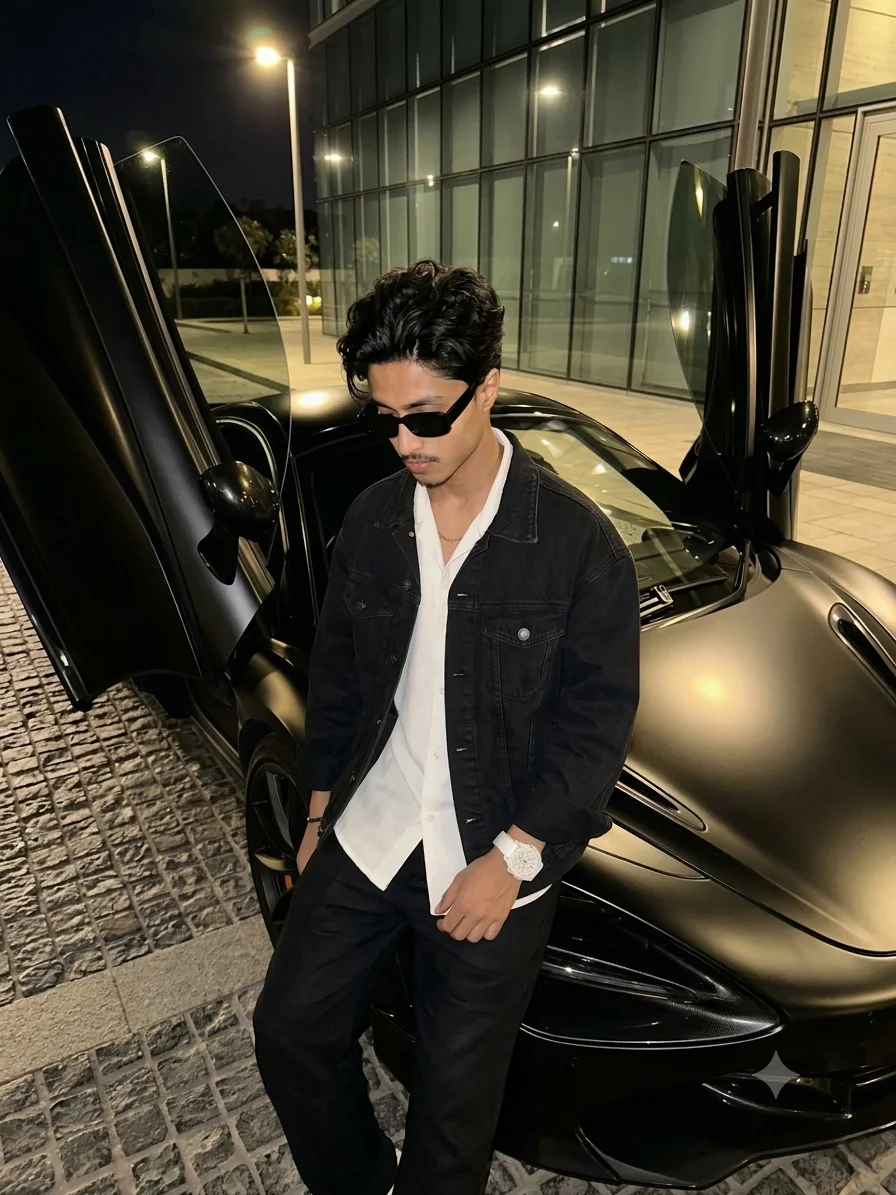
Create a polished professional portrait while preserving real skin texture, facial identity and natural imperfections.
Professionally retouch this portrait while preserving the person's exact identity, facial structure, natural proportions and recognizable features. Improve the photograph with a subtle high-end editorial retouching style rather than an artificial beauty-filter appearance.
Remove only temporary distractions such as acne, temporary blemishes, dust, small stray hairs and minor skin imperfections. Preserve natural pores, fine lines, subtle wrinkles, freckles, natural skin variation and realistic facial texture.
Correct uneven skin tone gently without making the skin perfectly uniform. Improve under-eye areas carefully while retaining natural facial structure. Enhance the eyes slightly by improving clarity, catchlights and contrast without changing their shape or color.
Refine hair detail without creating artificial strands. Improve lips, eyebrows and eyelashes subtly while maintaining their original appearance.
Balance highlights and shadows across the face. Use natural dodge-and-burn style adjustments to improve dimensionality. Preserve realistic skin color and avoid excessive smoothing.
Improve overall exposure, white balance and color grading with a clean editorial finish. Maintain realistic pores, natural facial asymmetry and authentic photographic detail.
Do not change the person's age, ethnicity, facial identity, nose shape, jawline, eye shape or body structure. Avoid plastic skin, over-smoothed faces, excessive sharpening, unrealistic eyes, artificial makeup and beauty-app effects.
The final image should look like a professionally retouched photograph from a premium portrait or fashion magazine.
Professionally retouch this portrait while preserving the person's exact identity, facial structure, natural proportions and recognizable features. Improve the photograph with a subtle high-end editorial retouching style rather than an artificial beauty-filter appearance. Remove only temporary distractions such as acne, temporary blemishes, dust, small stray hairs and minor skin imperfections. Preserve natural pores, fine lines, subtle wrinkles, freckles, natural skin variation and realistic facial texture. Correct uneven skin tone gently without making the skin perfectly uniform. Improve under-eye areas carefully while retaining natural facial structure. Enhance the eyes slightly by improving clarity, catchlights and contrast without changing their shape or color. Refine hair detail without creating artificial strands. Improve lips, eyebrows and eyelashes subtly while maintaining their original appearance. Balance highlights and shadows across the face. Use natural dodge-and-burn style adjustments to improve dimensionality. Preserve realistic skin color and avoid excessive smoothing. Improve overall exposure, white balance and color grading with a clean editorial finish. Maintain realistic pores, natural facial asymmetry and authentic photographic detail. Do not change the person's age, ethnicity, facial identity, nose shape, jawline, eye shape or body structure. Avoid plastic skin, over-smoothed faces, excessive sharpening, unrealistic eyes, artificial makeup and beauty-app effects. The final image should look like a professionally retouched photograph from a premium portrait or fashion magazine.
Recommended Tech Stack: Adobe Photoshop (Generative Fill / Firefly), Midjourney v6 (Vary Region / Inpainting), Lightroom, Magnific AI, and Topaz Photo AI. Choose tools according to the edit required; not every tool is needed for every image.
Quick Implementation Guide:
- Open the source image and select the target area or subject in your editor or generative tool.
- Apply this prompt for natural high-end portrait retouching, specifying the intended lighting, texture, object, or color changes while stating which details must remain unchanged.
- Blend the result with the original using masks and adjustment layers; refine edges, tonal curves, and color balance, then inspect the image at full size.
Real-World Use Case Example: Retouching studio portraits, professional headshots, wedding photographs, or creator profile images while preserving natural identity and skin texture.
4. Intelligent Object & Person Removal
OBJECT EDITING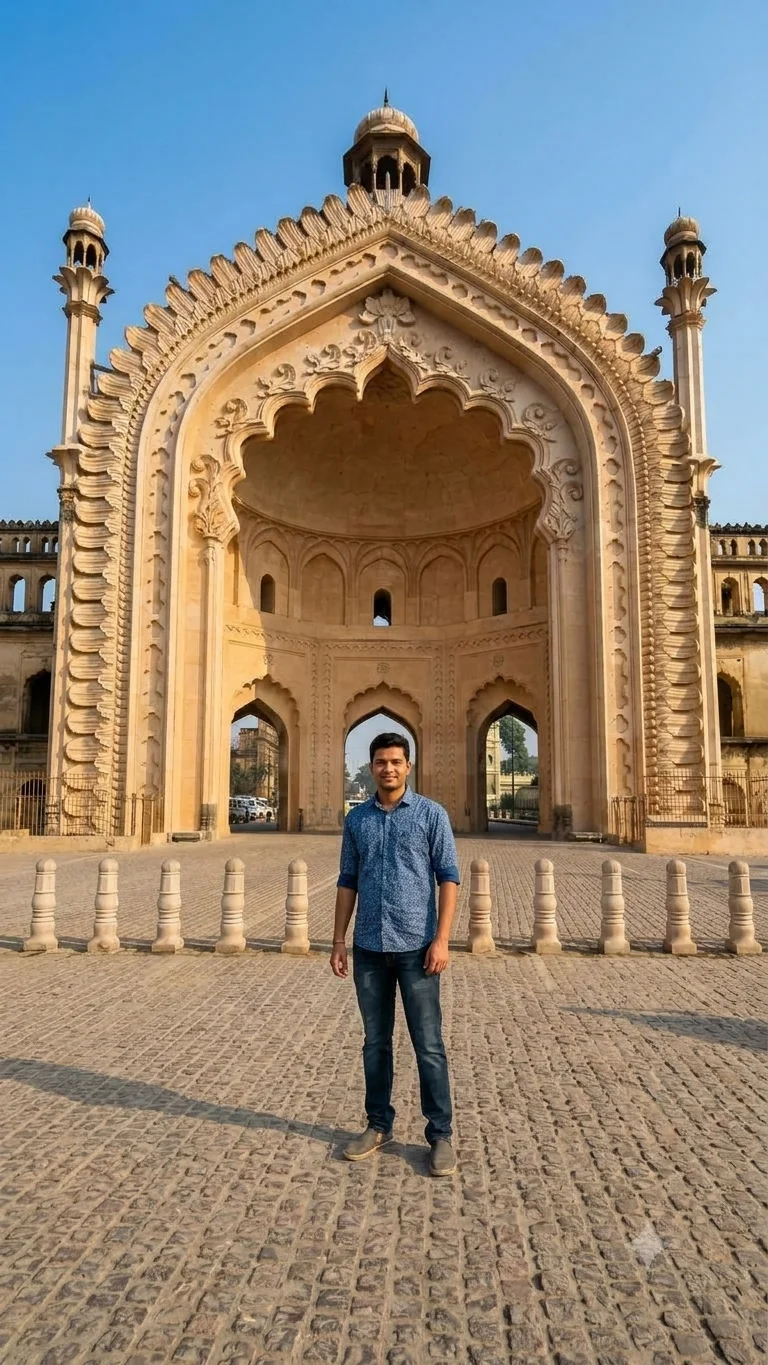
Remove unwanted people, objects, signs or distractions while reconstructing the missing environment naturally.
Remove [person/object/sign/distraction] from this photograph and reconstruct the area naturally.
Analyze the surrounding environment before editing. Recreate the missing background using the existing architecture, textures, perspective, lighting, shadows, reflections, patterns and depth information.
Preserve nearby objects and people exactly as they appear. Do not modify important facial features, clothing, buildings, furniture, landscape elements or other significant details.
Match the original camera perspective, focal length, depth of field and image sharpness. Reconstruct realistic textures rather than using obvious repeated patterns.
Maintain consistent lighting across the repaired area. Recreate realistic shadows, reflections and ambient color where the removed object previously affected the scene.
Ensure that walls, floors, roads, windows, furniture, vegetation and architectural lines remain geometrically accurate.
Do not leave blurry patches, cloning artifacts, repeated textures, warped lines, duplicated objects, unnatural gradients or visible AI-generated patterns.
The final image should look as if the unwanted object or person was never present when the photograph was originally captured.
Remove [person/object/sign/distraction] from this photograph and reconstruct the area naturally. Analyze the surrounding environment before editing. Recreate the missing background using the existing architecture, textures, perspective, lighting, shadows, reflections, patterns and depth information. Preserve nearby objects and people exactly as they appear. Do not modify important facial features, clothing, buildings, furniture, landscape elements or other significant details. Match the original camera perspective, focal length, depth of field and image sharpness. Reconstruct realistic textures rather than using obvious repeated patterns. Maintain consistent lighting across the repaired area. Recreate realistic shadows, reflections and ambient color where the removed object previously affected the scene. Ensure that walls, floors, roads, windows, furniture, vegetation and architectural lines remain geometrically accurate. Do not leave blurry patches, cloning artifacts, repeated textures, warped lines, duplicated objects, unnatural gradients or visible AI-generated patterns. The final image should look as if the unwanted object or person was never present when the photograph was originally captured.
Recommended Tech Stack: Adobe Photoshop (Generative Fill / Firefly), Midjourney v6 (Vary Region / Inpainting), Lightroom, Magnific AI, and Topaz Photo AI. Choose tools according to the edit required; not every tool is needed for every image.
Quick Implementation Guide:
- Open the source image and select the target area or subject in your editor or generative tool.
- Apply this prompt for intelligent object & person removal, specifying the intended lighting, texture, object, or color changes while stating which details must remain unchanged.
- Blend the result with the original using masks and adjustment layers; refine edges, tonal curves, and color balance, then inspect the image at full size.
Real-World Use Case Example: Cleaning up travel, event, or campaign photos while keeping subject edges, perspective, and lighting believable.
5. Generative Expand for Social Media Formats
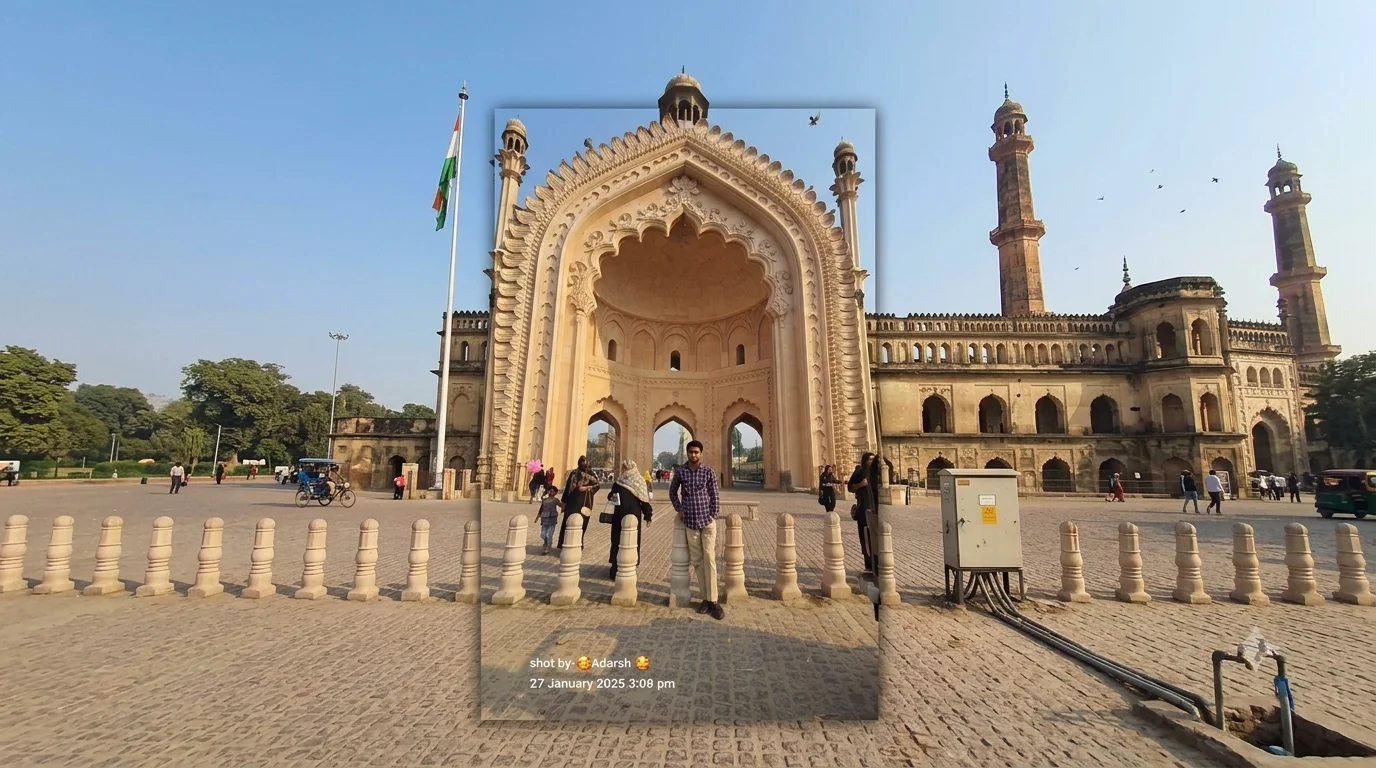
Expand photographs into new aspect ratios for Instagram, Shorts, thumbnails and other platforms without changing the original composition.
Expand this photograph from its current dimensions to [9:16 vertical / 4:5 portrait / 16:9 landscape / 1:1 square].
Keep the original photograph completely intact within the existing frame. Extend the surrounding environment naturally into the newly generated area.
Analyze the original scene's perspective, lighting, depth, textures, architecture, landscape and composition before generating the additional space.
Continue existing objects naturally beyond the original frame where appropriate. Maintain consistent perspective, scale, shadows, reflections, colors and depth of field.
If the photograph contains a person, preserve their exact facial identity, body proportions, pose and clothing. Do not generate duplicate limbs, hands, faces or accessories.
If extending a landscape or architecture scene, continue roads, buildings, walls, floors, sky, vegetation and other environmental elements with realistic geometry.
Avoid obvious repeating patterns, duplicated objects, warped architecture, artificial textures or sudden changes in image quality.
The final expanded image should look like the photographer originally captured the wider composition with a professional camera.
Expand this photograph from its current dimensions to [9:16 vertical / 4:5 portrait / 16:9 landscape / 1:1 square]. Keep the original photograph completely intact within the existing frame. Extend the surrounding environment naturally into the newly generated area. Analyze the original scene's perspective, lighting, depth, textures, architecture, landscape and composition before generating the additional space. Continue existing objects naturally beyond the original frame where appropriate. Maintain consistent perspective, scale, shadows, reflections, colors and depth of field. If the photograph contains a person, preserve their exact facial identity, body proportions, pose and clothing. Do not generate duplicate limbs, hands, faces or accessories. If extending a landscape or architecture scene, continue roads, buildings, walls, floors, sky, vegetation and other environmental elements with realistic geometry. Avoid obvious repeating patterns, duplicated objects, warped architecture, artificial textures or sudden changes in image quality. The final expanded image should look like the photographer originally captured the wider composition with a professional camera.
Recommended Tech Stack: Adobe Photoshop (Generative Fill / Firefly), Midjourney v6 (Vary Region / Inpainting), Lightroom, Magnific AI, and Topaz Photo AI. Choose tools according to the edit required; not every tool is needed for every image.
Quick Implementation Guide:
- Open the source image and select the target area or subject in your editor or generative tool.
- Apply this prompt for generative expand for social media formats, specifying the intended lighting, texture, object, or color changes while stating which details must remain unchanged.
- Blend the result with the original using masks and adjustment layers; refine edges, tonal curves, and color balance, then inspect the image at full size.
Real-World Use Case Example: Adapting a photograph for vertical stories, square posts, banners, and other platform-specific crops.
6. Premium AI Product Photography
PRODUCT
Convert a simple product photograph into a premium ecommerce and advertising image without altering the actual product.
Transform this product photograph into a premium commercial advertising image.
Preserve the exact product identity, dimensions, proportions, shape, materials, colors, branding, logo, packaging, buttons, ports, labels and visible text. Do not redesign, replace or hallucinate any product details.
Place the product in [luxury studio / modern lifestyle environment / minimal ecommerce setup / premium campaign scene].
Create professional commercial lighting with a soft key light, subtle fill, realistic rim lighting where appropriate and accurate contact shadows.
Improve the product's visual separation from the background while preserving realistic reflections and material properties.
If the product is made of glass, metal, leather, plastic or fabric, maintain physically believable texture and reflections.
Create a clean composition suitable for [Amazon / ecommerce / website hero / social media advertisement / luxury campaign].
Maintain accurate perspective and realistic scale.
Ensure logos and product text remain unchanged and readable.
Avoid artificial reflections, distorted packaging, incorrect labels, extra buttons, altered logos, unrealistic shadows or 3D-rendered appearance.
The final image should resemble a professionally photographed commercial product campaign created with a high-end camera and studio lighting.
Transform this product photograph into a premium commercial advertising image. Preserve the exact product identity, dimensions, proportions, shape, materials, colors, branding, logo, packaging, buttons, ports, labels and visible text. Do not redesign, replace or hallucinate any product details. Place the product in [luxury studio / modern lifestyle environment / minimal ecommerce setup / premium campaign scene]. Create professional commercial lighting with a soft key light, subtle fill, realistic rim lighting where appropriate and accurate contact shadows. Improve the product's visual separation from the background while preserving realistic reflections and material properties. If the product is made of glass, metal, leather, plastic or fabric, maintain physically believable texture and reflections. Create a clean composition suitable for [Amazon / ecommerce / website hero / social media advertisement / luxury campaign]. Maintain accurate perspective and realistic scale. Ensure logos and product text remain unchanged and readable. Avoid artificial reflections, distorted packaging, incorrect labels, extra buttons, altered logos, unrealistic shadows or 3D-rendered appearance. The final image should resemble a professionally photographed commercial product campaign created with a high-end camera and studio lighting.
Recommended Tech Stack: Adobe Photoshop (Generative Fill / Firefly), Midjourney v6 (Vary Region / Inpainting), Lightroom, Magnific AI, and Topaz Photo AI. Choose tools according to the edit required; not every tool is needed for every image.
Quick Implementation Guide:
- Open the source image and select the target area or subject in your editor or generative tool.
- Apply this prompt for premium ai product photography, specifying the intended lighting, texture, object, or color changes while stating which details must remain unchanged.
- Blend the result with the original using masks and adjustment layers; refine edges, tonal curves, and color balance, then inspect the image at full size.
Real-World Use Case Example: Preparing consistent e-commerce catalog images, paid-ad creatives, or premium product listings.
7. AI Photo Restoration & High-Resolution Upscale
RESTORATION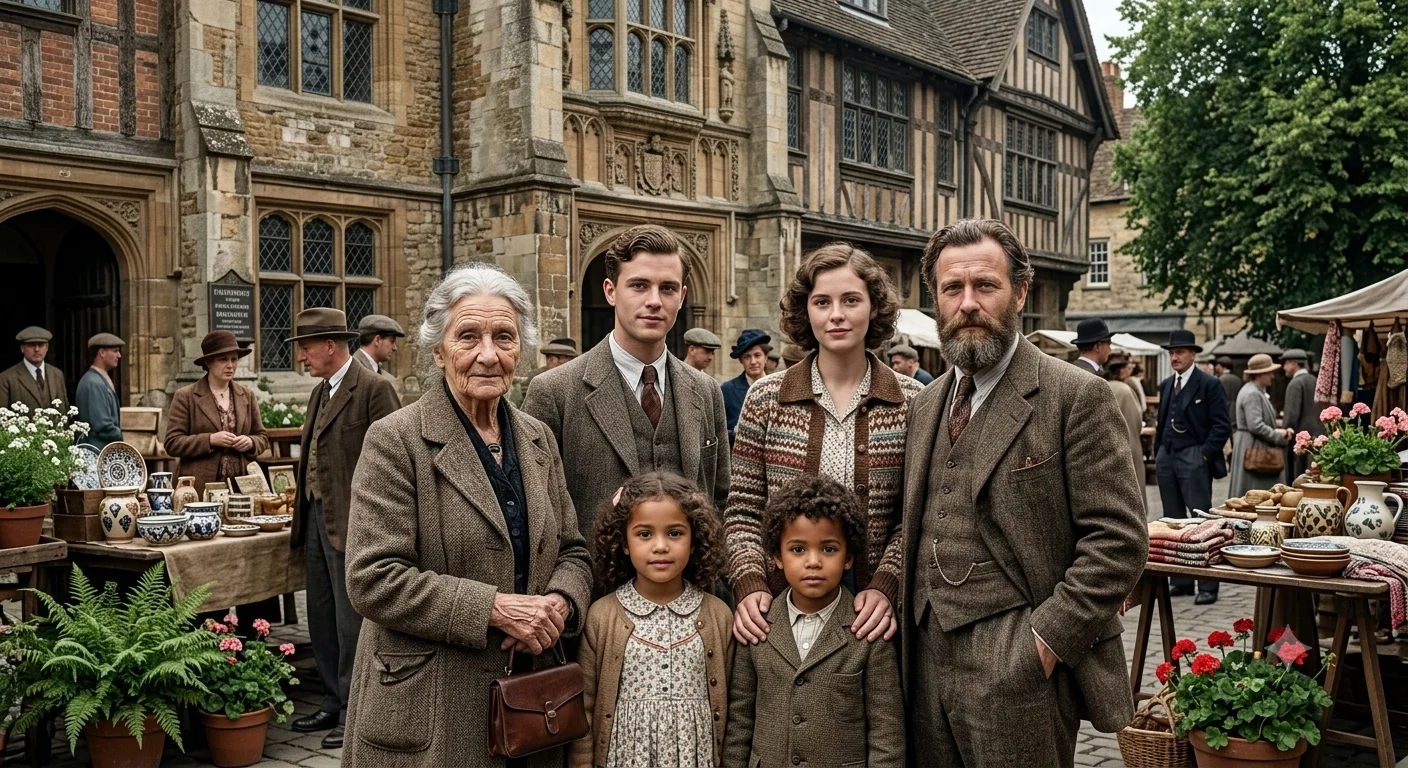
Restore low-resolution, compressed or old photographs while recovering realistic detail without changing identity.
Restore and upscale this photograph to high resolution while preserving the original image's identity, composition and photographic character.
Remove compression artifacts, excessive JPEG noise, sensor noise, mild blur and unwanted digital artifacts.
Recover realistic fine details in faces, eyes, hair, skin, clothing, architecture, vegetation and other important textures.
For portraits, preserve the person's exact identity, facial structure, age characteristics, natural asymmetry and recognizable features. Do not invent or redesign facial details.
Improve edge clarity naturally without creating halos or excessive sharpening.
Restore damaged or faded areas while respecting the original photograph. If the image is old or scanned, repair scratches, dust, stains, fading and small missing areas while preserving authentic historical details.
Improve contrast, exposure and color balance carefully without making the photograph look artificially modern unless specifically requested.
Preserve realistic skin texture and natural photographic grain.
Avoid hallucinated facial features, artificial eyes, plastic skin, oversharpening, excessive noise reduction, fake textures and AI-generated details that were not reasonably present in the original.
The final image should look like a professionally restored high-resolution photograph rather than a newly generated image.
Restore and upscale this photograph to high resolution while preserving the original image's identity, composition and photographic character. Remove compression artifacts, excessive JPEG noise, sensor noise, mild blur and unwanted digital artifacts. Recover realistic fine details in faces, eyes, hair, skin, clothing, architecture, vegetation and other important textures. For portraits, preserve the person's exact identity, facial structure, age characteristics, natural asymmetry and recognizable features. Do not invent or redesign facial details. Improve edge clarity naturally without creating halos or excessive sharpening. Restore damaged or faded areas while respecting the original photograph. If the image is old or scanned, repair scratches, dust, stains, fading and small missing areas while preserving authentic historical details. Improve contrast, exposure and color balance carefully without making the photograph look artificially modern unless specifically requested. Preserve realistic skin texture and natural photographic grain. Avoid hallucinated facial features, artificial eyes, plastic skin, oversharpening, excessive noise reduction, fake textures and AI-generated details that were not reasonably present in the original. The final image should look like a professionally restored high-resolution photograph rather than a newly generated image.
Recommended Tech Stack: Adobe Photoshop (Generative Fill / Firefly), Midjourney v6 (Vary Region / Inpainting), Lightroom, Magnific AI, and Topaz Photo AI. Choose tools according to the edit required; not every tool is needed for every image.
Quick Implementation Guide:
- Open the source image and select the target area or subject in your editor or generative tool.
- Apply this prompt for ai photo restoration & high-resolution upscale, specifying the intended lighting, texture, object, or color changes while stating which details must remain unchanged.
- Blend the result with the original using masks and adjustment layers; refine edges, tonal curves, and color balance, then inspect the image at full size.
Real-World Use Case Example: Improving archival, older, or low-resolution photographs for digital publishing and print-ready review.
8. Premium Product Advertisement Transformation
PRODUCT
Turn an ordinary product photo into a polished, high-end advertising image while preserving the exact product design.
Transform the uploaded product photograph into a premium commercial advertising image for [product name].
Preserve the exact identity, shape, proportions, dimensions, colors, materials, surface texture, packaging, branding, logo placement and visible product details from the original image. Do not redesign, replace or distort the product.
Create a sophisticated advertising environment that matches the product category and target audience. Place the product naturally on a premium [marble surface / modern desk / luxury interior / studio platform / lifestyle environment] with realistic perspective and physical interaction with the surface.
Use professional commercial lighting with a large soft key light, subtle fill light and controlled rim lighting. Create realistic highlights and shadows that follow the actual shape and material of the product.
If the product is made from glass, metal, plastic, leather, ceramic or another reflective material, preserve realistic reflections and surface properties. Make reflections physically believable rather than artificially glossy.
Add subtle atmospheric depth, realistic background separation and carefully controlled depth of field. Keep the product itself extremely sharp and detailed.
Improve the overall composition using professional advertising principles: strong subject placement, clean negative space, balanced visual hierarchy and a clear focal point.
Preserve all readable packaging information and visible branding. Do not generate fake logos, incorrect text, altered labels or additional product components.
Use premium commercial color grading with realistic contrast, accurate product colors and controlled highlights.
Avoid floating products, warped packaging, distorted geometry, unrealistic shadows, excessive glow, fake reflections, excessive HDR, oversaturation or a generic 3D-rendered appearance.
The final image should look like a professionally produced luxury advertising campaign photographed for a major e-commerce or consumer brand.
Transform the uploaded product photograph into a premium commercial advertising image for [product name]. Preserve the exact identity, shape, proportions, dimensions, colors, materials, surface texture, packaging, branding, logo placement and visible product details from the original image. Do not redesign, replace or distort the product. Create a sophisticated advertising environment that matches the product category and target audience. Place the product naturally on a premium [marble surface / modern desk / luxury interior / studio platform / lifestyle environment] with realistic perspective and physical interaction with the surface. Use professional commercial lighting with a large soft key light, subtle fill light and controlled rim lighting. Create realistic highlights and shadows that follow the actual shape and material of the product. If the product is made from glass, metal, plastic, leather, ceramic or another reflective material, preserve realistic reflections and surface properties. Make reflections physically believable rather than artificially glossy. Add subtle atmospheric depth, realistic background separation and carefully controlled depth of field. Keep the product itself extremely sharp and detailed. Improve the overall composition using professional advertising principles: strong subject placement, clean negative space, balanced visual hierarchy and a clear focal point. Preserve all readable packaging information and visible branding. Do not generate fake logos, incorrect text, altered labels or additional product components. Use premium commercial color grading with realistic contrast, accurate product colors and controlled highlights. Avoid floating products, warped packaging, distorted geometry, unrealistic shadows, excessive glow, fake reflections, excessive HDR, oversaturation or a generic 3D-rendered appearance. The final image should look like a professionally produced luxury advertising campaign photographed for a major e-commerce or consumer brand.
Recommended Tech Stack: Adobe Photoshop (Generative Fill / Firefly), Midjourney v6 (Vary Region / Inpainting), Lightroom, Magnific AI, and Topaz Photo AI. Choose tools according to the edit required; not every tool is needed for every image.
Quick Implementation Guide:
- Open the source image and select the target area or subject in your editor or generative tool.
- Apply this prompt for premium product advertisement transformation, specifying the intended lighting, texture, object, or color changes while stating which details must remain unchanged.
- Blend the result with the original using masks and adjustment layers; refine edges, tonal curves, and color balance, then inspect the image at full size.
Real-World Use Case Example: Preparing consistent e-commerce catalog images, paid-ad creatives, or premium product listings.
9. E-commerce Product Listing Upgrade
E-COMMERCE
Convert a basic product photograph into a clean, professional e-commerce listing image designed for online stores and marketplaces.
Transform the uploaded product photograph into a professional e-commerce listing image for [product name].
Preserve the exact product identity, design, shape, dimensions, proportions, colors, materials, texture, packaging, logo and all important product details. Do not modify the product itself.
Create a clean, high-quality commercial presentation suitable for an online store, product catalog or marketplace listing.
Place the product against a clean neutral [white / light gray / soft beige] background with a realistic grounding shadow. The product should be centered, properly scaled and clearly separated from the background.
Use soft professional studio lighting from multiple directions to produce even illumination, accurate colors and realistic shadows. Remove distracting reflections, harsh hotspots, unwanted background objects and visual clutter while preserving authentic product materials.
Maintain accurate edges around the product. Do not create halos, jagged outlines, transparent areas or artificial cutout effects.
Make the product appear crisp and professionally photographed with high-resolution commercial detail. Preserve realistic texture on materials such as fabric, leather, metal, glass, wood or plastic.
Correct exposure, white balance, perspective, contrast and color balance while keeping the product's real-world appearance accurate.
If packaging contains text, labels or logos, preserve the original information exactly. Do not invent, rewrite or distort product text.
Create a clean marketplace-ready composition with enough surrounding space for cropping and responsive display.
Avoid excessive shadows, artificial reflections, fake textures, altered product dimensions, oversaturated colors, unrealistic sharpening, floating objects or AI-generated product redesigns.
The final image should look like a professional product listing photograph created for a modern e-commerce store such as a fashion, electronics, beauty, home, accessories or lifestyle marketplace.
Transform the uploaded product photograph into a professional e-commerce listing image for [product name]. Preserve the exact product identity, design, shape, dimensions, proportions, colors, materials, texture, packaging, logo and all important product details. Do not modify the product itself. Create a clean, high-quality commercial presentation suitable for an online store, product catalog or marketplace listing. Place the product against a clean neutral [white / light gray / soft beige] background with a realistic grounding shadow. The product should be centered, properly scaled and clearly separated from the background. Use soft professional studio lighting from multiple directions to produce even illumination, accurate colors and realistic shadows. Remove distracting reflections, harsh hotspots, unwanted background objects and visual clutter while preserving authentic product materials. Maintain accurate edges around the product. Do not create halos, jagged outlines, transparent areas or artificial cutout effects. Make the product appear crisp and professionally photographed with high-resolution commercial detail. Preserve realistic texture on materials such as fabric, leather, metal, glass, wood or plastic. Correct exposure, white balance, perspective, contrast and color balance while keeping the product's real-world appearance accurate. If packaging contains text, labels or logos, preserve the original information exactly. Do not invent, rewrite or distort product text. Create a clean marketplace-ready composition with enough surrounding space for cropping and responsive display. Avoid excessive shadows, artificial reflections, fake textures, altered product dimensions, oversaturated colors, unrealistic sharpening, floating objects or AI-generated product redesigns. The final image should look like a professional product listing photograph created for a modern e-commerce store such as a fashion, electronics, beauty, home, accessories or lifestyle marketplace.
Recommended Tech Stack: Adobe Photoshop (Generative Fill / Firefly), Midjourney v6 (Vary Region / Inpainting), Lightroom, Magnific AI, and Topaz Photo AI. Choose tools according to the edit required; not every tool is needed for every image.
Quick Implementation Guide:
- Open the source image and select the target area or subject in your editor or generative tool.
- Apply this prompt for e-commerce product listing upgrade, specifying the intended lighting, texture, object, or color changes while stating which details must remain unchanged.
- Blend the result with the original using masks and adjustment layers; refine edges, tonal curves, and color balance, then inspect the image at full size.
Real-World Use Case Example: Preparing consistent e-commerce catalog images, paid-ad creatives, or premium product listings.
10. Lifestyle Product Ad Campaign
ADVERTISING
Transform a basic product image into a realistic lifestyle advertisement designed for social media, websites and digital campaigns.
Transform the uploaded product image into a premium lifestyle advertising campaign for [brand/product].
Keep the original product completely accurate. Preserve its exact shape, proportions, dimensions, colors, materials, surface finish, packaging, logo, label placement and recognizable design details. Do not redesign or replace the product.
Place the product naturally inside a visually appealing lifestyle scene that reflects its intended use and target customer. Choose an environment appropriate for the product, such as a luxury bedroom for home products, modern workspace for technology, elegant bathroom for beauty products, premium kitchen for appliances, outdoor environment for travel products or sophisticated urban surroundings for fashion accessories.
Create realistic interaction between the product and its environment. Ensure correct scale, perspective, contact shadows, reflections and lighting direction.
Use premium advertising photography with natural cinematic lighting, realistic environmental light and subtle depth of field. Allow the background to support the product without distracting from it.
Create realistic material response on the product. Glass should reflect its environment naturally, metal should show controlled reflections, fabric should retain visible weave and leather should show believable texture.
Use sophisticated commercial color grading that complements the brand identity while maintaining accurate product colors.
Add subtle environmental details that communicate the product's purpose without overcrowding the composition.
If people are included, make them interact naturally with the product while keeping realistic anatomy, hands, skin texture, clothing and scale.
Maintain all original product branding and readable information. Do not create fake logos, distorted labels or incorrect text.
Compose the image for modern advertising formats with strong visual hierarchy, an obvious focal point and useful negative space for optional marketing copy.
The final result should resemble a professionally produced campaign photograph created for Instagram, Facebook, Pinterest, Google Ads, an e-commerce homepage or a premium brand website.
Avoid fake-looking environments, floating products, incorrect perspective, unrealistic shadows, excessive blur, oversaturated colors, artificial reflections, plastic textures or obvious AI artifacts.
Transform the uploaded product image into a premium lifestyle advertising campaign for [brand/product]. Keep the original product completely accurate. Preserve its exact shape, proportions, dimensions, colors, materials, surface finish, packaging, logo, label placement and recognizable design details. Do not redesign or replace the product. Place the product naturally inside a visually appealing lifestyle scene that reflects its intended use and target customer. Choose an environment appropriate for the product, such as a luxury bedroom for home products, modern workspace for technology, elegant bathroom for beauty products, premium kitchen for appliances, outdoor environment for travel products or sophisticated urban surroundings for fashion accessories. Create realistic interaction between the product and its environment. Ensure correct scale, perspective, contact shadows, reflections and lighting direction. Use premium advertising photography with natural cinematic lighting, realistic environmental light and subtle depth of field. Allow the background to support the product without distracting from it. Create realistic material response on the product. Glass should reflect its environment naturally, metal should show controlled reflections, fabric should retain visible weave and leather should show believable texture. Use sophisticated commercial color grading that complements the brand identity while maintaining accurate product colors. Add subtle environmental details that communicate the product's purpose without overcrowding the composition. If people are included, make them interact naturally with the product while keeping realistic anatomy, hands, skin texture, clothing and scale. Maintain all original product branding and readable information. Do not create fake logos, distorted labels or incorrect text. Compose the image for modern advertising formats with strong visual hierarchy, an obvious focal point and useful negative space for optional marketing copy. The final result should resemble a professionally produced campaign photograph created for Instagram, Facebook, Pinterest, Google Ads, an e-commerce homepage or a premium brand website. Avoid fake-looking environments, floating products, incorrect perspective, unrealistic shadows, excessive blur, oversaturated colors, artificial reflections, plastic textures or obvious AI artifacts.
Recommended Tech Stack: Adobe Photoshop (Generative Fill / Firefly), Midjourney v6 (Vary Region / Inpainting), Lightroom, Magnific AI, and Topaz Photo AI. Choose tools according to the edit required; not every tool is needed for every image.
Quick Implementation Guide:
- Open the source image and select the target area or subject in your editor or generative tool.
- Apply this prompt for lifestyle product ad campaign, specifying the intended lighting, texture, object, or color changes while stating which details must remain unchanged.
- Blend the result with the original using masks and adjustment layers; refine edges, tonal curves, and color balance, then inspect the image at full size.
Real-World Use Case Example: Preparing consistent e-commerce catalog images, paid-ad creatives, or premium product listings.
11. Luxury Portrait Cinematic Shot (Magazine)
PORTRAIT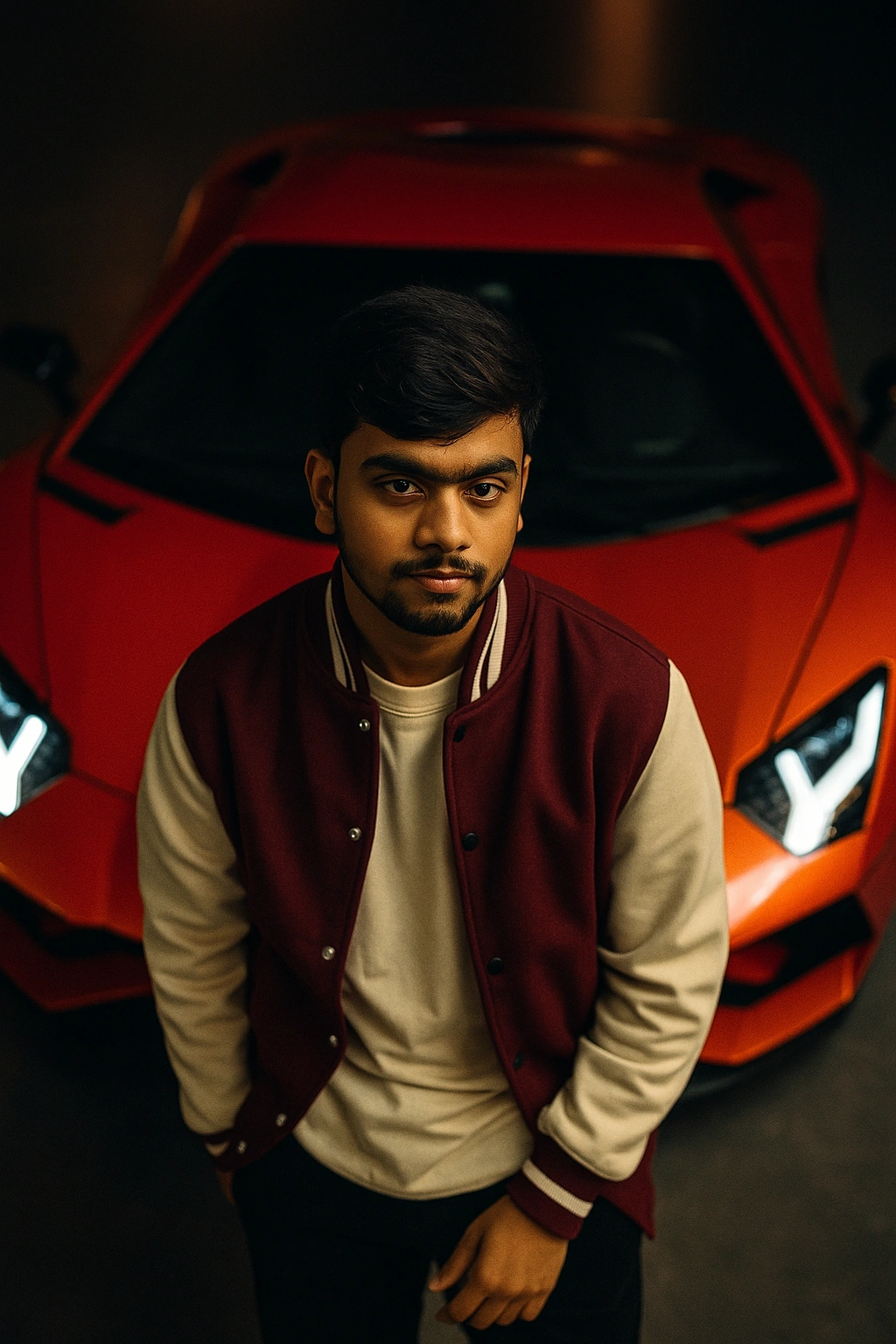
High-end editorial portrait retouch with natural texture and premium lighting.
An aerial cinematic shot of A young man [With the same face as uploded image] leaning coolly on the hood of a red Lamborghini Aventador on a luxury car studio, wearing a oversized premium off white T-shirt underneath a maroon color varsity jacket. I Moody lighting, Photorealistic, shallow depth of field, soft warm lighting, high-resolution DSLR quality, Hasselblad X2D 100C, cinematic tone, shallow depth of field, sharply focused on me. 4:5 aspect ratio.
An aerial cinematic shot of A young man
[With the same face as uploded image]
leaning coolly on the hood of a red
Lamborghini Aventador on a luxury car studio,
wearing a oversized premium off white T-shirt
underneath a maroon color varsity jacket. I
Moody lighting, Photorealistic, shallow depth
of field, soft warm lighting, high-resolution
DSLR quality, Hasselblad X2D 100C,
cinematic tone, shallow depth of field, sharply
focused on me. 4:5 aspect ratio.
Recommended Tech Stack: Adobe Photoshop (Generative Fill / Firefly), Midjourney v6 (Vary Region / Inpainting), Lightroom, Magnific AI, and Topaz Photo AI. Choose tools according to the edit required; not every tool is needed for every image.
Quick Implementation Guide:
- Open the source image and select the target area or subject in your editor or generative tool.
- Apply this prompt for luxury portrait cinematic shot (magazine), specifying the intended lighting, texture, object, or color changes while stating which details must remain unchanged.
- Blend the result with the original using masks and adjustment layers; refine edges, tonal curves, and color balance, then inspect the image at full size.
Real-World Use Case Example: Creating a consistent visual look across a social campaign, editorial series, or photo collection.
12. Netflix Cinematic Color Grade
COLOR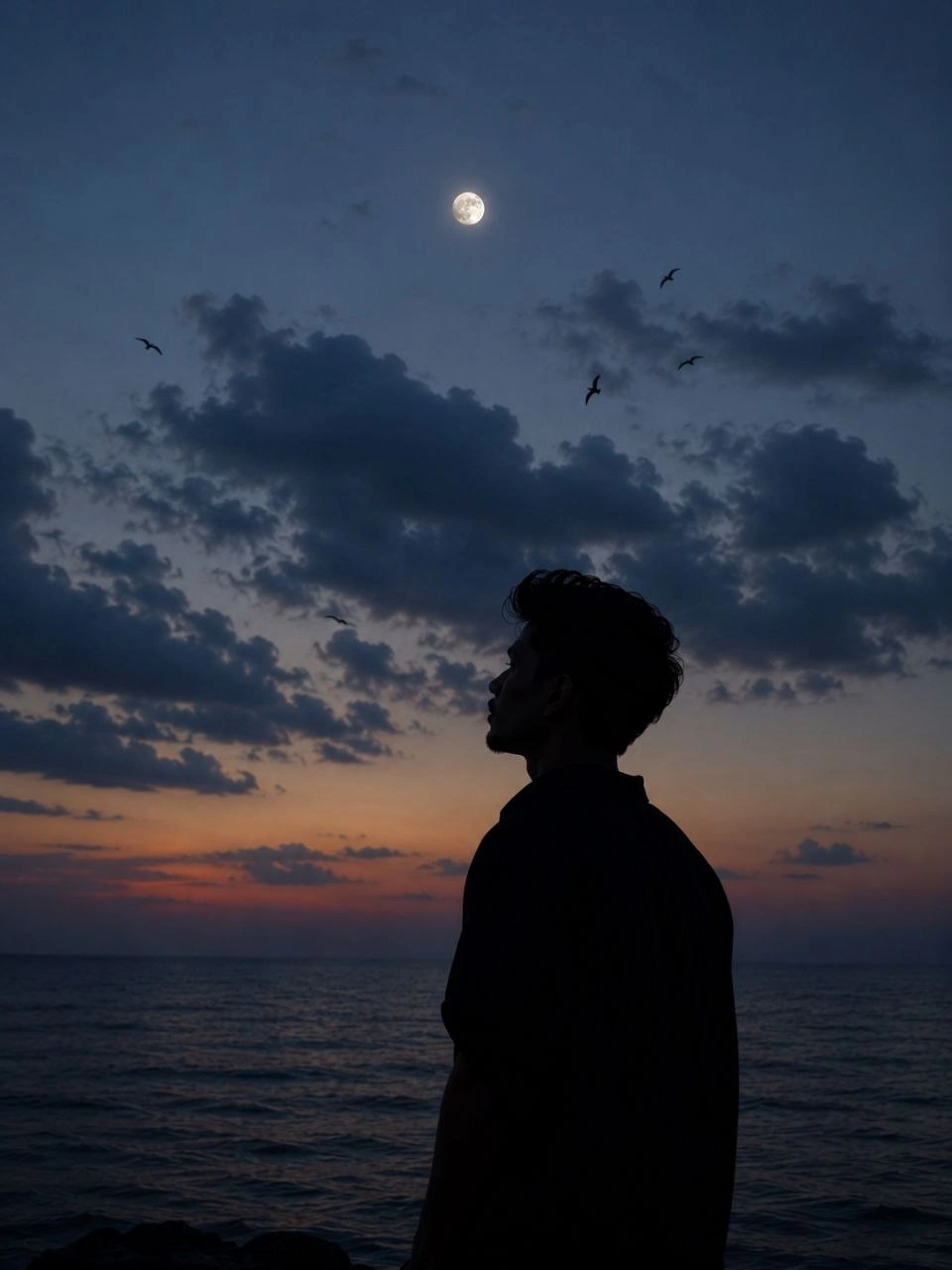
Modern cinematic grade with deep shadows, clean highlights, and filmic contrast.
Create an ultra-realistic cinematic twilight portrait of a young man standing alone by the sea, captured in a vertical 4:5 composition. The subject is positioned slightly right of center, shown in a clean left-side profile, facing toward the glowing moon in the sky.
Create an ultra-realistic cinematic twilight portrait of a young man standing alone by the sea, captured in a vertical 4:5 composition. The subject is positioned slightly right of center, shown in a clean left-side profile, facing toward the glowing moon in the sky. His entire body appears as a deep black silhouette with no visible facial details except for the recognizable outline of his features.
Hairstyle: quiff-style tousled mid-length black hair with naturally messy strands lifting slightly in the breeze, creating a soft, textured silhouette.
Facial Hair: light, neatly groomed mustache visible only through the side-profile outline.
Body: slim build, relaxed posture, hands resting naturally by the sides.
He wears a dark oversized collared shirt with the collar slightly raised, blending into the silhouette. The ocean stretches across the lower portion of the frame with calm water and barely visible ripples fading into darkness.
Above him is a vast deep navy-blue dusk sky transitioning into muted blue-gray tones. A bright nearly full moon sits high above the subject, almost perfectly centered horizontally. Massive soft cumulus clouds dominate the middle of the sky, illuminated by faint moonlight, creating dramatic atmospheric depth.
Several distant birds fly across the sky at different heights as tiny black silhouettes, adding motion and a peaceful cinematic mood. The horizon glows subtly with a faint warm lavender and orange twilight gradient before fading into dark blue.
Lighting: natural moonlight only, low-light exposure, high dynamic range, realistic atmospheric haze, soft cloud illumination, subtle film grain, deep shadows, moody contrast.
Color Palette: midnight blue, navy, charcoal black, muted gray, soft lavender, faint warm orange, cool moonlight tones.
Camera & Composition: eye-level perspective, 50mm lens, shallow atmospheric depth, portrait orientation (4:5), subject occupying the lower-right third, large negative space above, moon aligned near the upper center, clouds filling most of the background, ocean at the bottom.
Style: ultra-photorealistic, cinematic, melancholic, minimalist, dreamy, peaceful, premium editorial photography, natural sky colors, authentic cloud textures, realistic bird silhouettes, subtle analog film grain, HDR, 8K, masterpiece quality.
Negative Prompt: no city lights, no buildings, no mountains, no extra people, no boats, no text, no logos, no artificial lighting, no fantasy elements, no exaggerated moon size, no glowing outline, no cartoon effect, no oversaturated colors, no blur on subject, no facial distortion, no AI artifacts.
Recommended Tech Stack: Adobe Photoshop (Generative Fill / Firefly), Midjourney v6 (Vary Region / Inpainting), Lightroom, Magnific AI, and Topaz Photo AI. Choose tools according to the edit required; not every tool is needed for every image.
Quick Implementation Guide:
- Open the source image and select the target area or subject in your editor or generative tool.
- Apply this prompt for netflix cinematic color grade, specifying the intended lighting, texture, object, or color changes while stating which details must remain unchanged.
- Blend the result with the original using masks and adjustment layers; refine edges, tonal curves, and color balance, then inspect the image at full size.
Real-World Use Case Example: Creating a consistent visual look across a social campaign, editorial series, or photo collection.
13. Golden Hour Background Replacement
BACKGROUND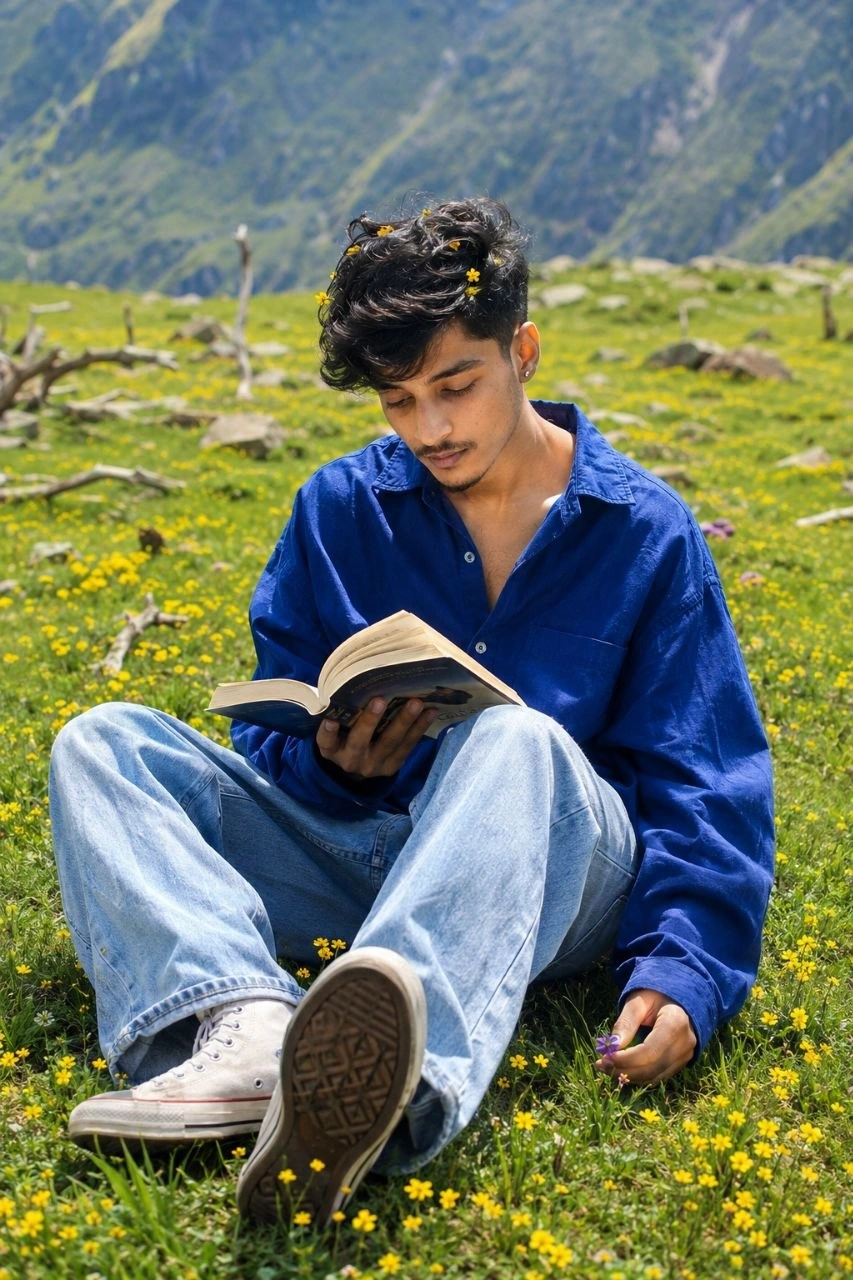
Swap background to golden hour outdoor scene with realistic lighting match.
Ultra-realistic cinematic outdoor portrait of a young South Asian teenage boy sitting alone peacefully in a massive green alpine meadow during bright sunny daytime in the Himalayas.
Ultra-realistic cinematic outdoor portrait of a young South Asian teenage boy sitting alone peacefully in a massive green alpine meadow during bright sunny daytime in the Himalayas. Natural candid DSLR photography with dreamy poetic aesthetic and realistic outdoor atmosphere. The boy has thick fluffy messy black hair with natural soft volume and side-swept curls partially covering the forehead. Tiny yellow wildflowers are tucked naturally throughout the hair creating a dreamy artistic aesthetic. Warm medium-fair glowing skin, soft sharp jawline, faint stubble beard, thin mustache, smooth youthful masculine features, naturally pink lips, and tiny silver stud earrings in both ears. His face is tilted downward with a soft shy smile while looking toward the open book in his hands, creating a calm peaceful emotional vibe.
2/2
Pose & Composition:
Relaxed seated pose directly on the grassy meadow with both knees bent upward naturally. One leg slightly extended toward the camera showing the textured rubber sole of an off-white Converse-style sneaker in foreground perspective. Upper body leaning slightly forward naturally. Right hand gently holding an open paperback book near the knees while left hand loosely holding tiny purple wildflowers close to the grass. Head tilted downward shyly with natural candid body language. Vertical full-body composition from slightly elevated eye-level angle with centered framing and soft natural proportions.
Outfit Details:
Oversized royal-blue cotton/linen button-up shirt with extremely loose relaxed fit and realistic fabric folds. Shirt slightly unbuttoned at the top exposing subtle neckline and chest naturally. Long oversized sleeves extending loosely over wrists with soft wrinkled fabric texture. Light-wash faded baggy wide-leg denim jeans with oversized aesthetic fit and visible soft denim texture. Off-white Converse-style high-top sneakers with visible white laces, realistic rubber toe caps, textured worn sole details, and soft sunlight reflections.
Environment & Background:
Huge open Himalayan meadow completely covered with vibrant green grass and countless tiny yellow flowers scattered naturally throughout the field. Dry tree branches and tiny scattered rocks lying randomly across the meadow. Blurred distant mountain stones and soft natural hill textures. visible in the far background. Fresh spring/summer mountain atmosphere
with peaceful nature vibes. Lighting & Shadows:
Bright harsh midday mountain sunlight coming from upper left side creating strong realistic shadows beneath the legs, shoes, and clothing folds. Natural highlights on hair curls, skin, blue shirt, and flowers. Warm glowing skin tones with cinematic outdoor contrast and realistic sunlight exposure. Photography Style:
Ultra-realistic DSLR travel photography, candid Instagram aesthetic, cinematic color grading, 85mm lens look, shallow depth of field, creamy natural background blur, photorealistic skin texture, ultra-detailed hair strands, realistic clothing wrinkles, HDR quality, sharp focus on subject, vibrant green-and-blue color palette, editorial fashion-meets-travel portrait style, soft grain, authentic proportions, natural candid framing, 4K ultra HD realism.
Recommended Tech Stack: Adobe Photoshop (Generative Fill / Firefly), Midjourney v6 (Vary Region / Inpainting), Lightroom, Magnific AI, and Topaz Photo AI. Choose tools according to the edit required; not every tool is needed for every image.
Quick Implementation Guide:
- Open the source image and select the target area or subject in your editor or generative tool.
- Apply this prompt for golden hour background replacement, specifying the intended lighting, texture, object, or color changes while stating which details must remain unchanged.
- Blend the result with the original using masks and adjustment layers; refine edges, tonal curves, and color balance, then inspect the image at full size.
Real-World Use Case Example: Cleaning up travel, event, or campaign photos while keeping subject edges, perspective, and lighting believable.
14. Male Portrait (GQ Sharp Look)
PORTRAIT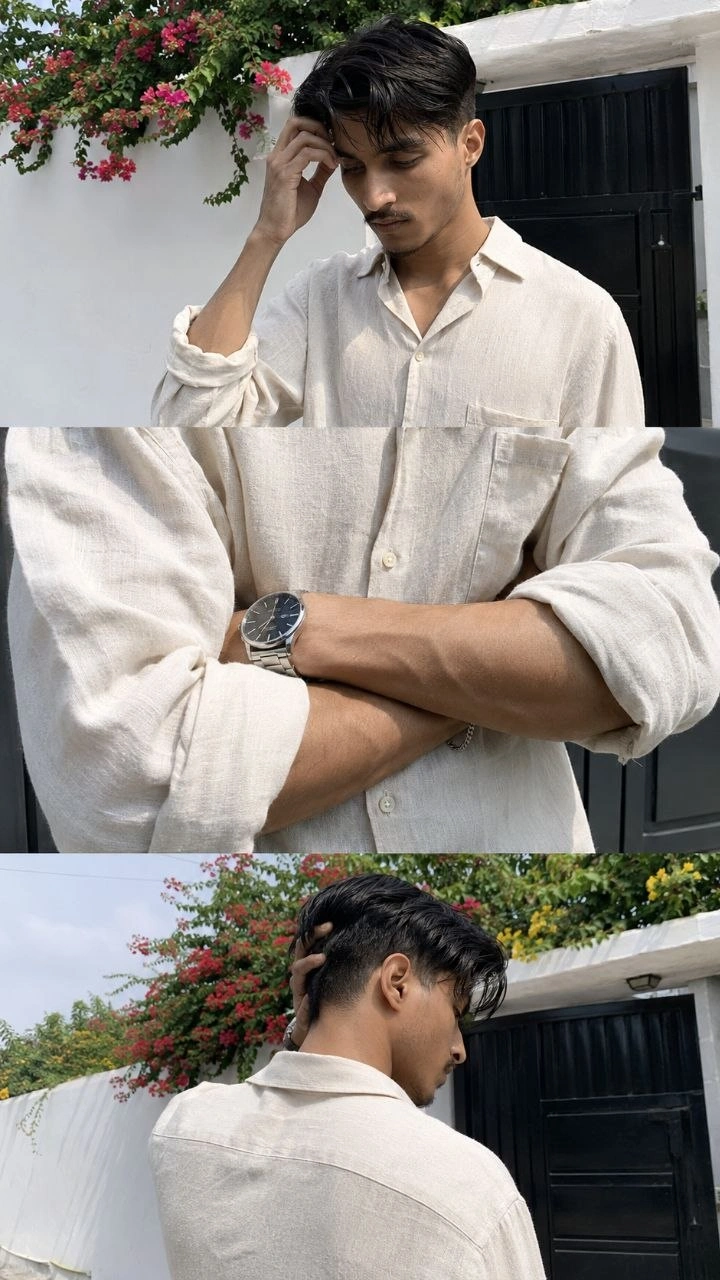
GQ-style male portrait enhancement with sharp details and controlled contrast.
Use my uploaded image as reference for the same person, same facial features and skin tone. Ultra-realistic iPhone 15 Pro Max 3-frame collage (vertical stack), candid shots taken seconds apart.
Use my uploaded image as reference for the same person, same facial features and skin tone. Ultra-realistic iPhone 15 Pro Max 3-frame collage (vertical stack), candid shots taken seconds apart. Same person, same outfit, same location. background: Pure white outdoor boundary wall and a dark gate. Red and yellow climbing flowers on the wall. Top frame: upper body shot, subject slightly turned sideways, head tilted down with one hand touching forehead, natural thoughtful expression, messy medium-length hair falling forward.
Middle frame: tight crop of forearms crossed in front, focus on viens, wristwatch and bracelet, visible shirt wrinkles, real skin texture and veins, no face. Bottom frame: back/side angle of subject near the same wall and gate, one hand raised to the back of head, relaxed posture, head slightly down, part of jawline/side profile still visible (face not fully hidden).
Outfit: relaxed fit off-white linen button down shirt with sleeves rolled to forearms, minimal accessories including a premium wristwatch and metal bracelet.
Lighting: natural daylight with slightly harsh highlights and uneven shadows from one side, realistic exposure.
Shot handheld on smartphone with slight tilt, imperfect framing, mild grain, natural colors. No filters, no cinematic grading, raw candid realistic phone photography. ar 9:16
Recommended Tech Stack: Adobe Photoshop (Generative Fill / Firefly), Midjourney v6 (Vary Region / Inpainting), Lightroom, Magnific AI, and Topaz Photo AI. Choose tools according to the edit required; not every tool is needed for every image.
Quick Implementation Guide:
- Open the source image and select the target area or subject in your editor or generative tool.
- Apply this prompt for male portrait (gq sharp look), specifying the intended lighting, texture, object, or color changes while stating which details must remain unchanged.
- Blend the result with the original using masks and adjustment layers; refine edges, tonal curves, and color balance, then inspect the image at full size.
Real-World Use Case Example: Retouching studio portraits, professional headshots, wedding photographs, or creator profile images while preserving natural identity and skin texture.
15. Vintage Film Look (Kodak Portra)
COLOR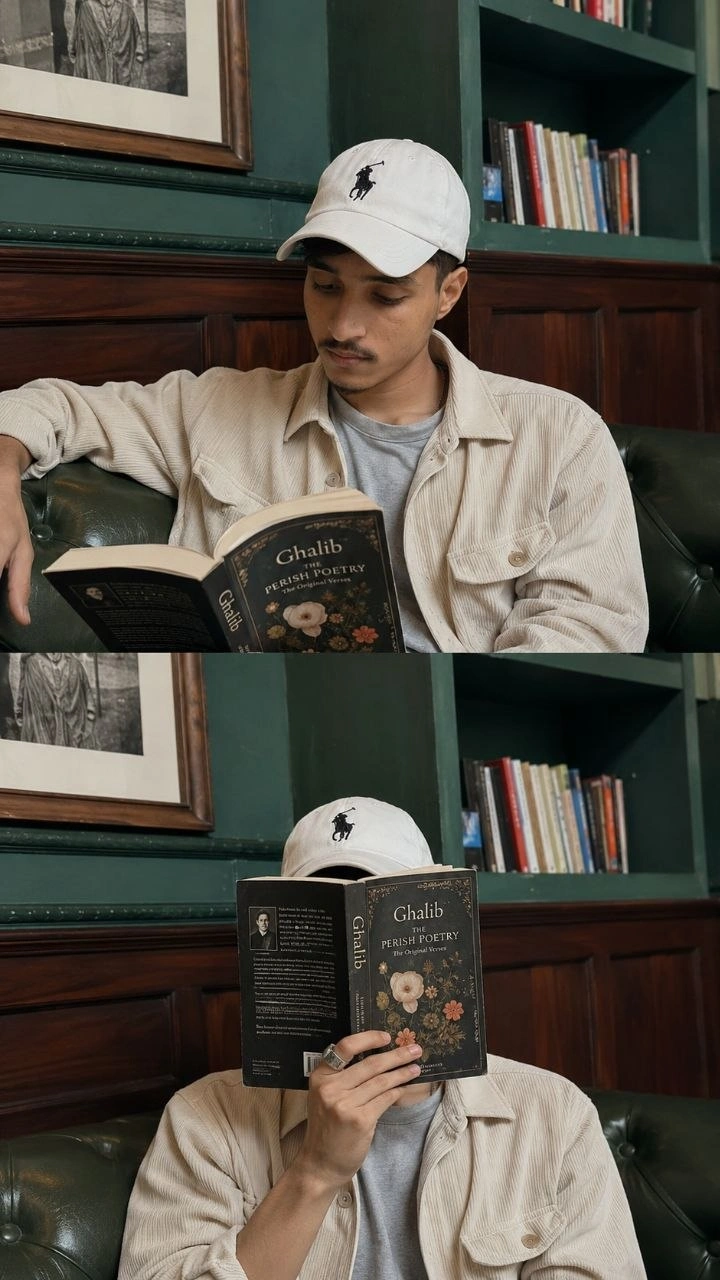
Classic film emulation with soft contrast, warm highlights, and analog grain.
Create Ultra-realistic cinematic Instagram lifestyle collage of a young South Asian man relaxing inside a cozy aesthetic cafe/library corner with teal-green interiors and vintage wooden paneling. Natural candid smartphone photography aesthetic with soft daylight, realistic skin texture, calm intellectual vibe, and minimal moody color grading. Vertical 2-frame collage composition inspired by modern Instagram story/reel screenshots.
Create Ultra-realistic cinematic
Instagram lifestyle collage of a young South Asian man relaxing inside a cozy aesthetic cafe/library corner with teal-green interiors and vintage wooden paneling. Natural candid smartphone photography aesthetic with soft daylight, realistic skin texture, calm intellectual vibe, and minimal moody color grading. Vertical 2-frame collage composition inspired by modern Instagram story/reel screenshots.
Subject Appearance: Young South Asian man with slim face structure, medium-fair warm skin tone, soft jawline, light mustache and faint beard, natural black hair partially hidden uwhite baseball cap with black embroidered logo. Calm thoughtful expression with relaxed body language.
Natural candid masculine aesthetic.
Outfit: Oversized cream/beige corduroy overshirt with loose relaxed fit and large sleeves, light grey inner t-shirt, minimal casual styling. White baseball cap with black logo embroidery. Silver ring on finger.
Scene & Environment:Indoor cafe/lounge with aesthetic teal-green bookshelves in background filled with scattered books. Dark polished wooden wall paneling below shelves. Green cushioned leather seating sofa. Textured vintage-style walls with framed black-and-white artwork partially visible. Cozy intellectual cafe atmosphere with calm
reading aesthetic. Frame 1 (Top Frame):
The young man is sitting casually in a relaxed sideways pose on the green sofa. Left arm stretched naturally across the backrest while reading an open poetry book carefully in his hands. Head slightly tilted downward toward the book. Natural candid reading moment. Soft daylight entering from side creating smooth shadows and realistic highlights.
Calm poetic mood.
Frame 2 (Bottom Frame): The young man sits facing the camera while hiding his face completely behind the same poetry book. Book cover visible with vintage floral design and "Ghalib" title aesthetic. One hand holding the book vertically in front of face. Relaxed minimalist pose with artistic introvert vibe.
Photography Style: Ultra-realistic DSLR + smartphone hybrid photography, Instagram aesthetic, natural ambient lighting, realistic proportions, shallow depth of field...
Recommended Tech Stack: Adobe Photoshop (Generative Fill / Firefly), Midjourney v6 (Vary Region / Inpainting), Lightroom, Magnific AI, and Topaz Photo AI. Choose tools according to the edit required; not every tool is needed for every image.
Quick Implementation Guide:
- Open the source image and select the target area or subject in your editor or generative tool.
- Apply this prompt for vintage film look (kodak portra), specifying the intended lighting, texture, object, or color changes while stating which details must remain unchanged.
- Blend the result with the original using masks and adjustment layers; refine edges, tonal curves, and color balance, then inspect the image at full size.
Real-World Use Case Example: Creating a consistent visual look across a social campaign, editorial series, or photo collection.
16. Clean Product Photo (Studio)
PRODUCT
Make ecommerce product photos clean, bright, and professional with soft shadows.
Enhance this product photo for ecommerce: pure clean background, soft studio lighting, remove noise, sharpen product edges, accurate colors, realistic shadow under product, improve contrast without over-saturation, remove reflections/glare, and export a crisp high-resolution product image.
Enhance this product photo for ecommerce: pure clean background, soft studio lighting, remove noise, sharpen product edges, accurate colors, realistic shadow under product, improve contrast without over-saturation, remove reflections/glare, and export a crisp high-resolution product image.
Recommended Tech Stack: Adobe Photoshop (Generative Fill / Firefly), Midjourney v6 (Vary Region / Inpainting), Lightroom, Magnific AI, and Topaz Photo AI. Choose tools according to the edit required; not every tool is needed for every image.
Quick Implementation Guide:
- Open the source image and select the target area or subject in your editor or generative tool.
- Apply this prompt for clean product photo (studio), specifying the intended lighting, texture, object, or color changes while stating which details must remain unchanged.
- Blend the result with the original using masks and adjustment layers; refine edges, tonal curves, and color balance, then inspect the image at full size.
Real-World Use Case Example: Preparing consistent e-commerce catalog images, paid-ad creatives, or premium product listings.
17. Studio Background (Soft Gradient)
BACKGROUND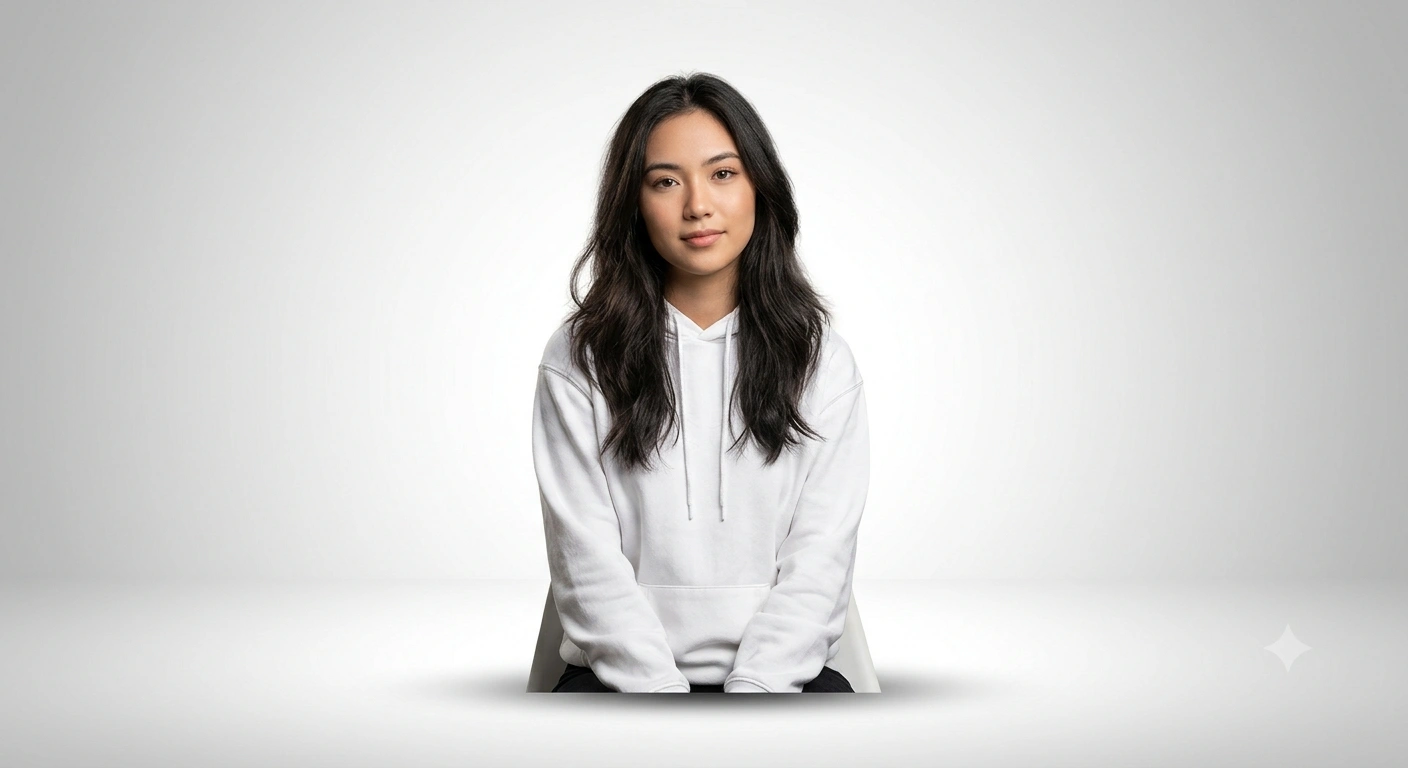
Replace background with a clean studio gradient and realistic shadow match.
Remove the background and replace it with a clean studio gradient: soft gray-to-white fade, realistic shadow under subject, perfect edge detection without halos, subtle light wrap around edges, correct color matching, and professional studio photography look.
Remove the background and replace it with a clean studio gradient: soft gray-to-white fade, realistic shadow under subject, perfect edge detection without halos, subtle light wrap around edges, correct color matching, and professional studio photography look.
Recommended Tech Stack: Adobe Photoshop (Generative Fill / Firefly), Midjourney v6 (Vary Region / Inpainting), Lightroom, Magnific AI, and Topaz Photo AI. Choose tools according to the edit required; not every tool is needed for every image.
Quick Implementation Guide:
- Open the source image and select the target area or subject in your editor or generative tool.
- Apply this prompt for studio background (soft gradient), specifying the intended lighting, texture, object, or color changes while stating which details must remain unchanged.
- Blend the result with the original using masks and adjustment layers; refine edges, tonal curves, and color balance, then inspect the image at full size.
Real-World Use Case Example: Cleaning up travel, event, or campaign photos while keeping subject edges, perspective, and lighting believable.
18. Amazon Listing Photo Upgrade
PRODUCT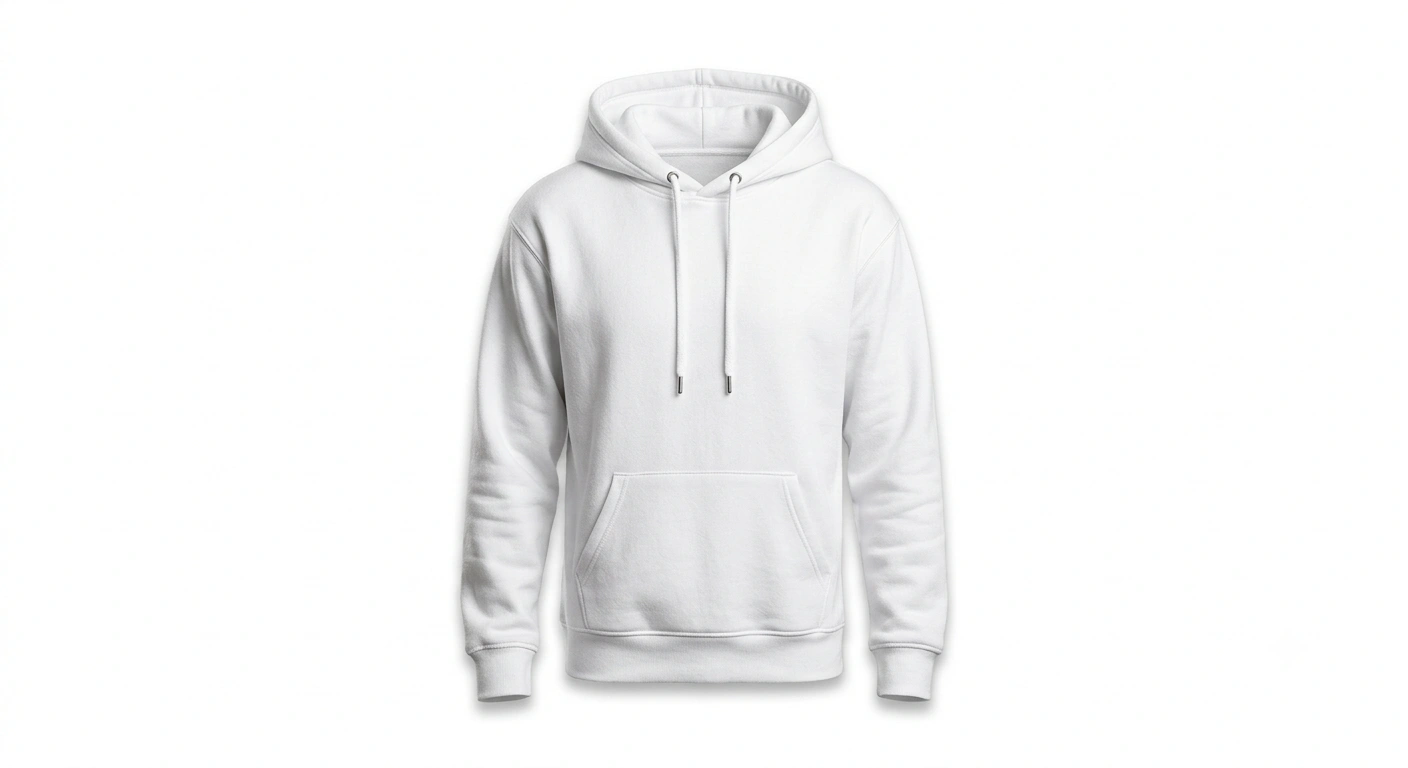
Make product photos Amazon-ready with accurate color, sharpness, and clean background.
Enhance this product image for Amazon listing: pure white background, accurate color correction, remove noise, sharpen product edges, improve lighting evenly, remove harsh reflections, add a soft realistic shadow, keep product proportions correct, and export in high resolution for ecommerce.
Enhance this product image for Amazon listing: pure white background, accurate color correction, remove noise, sharpen product edges, improve lighting evenly, remove harsh reflections, add a soft realistic shadow, keep product proportions correct, and export in high resolution for ecommerce.
Recommended Tech Stack: Adobe Photoshop (Generative Fill / Firefly), Midjourney v6 (Vary Region / Inpainting), Lightroom, Magnific AI, and Topaz Photo AI. Choose tools according to the edit required; not every tool is needed for every image.
Quick Implementation Guide:
- Open the source image and select the target area or subject in your editor or generative tool.
- Apply this prompt for amazon listing photo upgrade, specifying the intended lighting, texture, object, or color changes while stating which details must remain unchanged.
- Blend the result with the original using masks and adjustment layers; refine edges, tonal curves, and color balance, then inspect the image at full size.
Real-World Use Case Example: Preparing consistent e-commerce catalog images, paid-ad creatives, or premium product listings.
19. LinkedIn Headshot Professional
PORTRAIT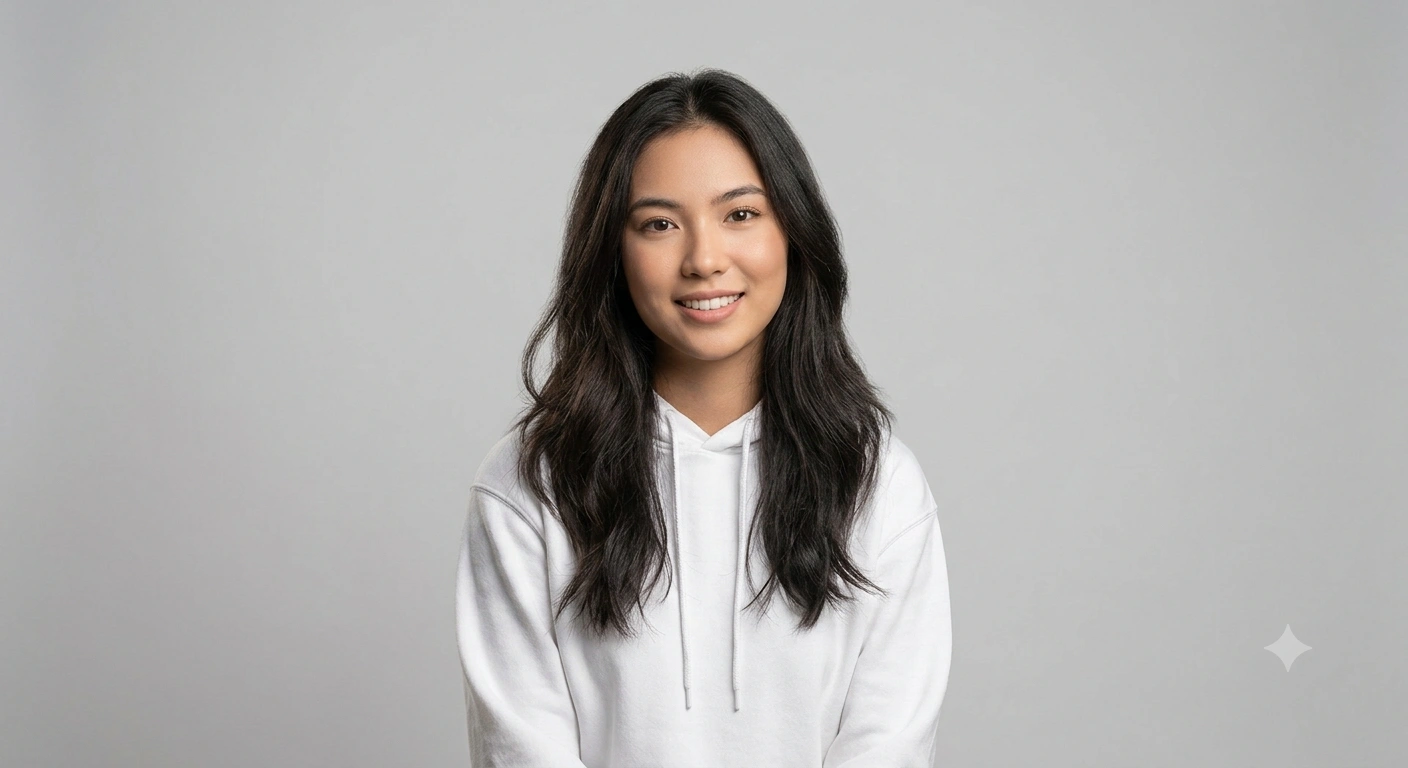
Corporate headshot with clean tones, sharp eyes, and professional background.
Turn this photo into a professional LinkedIn headshot: clean neutral background, natural skin retouch (preserve texture), sharpen eyes and eyebrows, reduce under-eye shadows, fix lighting evenly, remove distractions, correct white balance, add subtle depth of field, and export crisp high resolution.
Turn this photo into a professional LinkedIn headshot: clean neutral background, natural skin retouch (preserve texture), sharpen eyes and eyebrows, reduce under-eye shadows, fix lighting evenly, remove distractions, correct white balance, add subtle depth of field, and export crisp high resolution.
Recommended Tech Stack: Adobe Photoshop (Generative Fill / Firefly), Midjourney v6 (Vary Region / Inpainting), Lightroom, Magnific AI, and Topaz Photo AI. Choose tools according to the edit required; not every tool is needed for every image.
Quick Implementation Guide:
- Open the source image and select the target area or subject in your editor or generative tool.
- Apply this prompt for linkedin headshot professional, specifying the intended lighting, texture, object, or color changes while stating which details must remain unchanged.
- Blend the result with the original using masks and adjustment layers; refine edges, tonal curves, and color balance, then inspect the image at full size.
Real-World Use Case Example: Retouching studio portraits, professional headshots, wedding photographs, or creator profile images while preserving natural identity and skin texture.
20. Teal & Orange Cinematic Grade
COLOR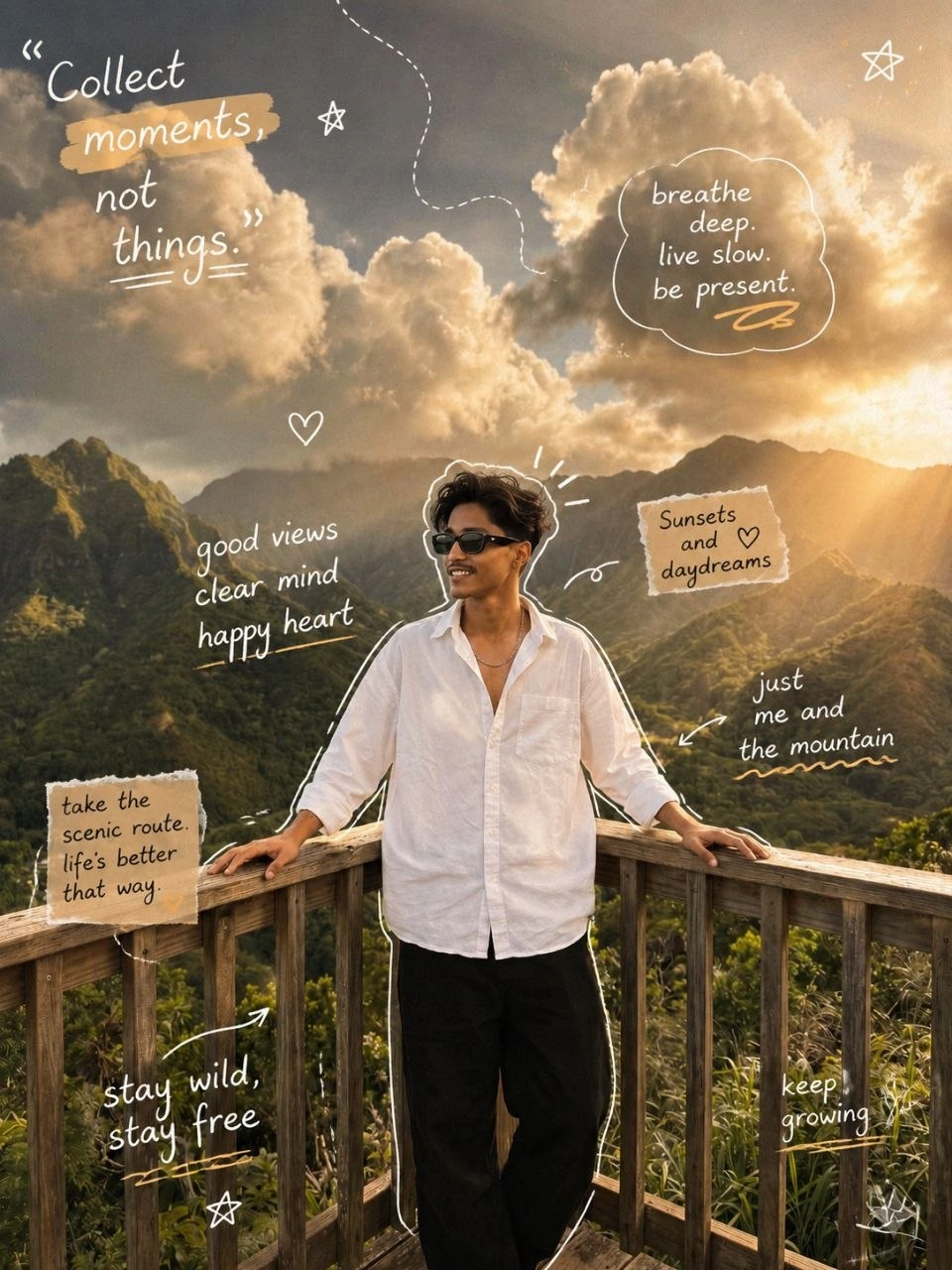
Classic blockbuster grade with teal shadows and warm highlights.
create a cozy aesthetic photo with warm lighting, soft shadows, and a calm lifestyle vibe.
Acreate a cozy aesthetic photo with warm lighting, soft shadows, and a calm lifestyle vibe.
add handwritten-style doodles and some quotes related to image and add outlines to it to make it more attractive with some arrows and scribble.
Recommended Tech Stack: Adobe Photoshop (Generative Fill / Firefly), Midjourney v6 (Vary Region / Inpainting), Lightroom, Magnific AI, and Topaz Photo AI. Choose tools according to the edit required; not every tool is needed for every image.
Quick Implementation Guide:
- Open the source image and select the target area or subject in your editor or generative tool.
- Apply this prompt for teal & orange cinematic grade, specifying the intended lighting, texture, object, or color changes while stating which details must remain unchanged.
- Blend the result with the original using masks and adjustment layers; refine edges, tonal curves, and color balance, then inspect the image at full size.
Real-World Use Case Example: Creating a consistent visual look across a social campaign, editorial series, or photo collection.
21. Soft Beauty Glow Retouch
PORTRAIT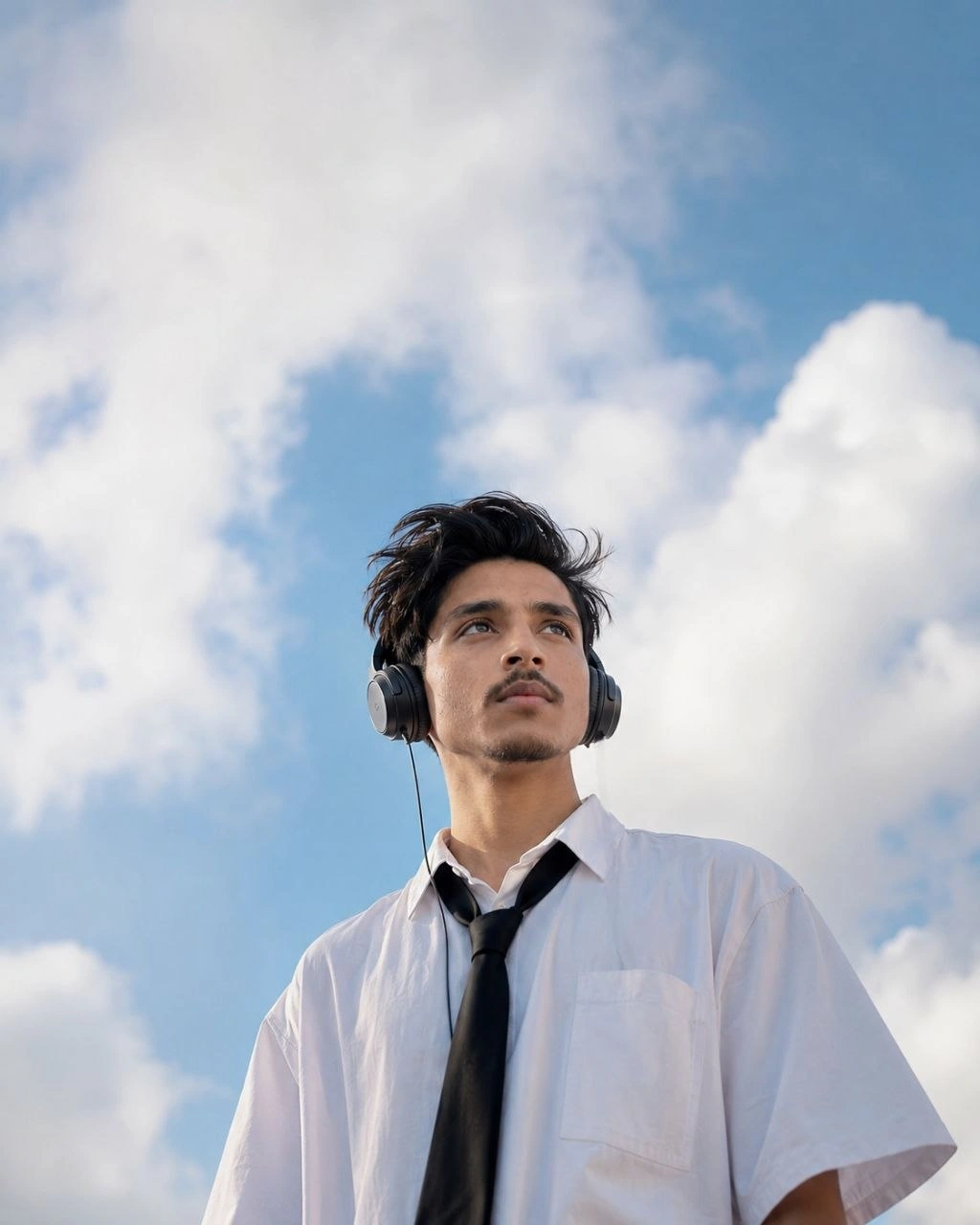
Soft beauty glow with clean makeup finish and smooth premium lighting.
Use my uploaded face as the exact identity reference.
Create a cinematic dreamy portrait of me standing outdoors under a massive bright blue sky filled with large fluffy white clouds.
Use my uploaded face as the exact identity reference.
Create a cinematic dreamy portrait of me standing outdoors under a massive bright blue sky filled with large fluffy white clouds.
I am wearing an oversized white short-sleeve shirt with a loose black tie.
Large wired headphones cover my ears.
Quiff-style tousled mid-length black natural hair blowing slightly in the wind.
I am gazing upward toward the clouds with a peaceful expression.
Soft summer daylight.
Low-angle photography.
Huge sky occupying most of the frame.
Natural skin texture.
Korean editorial photography style.
Dreamlike atmosphere.
Shallow depth of field.
Soft highlights.
Ultra realistic.
Professional fashion photography.
Calm emotional mood.
No text.
No watermark.
8k quality.
Recommended Tech Stack: Adobe Photoshop (Generative Fill / Firefly), Midjourney v6 (Vary Region / Inpainting), Lightroom, Magnific AI, and Topaz Photo AI. Choose tools according to the edit required; not every tool is needed for every image.
Quick Implementation Guide:
- Open the source image and select the target area or subject in your editor or generative tool.
- Apply this prompt for soft beauty glow retouch, specifying the intended lighting, texture, object, or color changes while stating which details must remain unchanged.
- Blend the result with the original using masks and adjustment layers; refine edges, tonal curves, and color balance, then inspect the image at full size.
Real-World Use Case Example: Retouching studio portraits, professional headshots, wedding photographs, or creator profile images while preserving natural identity and skin texture.
22. Remove People from Background (Clean)
BACKGROUND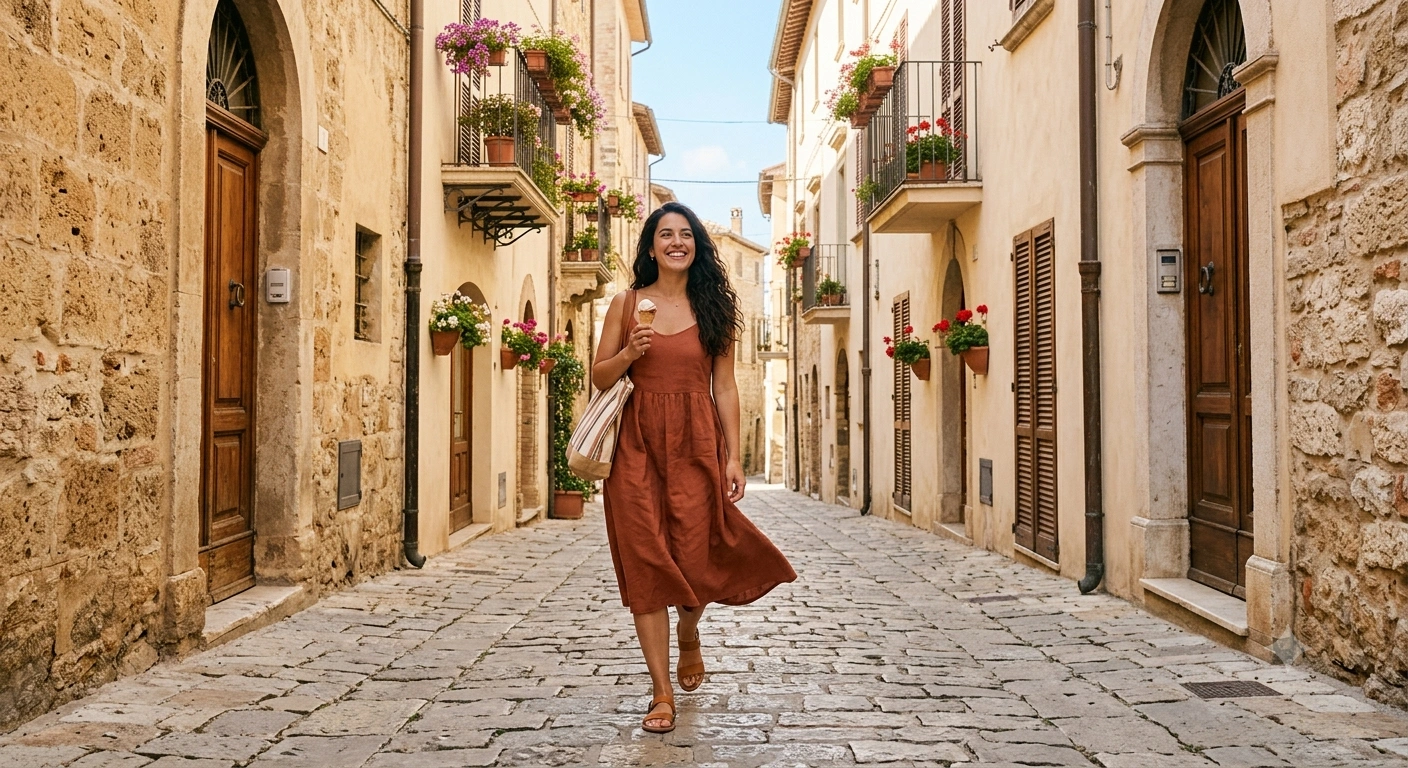
Remove unwanted people/objects and fill background naturally with realism.
Remove all unwanted people and objects from the background: keep the main subject untouched, reconstruct missing background realistically, match lighting and perspective, avoid blur artifacts, keep edges clean, and make the final image look naturally captured.
Remove every unwanted person, pedestrian, tourist, vehicle, animal, object, sign, pole, wire, trash, shadow, reflection, distraction, photobomber, and background clutter while preserving the main subject exactly as it is. Do not alter the subject's face, body, pose, clothing, hairstyle, skin tone, accessories, or expression.
Intelligently reconstruct the missing background using realistic generative inpainting that matches the surrounding environment, textures, architecture, landscape, flooring, vegetation, sky, and natural details. Ensure the reconstructed area blends seamlessly with neighboring pixels without repeating patterns or artificial textures.
Maintain perfect perspective, geometry, depth, scale, and scene composition. Match the original camera angle, focal length, lens characteristics, depth of field, and natural background separation.
Preserve accurate lighting direction, brightness, contrast, ambient light, highlights, shadows, reflections, and color temperature so every edited area appears naturally photographed rather than AI-generated.
Perform pixel-perfect edge detection around the subject, including complex areas such as hair strands, fur, transparent objects, glasses, jewelry, fingers, fabric edges, and fine details. Eliminate halos, jagged edges, masking errors, color bleeding, ghosting, and cut-out artifacts.
Ensure consistent image sharpness across the entire frame with no blur, smudging, over-smoothing, noise, compression artifacts, duplicated objects, warped structures, or unnatural textures. Restore realistic details where objects were removed.
Keep the original image resolution, realistic colors, skin tones, dynamic range, and photographic quality intact. Produce a clean, professional, ultra-realistic edit that looks completely authentic, with no visible signs of manipulation, making it appear as though the unwanted elements were never present in the original photograph.
Recommended Tech Stack: Adobe Photoshop (Generative Fill / Firefly), Midjourney v6 (Vary Region / Inpainting), Lightroom, Magnific AI, and Topaz Photo AI. Choose tools according to the edit required; not every tool is needed for every image.
Quick Implementation Guide:
- Open the source image and select the target area or subject in your editor or generative tool.
- Apply this prompt for remove people from background (clean), specifying the intended lighting, texture, object, or color changes while stating which details must remain unchanged.
- Blend the result with the original using masks and adjustment layers; refine edges, tonal curves, and color balance, then inspect the image at full size.
Real-World Use Case Example: Cleaning up travel, event, or campaign photos while keeping subject edges, perspective, and lighting believable.
23. High-End Perfume Product Shot
PRODUCT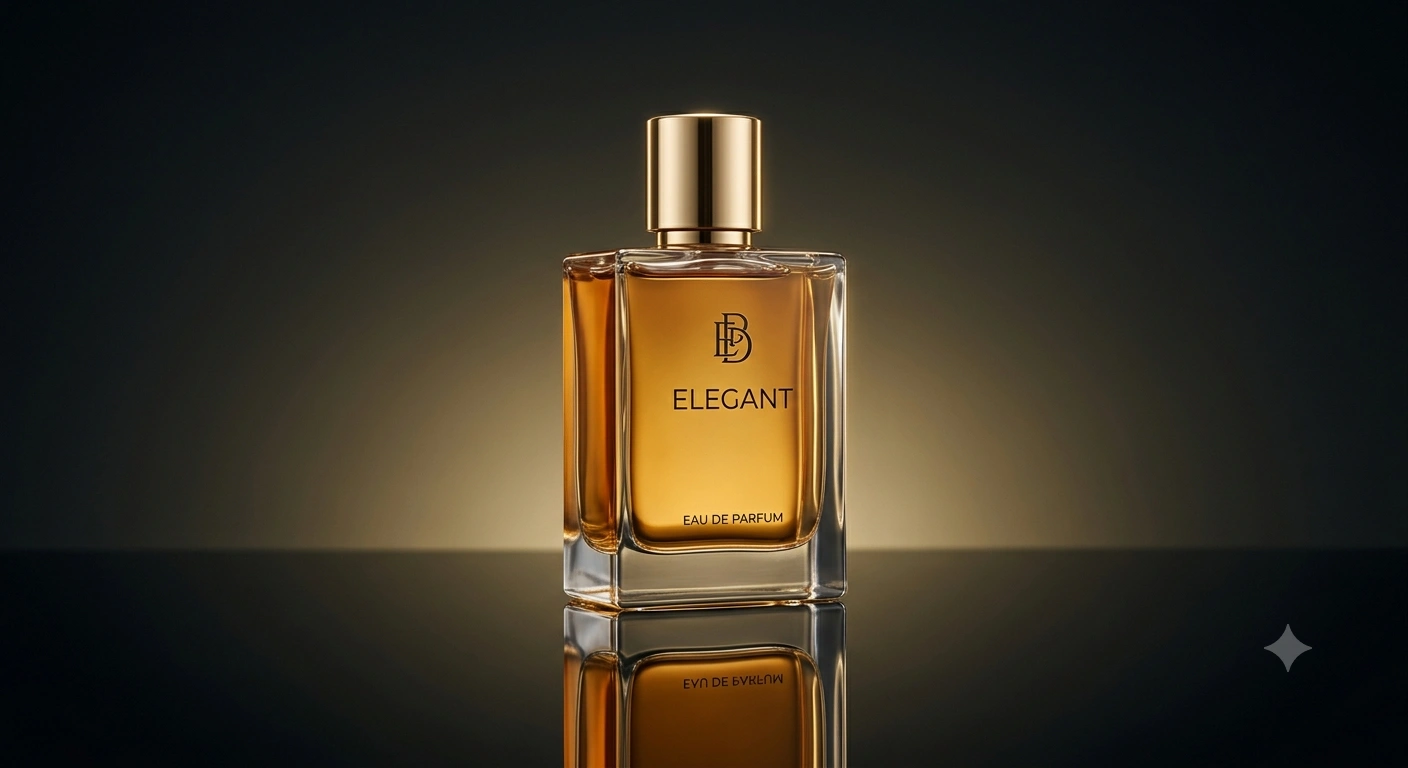
Luxury perfume photography look with reflections, soft shadows, and premium lighting.
Turn this product photo into a luxury perfume ad: clean reflective surface, soft studio light, controlled highlights, premium shadows, crisp edges, remove dust/scratches, increase micro-contrast, maintain true color, add subtle glow, and export in high resolution.
Transform this product photograph into a premium luxury perfume advertisement with a world-class commercial studio photography aesthetic. Preserve the perfume bottle's original shape, branding, logo, typography, proportions, glass transparency, liquid color, label details, and packaging without any distortion or modification.
Replace the existing background with a sophisticated luxury environment featuring a clean premium gradient, elegant dark or light backdrop, subtle reflections, and a high-end advertising atmosphere that enhances the product without distracting from it. Position the bottle on a flawless glossy reflective surface with realistic mirror reflections, natural contact shadows, and accurate light interaction.
Create professional multi-point studio lighting using a soft key light, balanced fill light, controlled rim lighting, and subtle backlighting to define the bottle's contours and premium materials. Produce smooth highlight transitions while preserving realistic glass reflections, metallic finishes, and transparent surfaces without clipping or overexposure.
Enhance image quality by removing every dust particle, fingerprint, scratch, smudge, sensor spot, stain, reflection artifact, unwanted glare, noise, compression artifact, and manufacturing imperfection while maintaining the product's authentic appearance.
Increase micro-contrast, local contrast, texture clarity, and fine detail to reveal premium glass quality, engraved text, embossed labels, metallic caps, crystal reflections, and packaging materials without creating oversharpening or halos.
Maintain perfectly accurate colors, white balance, exposure, brightness, contrast, saturation, black levels, and color temperature to preserve true-to-life product representation. Improve dynamic range while keeping every highlight and shadow natural and balanced.
Create crisp, pixel-perfect edge separation around the entire bottle, including transparent glass edges, reflective surfaces, curved contours, metallic caps, atomizers, and intricate packaging details. Eliminate halos, jagged masking, color fringing, ghosting, and cut-out artifacts.
Add a refined cinematic glow, subtle bloom around highlights, premium volumetric lighting, soft atmospheric depth, elegant light gradients, and luxurious reflections that elevate the visual appeal without looking artificial or overprocessed.
Maintain perfect perspective, optical realism, lens characteristics, depth of field, and proportional accuracy. Ensure reflections, shadows, and lighting remain physically consistent throughout the composition.
Deliver a clean, ultra-realistic, luxury commercial product advertisement suitable for international perfume brands, premium e-commerce listings, magazine covers, luxury billboards, social media campaigns, and high-end marketing materials. Export in ultra-high resolution (8K quality), with exceptional sharpness, professional color grading, flawless detail, and a polished advertising finish that looks indistinguishable from a high-budget commercial studio photoshoot.
Recommended Tech Stack: Adobe Photoshop (Generative Fill / Firefly), Midjourney v6 (Vary Region / Inpainting), Lightroom, Magnific AI, and Topaz Photo AI. Choose tools according to the edit required; not every tool is needed for every image.
Quick Implementation Guide:
- Open the source image and select the target area or subject in your editor or generative tool.
- Apply this prompt for high-end perfume product shot, specifying the intended lighting, texture, object, or color changes while stating which details must remain unchanged.
- Blend the result with the original using masks and adjustment layers; refine edges, tonal curves, and color balance, then inspect the image at full size.
Real-World Use Case Example: Preparing consistent e-commerce catalog images, paid-ad creatives, or premium product listings.
24. Moody Dark Cinematic Grade
COLOR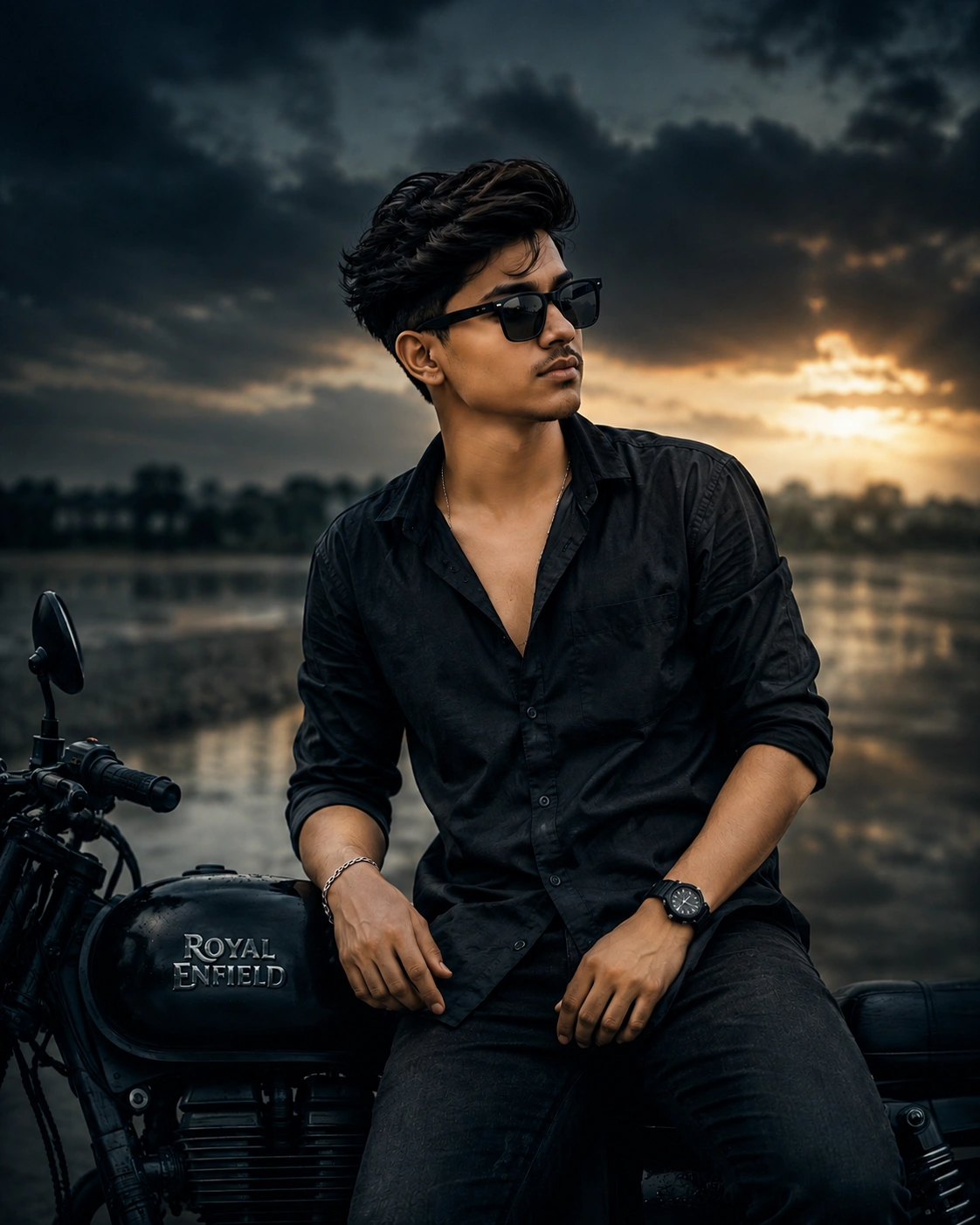
Dark moody film grade with deep shadows, controlled highlights, and clean tones.
Apply a dark moody cinematic grade: deep blacks, reduced saturation, cool shadows, soft highlight rolloff, increased subject clarity, subtle vignette, cinematic contrast curve, fine film grain, and maintain realistic skin tones without over-darkening.
Transform the image with a premium dark moody cinematic color grade inspired by high-end Hollywood films while preserving the original composition, subject identity, facial features, clothing, textures, and overall realism. Create a dramatic yet natural visual atmosphere without making the image appear artificially edited or excessively dark.
Apply deep, rich blacks with enhanced shadow depth while preserving subtle detail in dark areas. Introduce cool blue and teal tones into the shadows, balanced with slightly warm skin tones and controlled neutral midtones to create a sophisticated cinematic color separation. Reduce overall color saturation moderately while selectively preserving important colors such as skin tones, wardrobe, and key visual elements to maintain realism.
Create a smooth cinematic contrast curve with soft highlight roll-off that prevents clipping in bright areas while retaining realistic detail in clouds, reflective surfaces, hair, and skin. Increase local contrast and micro-contrast around the main subject to improve definition, texture, and visual impact without introducing halos, oversharpening, or unnatural edges.
Enhance subject clarity using intelligent sharpening focused on the eyes, facial features, hair, clothing textures, and important details while keeping the background slightly softer for natural depth separation. Maintain accurate depth of field and avoid artificial blur or excessive sharpening.
Introduce a subtle cinematic vignette that gently darkens the corners and naturally draws attention toward the subject without becoming noticeable or distracting. Add refined atmospheric depth through realistic light falloff and balanced tonal transitions.
Apply fine, organic film grain inspired by professional 35mm cinema film stock. The grain should be evenly distributed, subtle, and realistic, adding texture without increasing digital noise or reducing image quality. Avoid compression artifacts, color banding, or noisy shadows.
Maintain realistic skin tones with healthy color balance, natural luminance, and smooth tonal transitions. Prevent skin from becoming muddy, gray, orange, oversaturated, or overly dark. Preserve natural facial detail, pores, and texture without excessive smoothing or beauty retouching.
Ensure accurate white balance, exposure, brightness, and color temperature throughout the image. Preserve realistic reflections, ambient lighting, highlights, and shadow transitions while maintaining the original lighting direction and scene consistency.
Perform pixel-perfect edge refinement around the subject, including hair strands, clothing edges, glasses, jewelry, and intricate details. Eliminate halos, color fringing, masking artifacts, ghosting, oversharpening, and unnatural transitions.
Maintain full-resolution image quality with crisp details, smooth gradients, realistic dynamic range, and professional cinematic finishing. Produce an ultra-realistic, visually striking, Hollywood-style color grade suitable for movie posters, fashion editorials, luxury portraits, premium advertising campaigns, cinematic social media content, and high-end commercial photography, while ensuring the final image looks naturally photographed rather than AI-generated.
Recommended Tech Stack: Adobe Photoshop (Generative Fill / Firefly), Midjourney v6 (Vary Region / Inpainting), Lightroom, Magnific AI, and Topaz Photo AI. Choose tools according to the edit required; not every tool is needed for every image.
Quick Implementation Guide:
- Open the source image and select the target area or subject in your editor or generative tool.
- Apply this prompt for moody dark cinematic grade, specifying the intended lighting, texture, object, or color changes while stating which details must remain unchanged.
- Blend the result with the original using masks and adjustment layers; refine edges, tonal curves, and color balance, then inspect the image at full size.
Real-World Use Case Example: Creating a consistent visual look across a social campaign, editorial series, or photo collection.
25. Natural Skin Retouch (No Plastic)
PORTRAIT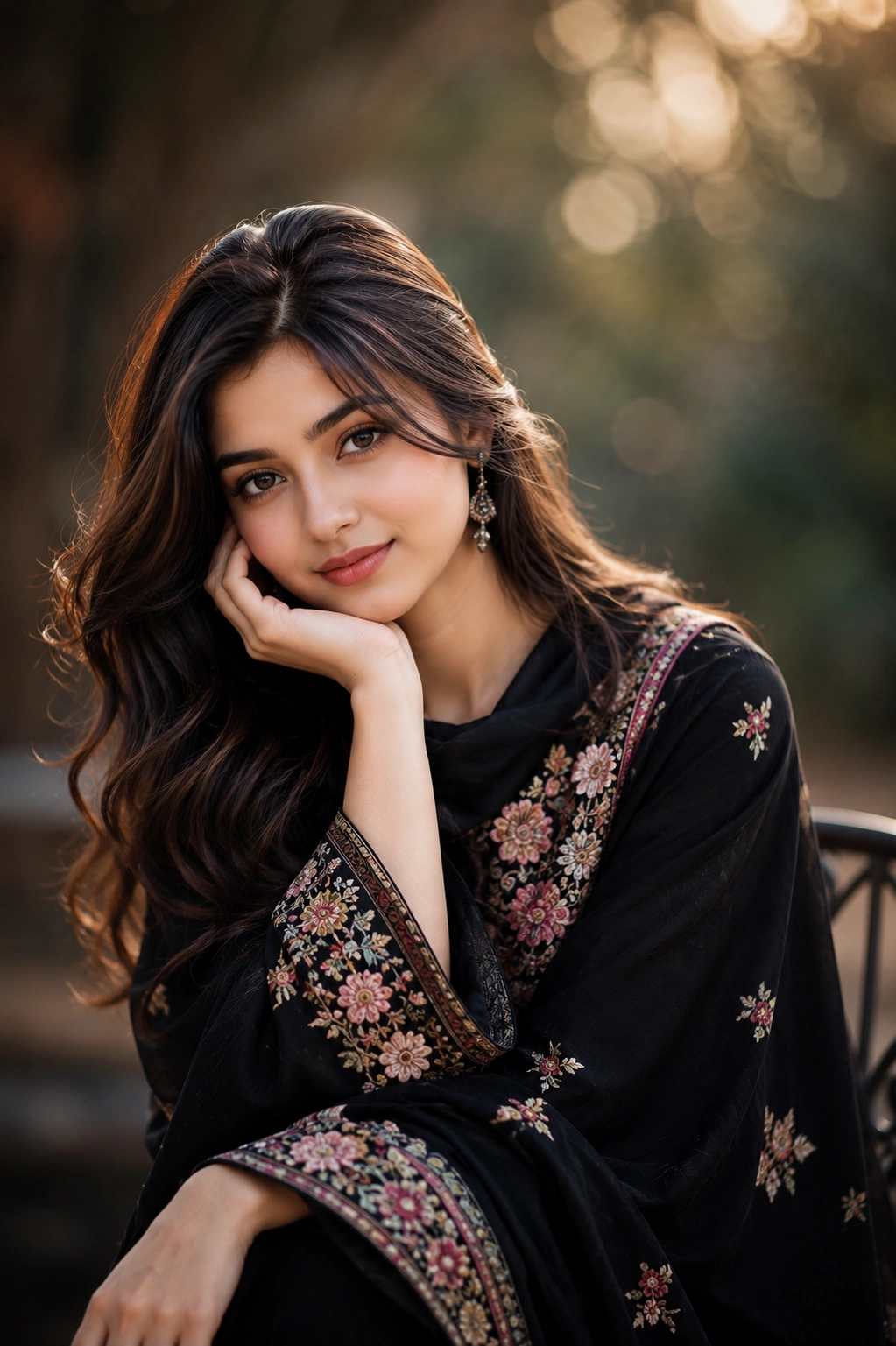
Natural skin cleanup while preserving pores and realistic facial details.
Retouch the skin naturally: remove blemishes and temporary marks, reduce redness, even out tone, keep pores and fine texture visible, avoid plastic skin, keep facial features unchanged, reduce shine, sharpen eyes slightly, and maintain realistic lighting.
Perform high-end professional beauty retouching while preserving the subject's natural identity, facial structure, proportions, expression, age, ethnicity, and unique characteristics. Do not alter the shape of the face, eyes, nose, lips, jawline, eyebrows, hairstyle, body proportions, or any permanent facial features. The goal is to create a flawless yet completely realistic portrait that looks professionally photographed and naturally retouched.
Remove temporary skin imperfections such as acne, pimples, blemishes, redness, irritation, razor bumps, minor scars, dark spots, under-eye puffiness, stray hairs, dust, lint, makeup fallout, temporary marks, and skin distractions while preserving permanent features such as freckles, moles, beauty marks, dimples, and other natural identifiers unless specifically requested otherwise.
Even out skin tone by reducing redness, blotchiness, uneven pigmentation, minor discoloration, and harsh color variations while maintaining healthy natural skin color and realistic tonal transitions. Preserve accurate white balance and skin undertones without creating gray, orange, pink, or oversaturated skin.
Retain authentic skin texture by preserving visible pores, fine lines, subtle wrinkles, peach fuzz, and natural micro-details. Avoid excessive smoothing, beauty filters, airbrushed effects, plastic skin, waxy textures, artificial blur, or over-processing. The final skin should appear naturally healthy rather than digitally perfected.
Reduce excessive facial shine, oily reflections, hot spots, and unwanted glare while preserving realistic highlights and natural light interaction across the forehead, cheeks, nose, and chin. Maintain a balanced matte finish without making the skin appear flat or lifeless.
Enhance the eyes with subtle sharpening, improved iris clarity, natural catchlights, refined eyelashes, and slightly brighter sclera (whites of the eyes) without making them unnaturally white or overly sharpened. Preserve the subject's original eye color, shape, and expression.
Refine lips by preserving natural texture and hydration while slightly improving definition and color consistency without changing their shape or creating an artificial glossy effect. Maintain realistic lip lines and details.
Enhance eyebrows and eyelashes by cleaning stray hairs, increasing subtle definition, and improving texture while preserving their natural density, shape, and growth pattern.
Maintain realistic lighting, shadows, exposure, dynamic range, and color consistency throughout the portrait. Ensure all retouched areas match the original lighting direction, contrast, and ambient illumination so no edited region appears artificial.
Perform pixel-perfect edge refinement around hair strands, facial contours, ears, glasses, jewelry, clothing edges, and other fine details. Eliminate halos, masking artifacts, ghosting, color bleeding, oversharpening, and unnatural transitions.
Increase micro-contrast and local detail selectively to improve facial clarity while preserving softness where appropriate. Avoid exaggerated sharpening, digital artifacts, or noisy textures.
Maintain the original camera perspective, focal length, depth of field, and photographic realism. Preserve image resolution, fine detail, and natural color reproduction throughout the entire portrait.
Deliver an ultra-realistic, luxury editorial-quality beauty retouch suitable for magazine covers, fashion campaigns, professional headshots, commercial advertising, corporate portraits, social media branding, and premium photography portfolios. The final result should be clean, elegant, naturally beautiful, and completely indistinguishable from a high-end manual retouch performed by a professional beauty retoucher.
Recommended Tech Stack: Adobe Photoshop (Generative Fill / Firefly), Midjourney v6 (Vary Region / Inpainting), Lightroom, Magnific AI, and Topaz Photo AI. Choose tools according to the edit required; not every tool is needed for every image.
Quick Implementation Guide:
- Open the source image and select the target area or subject in your editor or generative tool.
- Apply this prompt for natural skin retouch (no plastic), specifying the intended lighting, texture, object, or color changes while stating which details must remain unchanged.
- Blend the result with the original using masks and adjustment layers; refine edges, tonal curves, and color balance, then inspect the image at full size.
Real-World Use Case Example: Retouching studio portraits, professional headshots, wedding photographs, or creator profile images while preserving natural identity and skin texture.
26. Blur Background (DSLR Bokeh)
BACKGROUND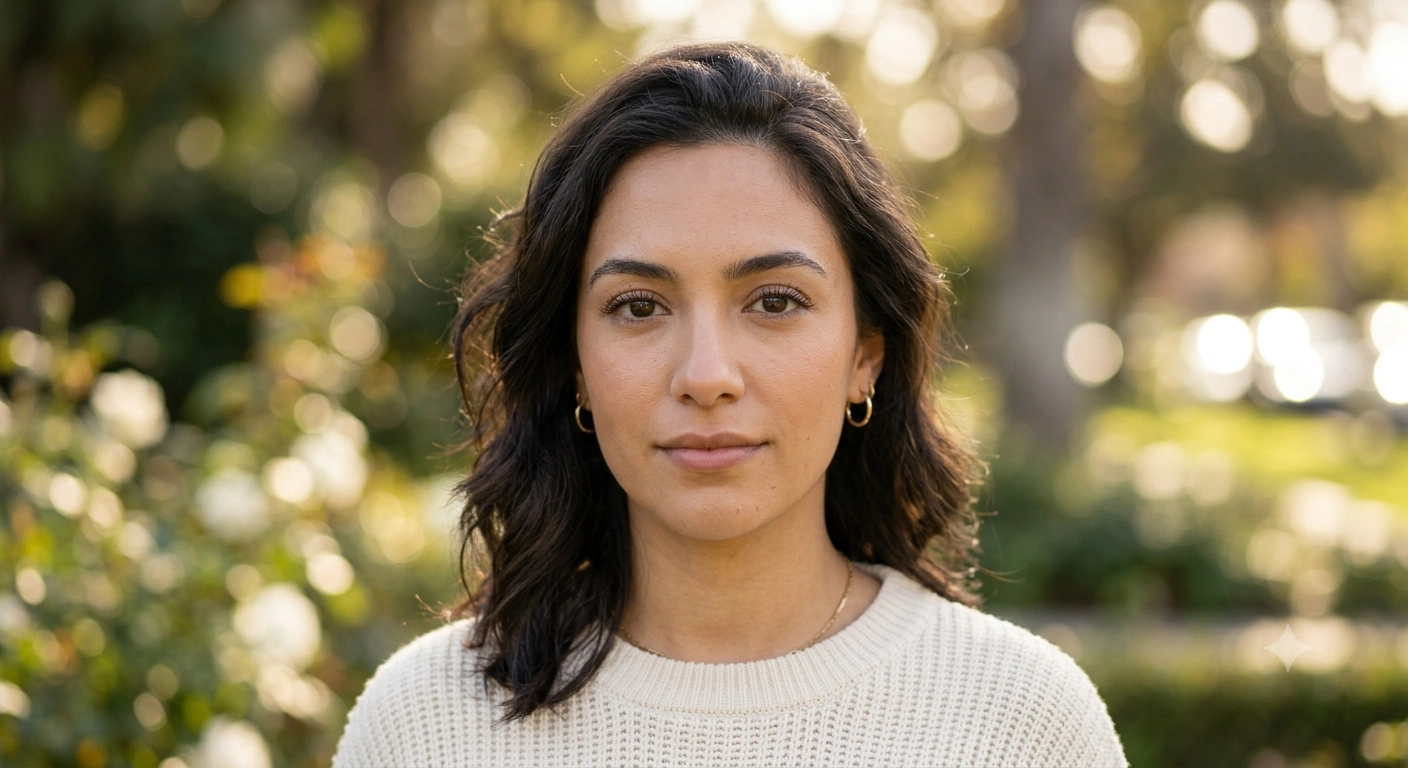
Create DSLR-style bokeh background blur while keeping subject sharp.
Add realistic DSLR bokeh blur to the background: keep the subject perfectly sharp, simulate shallow depth of field, smooth background blur with realistic bokeh highlights, match lens look, preserve edges cleanly, and avoid artificial cutout appearance.
Transform the image with a premium DSLR-style shallow depth of field while preserving the main subject exactly as captured. Keep the subject perfectly sharp, maintaining every facial feature, hair strand, clothing texture, accessories, product details, and fine edges without introducing blur, distortion, or changes to the subject's appearance. The goal is to replicate the natural optical characteristics of a professional full-frame DSLR or medium-format camera using a fast prime lens rather than applying an artificial blur filter.
Create a realistic background blur that gradually increases with distance from the focal plane, accurately simulating optical depth of field. Apply smooth, creamy bokeh that follows the natural spatial depth of the scene instead of uniformly blurring the background. Preserve the three-dimensional relationship between foreground, midground, and background for a convincing photographic result.
Generate authentic lens-rendered bokeh highlights with soft circular or slightly elliptical shapes, natural edge falloff, and subtle brightness variation. Reproduce the optical rendering of premium lenses with pleasing out-of-focus transitions, avoiding polygonal artifacts, harsh blur edges, repeated patterns, or digital-looking effects. Bright lights should bloom naturally into realistic bokeh balls while maintaining correct exposure and color.
Maintain precise subject isolation using pixel-perfect edge detection around complex details including individual hair strands, fur, eyelashes, transparent objects, glasses, jewelry, fingers, fabric textures, and fine accessories. Eliminate halos, jagged masking, color bleeding, edge fringing, ghosting, feathering errors, and cut-out artifacts. Every transition between the focused subject and blurred background should appear optically natural.
Match the original camera perspective, focal length, lens compression, field of view, and optical characteristics. Simulate the depth rendering of a professional 85mm f/1.2, 50mm f/1.4, or 135mm f/2 portrait lens, producing a luxurious background separation while preserving realistic proportions and perspective.
Preserve realistic lighting throughout the scene by maintaining the original direction, intensity, color temperature, shadows, highlights, reflections, and ambient illumination. Ensure the blurred background retains natural brightness, color gradients, and atmospheric depth without appearing flat or washed out.
Enhance subject clarity with subtle micro-contrast and intelligent sharpening while avoiding oversharpening, halos, or unnatural textures. Preserve realistic skin texture, pores, clothing fibers, product details, and material surfaces without introducing excessive clarity or artificial enhancement.
Maintain clean image quality by preventing blur artifacts, compression noise, duplicated textures, warped backgrounds, stretched objects, inconsistent focus regions, or distorted geometry. Ensure the blurred background remains smooth, continuous, and visually pleasing across the entire image.
Keep accurate color reproduction, white balance, dynamic range, exposure, and tonal transitions throughout the photograph. Preserve natural skin tones, realistic object colors, and smooth highlight roll-off while maintaining photographic authenticity.
Deliver an ultra-realistic, high-end portrait or product photograph with premium DSLR optical rendering, luxurious creamy bokeh, flawless edge refinement, cinematic depth, and professional studio-quality image aesthetics. The final image should appear as though it was captured directly using an expensive full-frame camera and fast professional lens, with no visible signs of AI editing or digital manipulation.
Recommended Tech Stack: Adobe Photoshop (Generative Fill / Firefly), Midjourney v6 (Vary Region / Inpainting), Lightroom, Magnific AI, and Topaz Photo AI. Choose tools according to the edit required; not every tool is needed for every image.
Quick Implementation Guide:
- Open the source image and select the target area or subject in your editor or generative tool.
- Apply this prompt for blur background (dslr bokeh), specifying the intended lighting, texture, object, or color changes while stating which details must remain unchanged.
- Blend the result with the original using masks and adjustment layers; refine edges, tonal curves, and color balance, then inspect the image at full size.
Real-World Use Case Example: Cleaning up travel, event, or campaign photos while keeping subject edges, perspective, and lighting believable.
27. Food Photography Enhancement
PRODUCT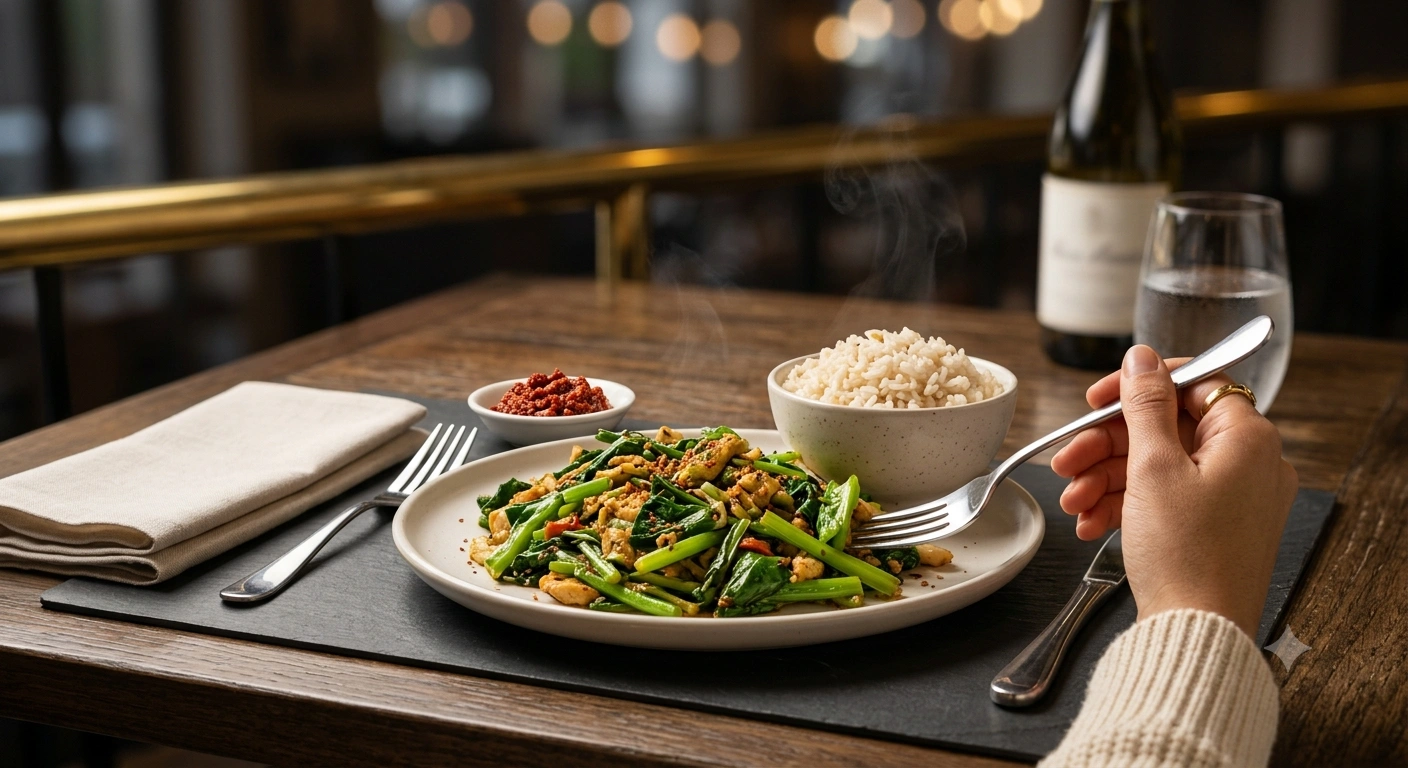
Make food photos look delicious with realistic color, texture, and lighting.
Enhance this food photo: increase appetizing warmth, improve texture detail, sharpen without noise, balance whites, correct color cast, enhance highlights on food naturally, soften harsh shadows, remove distracting background elements, and create restaurant-quality food photography.
Transform this image into premium restaurant-quality food photography while preserving the original dish, ingredients, plating, portion size, colors, and presentation exactly as captured. Do not alter the shape, composition, arrangement, garnish, or authenticity of the food. The final image should look as though it was photographed by a professional food stylist and commercial food photographer using a high-end full-frame camera with professional studio lighting.
Enhance the food's natural appearance by introducing a warm, inviting color palette that stimulates appetite without creating unrealistic orange or yellow tones. Apply subtle golden warmth to the highlights while maintaining balanced whites, accurate color reproduction, and realistic ingredient colors. Preserve the natural vibrancy of vegetables, fruits, herbs, meats, sauces, grains, desserts, and beverages without oversaturating any element.
Increase local contrast, micro-contrast, and fine texture detail to reveal the natural crispness, freshness, moisture, layers, fibers, seasoning, grill marks, baked crusts, creamy textures, glossy sauces, steam, and ingredient definition. Sharpen selectively to improve clarity while avoiding halos, oversharpening, artificial edges, or digital noise.
Correct white balance, exposure, brightness, contrast, dynamic range, and color cast across the entire image. Restore neutral whites where appropriate while maintaining the warm, inviting atmosphere typical of premium restaurant photography. Preserve realistic skin tones if hands or people are visible in the frame.
Enhance natural highlights on the food by emphasizing realistic reflections on sauces, glazes, oils, chocolate, cheese, beverages, glassware, cutlery, and moist ingredients. Ensure highlights remain soft, controlled, and physically accurate without clipping or appearing artificially glossy.
Soften harsh shadows while preserving realistic depth, volume, and dimensionality. Balance ambient light, fill light, and directional lighting to create a premium studio-quality appearance with smooth tonal transitions and natural depth. Maintain consistent lighting direction throughout the scene.
Remove distracting background elements including clutter, stains, crumbs, utensils not relevant to the composition, packaging, reflections, unwanted objects, excessive decorations, wrinkles in tablecloths, fingerprints, dust, scratches, noise, compression artifacts, and visual distractions. Intelligently reconstruct the background where necessary so it blends seamlessly with the surrounding environment.
Replace or simplify the background only if needed with an elegant restaurant-style setting featuring premium table textures such as natural wood, marble, slate, linen, or soft neutral surfaces that complement the dish without overpowering it. Maintain realistic perspective, lighting, and shadow interaction.
Apply subtle depth-of-field simulation by keeping the main dish perfectly sharp while creating a smooth, natural optical background blur that resembles a professional DSLR or medium-format camera with a fast prime lens. Preserve pixel-perfect edge detection around the food, garnish, utensils, steam, glassware, and fine details without halos, masking errors, or artificial cut-out effects.
Enhance steam, freshness, moisture, and food appeal naturally where appropriate, making grilled items appear juicy, baked goods look crisp, vegetables appear fresh, beverages look refreshing, desserts appear rich, and sauces appear glossy without exaggeration or unrealistic manipulation.
Maintain authentic ingredient colors, realistic textures, natural shadows, clean edges, and accurate perspective throughout the image. Eliminate color fringing, ghosting, repeated textures, blur artifacts, warped geometry, and any visible signs of AI editing.
Preserve the original image resolution while increasing overall clarity, detail, and visual impact. Produce an ultra-realistic, luxury commercial food photograph suitable for Michelin-star restaurant menus, premium food delivery platforms, luxury hotel promotions, recipe books, magazine editorials, social media campaigns, advertising billboards, packaging, and high-end culinary branding. The final image should be indistinguishable from a professionally styled commercial food photoshoot captured using world-class photography equipment.
Recommended Tech Stack: Adobe Photoshop (Generative Fill / Firefly), Midjourney v6 (Vary Region / Inpainting), Lightroom, Magnific AI, and Topaz Photo AI. Choose tools according to the edit required; not every tool is needed for every image.
Quick Implementation Guide:
- Open the source image and select the target area or subject in your editor or generative tool.
- Apply this prompt for food photography enhancement, specifying the intended lighting, texture, object, or color changes while stating which details must remain unchanged.
- Blend the result with the original using masks and adjustment layers; refine edges, tonal curves, and color balance, then inspect the image at full size.
Real-World Use Case Example: Polishing restaurant menus, delivery listings, and food-brand social content without misrepresenting the dish.
28. Instagram Clean Bright Look
COLOR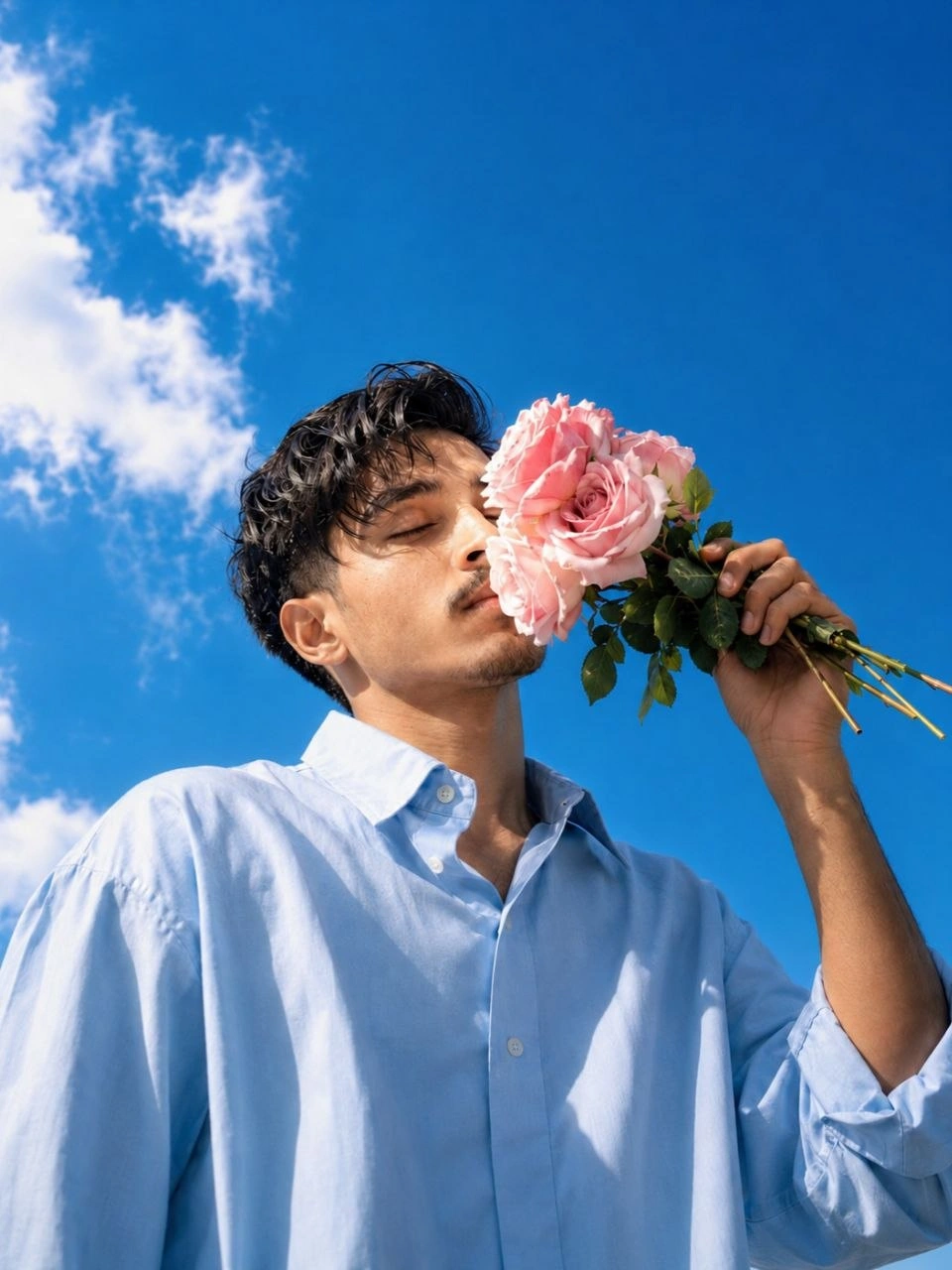
Bright clean Instagram-style look with soft contrast and natural skin tones.
Apply a clean bright Instagram look: lift shadows, keep highlights controlled, increase clarity slightly, reduce yellow color cast, enhance natural skin tones, boost vibrance gently, smooth contrast, add subtle sharpening, and keep the photo modern and minimal.
A real handsome young (Use my face refrence uploded image) boy with short naturally messy slightly wavy dark black hair with loose strands falling softly over forehead and temples and light mustache, sharp elegant facial bone structure, eyes peacefully and completely closed, face gently tilted upward and to the side, soft lips lightly touching and pressing against the delicate petals of large pink roses held up near face level, one arm raised holding a small gathered bouquet of three to four large fully bloomed beautiful soft blush pink garden roses with fresh green stems and dark green leaves held upward at face level, other arm hanging relaxed at side, wearing oversized relaxed fit light sky blue pastel long sleeve button up collared shirt with sleeves slightly rolled, extreme dramatic low worm eye view camera angle looking steeply upward at figure positioned against open sky, vivid brilliant royal blue clear sunny sky filling entire upper and majority of frame behind him, soft white fluffy loosely painted style cumulus clouds visible on left side of sky, warm bright natural summer daylight with sunlight illuminating face from side, hyper-realistic 8K photography, dreamy romantic Korean summer aesthetic, extreme rose petal and skin texture detail, dramatic backlit low angle portrait, shot on Canon EOS R5.
Recommended Tech Stack: Adobe Photoshop (Generative Fill / Firefly), Midjourney v6 (Vary Region / Inpainting), Lightroom, Magnific AI, and Topaz Photo AI. Choose tools according to the edit required; not every tool is needed for every image.
Quick Implementation Guide:
- Open the source image and select the target area or subject in your editor or generative tool.
- Apply this prompt for instagram clean bright look, specifying the intended lighting, texture, object, or color changes while stating which details must remain unchanged.
- Blend the result with the original using masks and adjustment layers; refine edges, tonal curves, and color balance, then inspect the image at full size.
Real-World Use Case Example: Creating a consistent visual look across a social campaign, editorial series, or photo collection.
29. Wedding Portrait Soft Romantic
PORTRAIT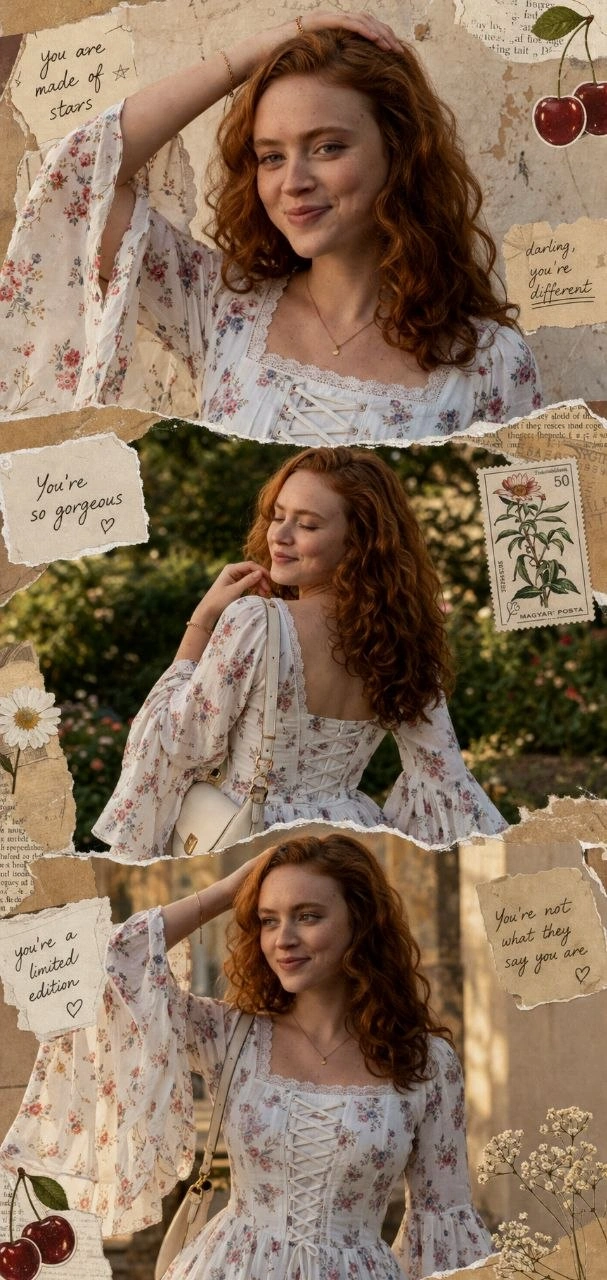
Soft romantic wedding portrait style with warm tones and dreamy glow.
Edit this wedding portrait with a soft romantic look: warm skin tones, gentle highlights, soft shadows, dreamy glow, subtle film grain, remove distractions, smooth skin naturally, enhance dress detail, brighten eyes slightly, and create a timeless wedding photography finish.
Ultra-realistic 3-panel vertical collage (top / middle / bottom), same young woman in all panels with identical face and features.
outfit: Ultra-realistic portrait of a young woman wearing a white, cotton floral printed kurti with long dramatic bell sleeves (wide flared sleeves with lace trim), square neckline on front and back fitted bodice, soft floral motifs, lightweight fabric, elegant ethnic style. White design features a stylish corset lace-up detail for a cinched fit.
Top panel: close-up side pose, one arm raised over head, soft confident expression, long dark hair styled similarly (slightly voluminous), wearing same white, floral printed kurti, minimal gold jewelry (bracelet/ring), soft warm lighting, textured aesthetic background Middle panel: back pose, hand beneath the chin, eyes closed, smiling, same black, floral printed kurti with fitted bodice, same handbag on shoulder, same jewelry, outdoor garden background with trees and plants, natural daylight.
Bottom panel: mid-shot front pose, one hand on head, looking sideways, same outfit, same hairstyle (long styled hair), same handbag and jewelry, warm sunlight with artistic grainy backdrop. Add alot of scrapbook collage elements: torn paper edges, vintage textures, small stickers (cherries, flowers, stamps, handwritten compliment notes). Maintain consistent outfit, pose variations, hairstyle, and aesthetic across all panels.
Recommended Tech Stack: Adobe Photoshop (Generative Fill / Firefly), Midjourney v6 (Vary Region / Inpainting), Lightroom, Magnific AI, and Topaz Photo AI. Choose tools according to the edit required; not every tool is needed for every image.
Quick Implementation Guide:
- Open the source image and select the target area or subject in your editor or generative tool.
- Apply this prompt for wedding portrait soft romantic, specifying the intended lighting, texture, object, or color changes while stating which details must remain unchanged.
- Blend the result with the original using masks and adjustment layers; refine edges, tonal curves, and color balance, then inspect the image at full size.
Real-World Use Case Example: Retouching studio portraits, professional headshots, wedding photographs, or creator profile images while preserving natural identity and skin texture.
30. Night City Background Replace
BACKGROUND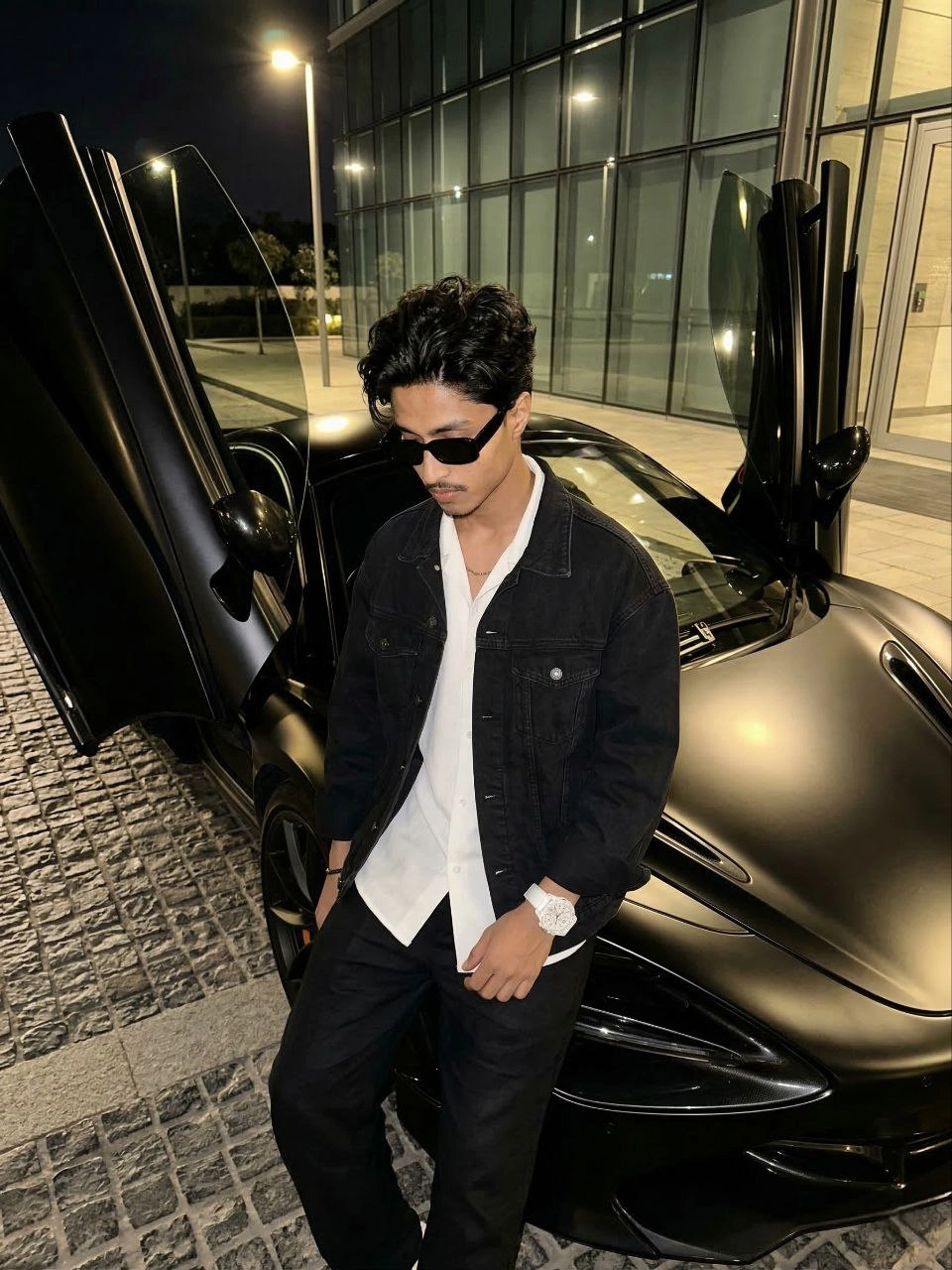
Replace background with a neon night city scene and match lighting perfectly.
Replace the background with a neon night city scene: realistic street lights, soft reflections, correct perspective, match subject lighting to neon environment, add subtle rim light, clean edges, natural depth of field, and cinematic cyberpunk mood without over-saturation.
A hyper-realistic, high-angle night shot of a fit young man, hair style: quiff-style tousled mid-length black hair with a light mustache, wearing rectangular black sunglasses, leaning casually against a matte black luxury supercar (McLaren) with its butterfly doors open. He is wearing black oversized denim jacket with white oversized shirt loose black linen trousers, looking downward with a relaxed posture. He is wearing a large white luxury watch. The car is parked on a cobblestone driveway in front of a modern building with glass windows. Warm artificial street lighting illuminates the scene, creating sleek reflections on the black car. The aesthetic is "old money" luxury, urban nightlife, cinematic composition, 8k resolution.
Recommended Tech Stack: Adobe Photoshop (Generative Fill / Firefly), Midjourney v6 (Vary Region / Inpainting), Lightroom, Magnific AI, and Topaz Photo AI. Choose tools according to the edit required; not every tool is needed for every image.
Quick Implementation Guide:
- Open the source image and select the target area or subject in your editor or generative tool.
- Apply this prompt for night city background replace, specifying the intended lighting, texture, object, or color changes while stating which details must remain unchanged.
- Blend the result with the original using masks and adjustment layers; refine edges, tonal curves, and color balance, then inspect the image at full size.
Real-World Use Case Example: Cleaning up travel, event, or campaign photos while keeping subject edges, perspective, and lighting believable.
31. Cinematic Editorial Film-Still Portrait
PORTRAIT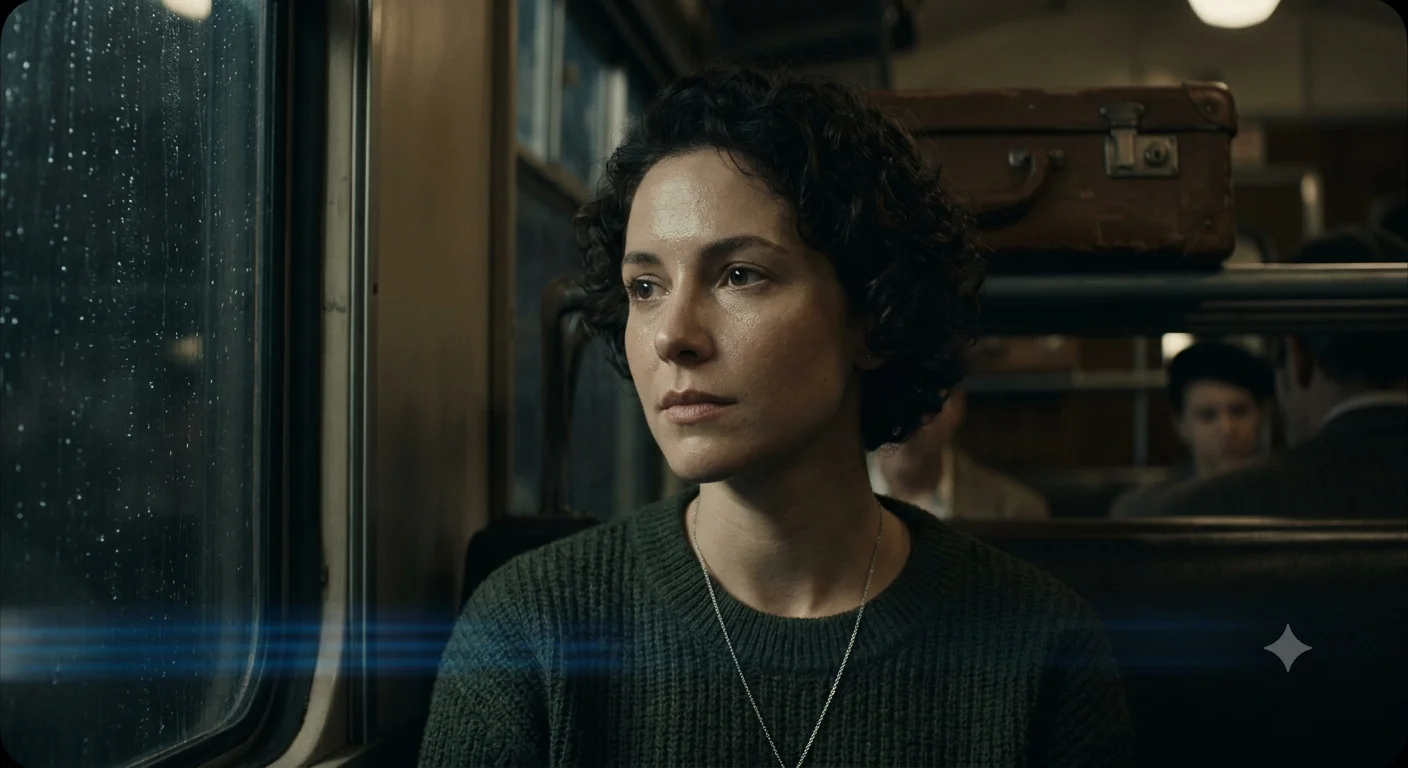
Editorial portrait styled like a movie still, with directional light and restrained color.
Edit this portrait to look like a cinematic film still: single directional key light with soft falloff, restrained desaturated color palette, deep but detailed shadows, subtle anamorphic-style lens characteristics, natural skin rendering, a sense of a larger untold story in the frame, and a premium editorial magazine finish.
Edit this portrait to look like a cinematic film still: single directional key light with soft falloff, restrained desaturated color palette, deep but detailed shadows, subtle anamorphic-style lens characteristics, natural skin rendering, a sense of a larger untold story in the frame, and a premium editorial magazine finish.
Recommended Tech Stack: Adobe Photoshop (Generative Fill / Firefly), Midjourney v6 (Vary Region / Inpainting), Lightroom, Magnific AI, and Topaz Photo AI. Choose tools according to the edit required; not every tool is needed for every image.
Quick Implementation Guide:
- Open the source image and select the target area or subject in your editor or generative tool.
- Apply this prompt for cinematic editorial film-still portrait, specifying the intended lighting, texture, object, or color changes while stating which details must remain unchanged.
- Blend the result with the original using masks and adjustment layers; refine edges, tonal curves, and color balance, then inspect the image at full size.
Real-World Use Case Example: Creating a consistent visual look across a social campaign, editorial series, or photo collection.
32. Replace Background with Minimalist Studio Backdrop
BACKGROUND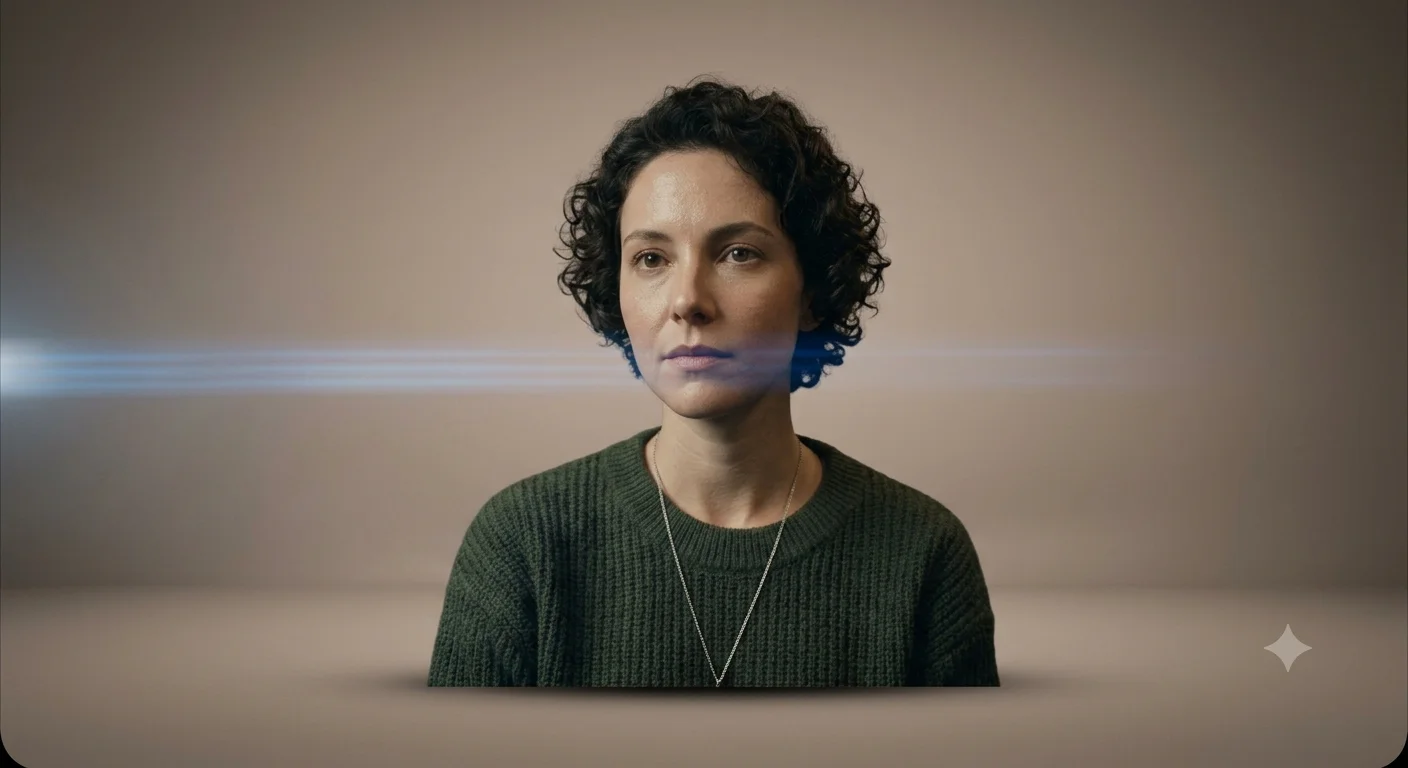
Clean solid or gradient studio backdrop, the minimal look now trending for both portraits and products.
Replace the background with a minimalist studio backdrop: smooth solid or soft gradient color of [color], seamless floor-to-wall transition, even studio lighting with subtle falloff at the edges, soft realistic contact shadow beneath the subject, clean edge masking, and a premium minimal look suited for both portrait and product use.
Replace the background with a minimalist studio backdrop: smooth solid or soft gradient color of [color], seamless floor-to-wall transition, even studio lighting with subtle falloff at the edges, soft realistic contact shadow beneath the subject, clean edge masking, and a premium minimal look suited for both portrait and product use.
Recommended Tech Stack: Adobe Photoshop (Generative Fill / Firefly), Midjourney v6 (Vary Region / Inpainting), Lightroom, Magnific AI, and Topaz Photo AI. Choose tools according to the edit required; not every tool is needed for every image.
Quick Implementation Guide:
- Open the source image and select the target area or subject in your editor or generative tool.
- Apply this prompt for replace background with minimalist studio backdrop, specifying the intended lighting, texture, object, or color changes while stating which details must remain unchanged.
- Blend the result with the original using masks and adjustment layers; refine edges, tonal curves, and color balance, then inspect the image at full size.
Real-World Use Case Example: Cleaning up travel, event, or campaign photos while keeping subject edges, perspective, and lighting believable.
33. Beverage Splash Product Shot
PRODUCT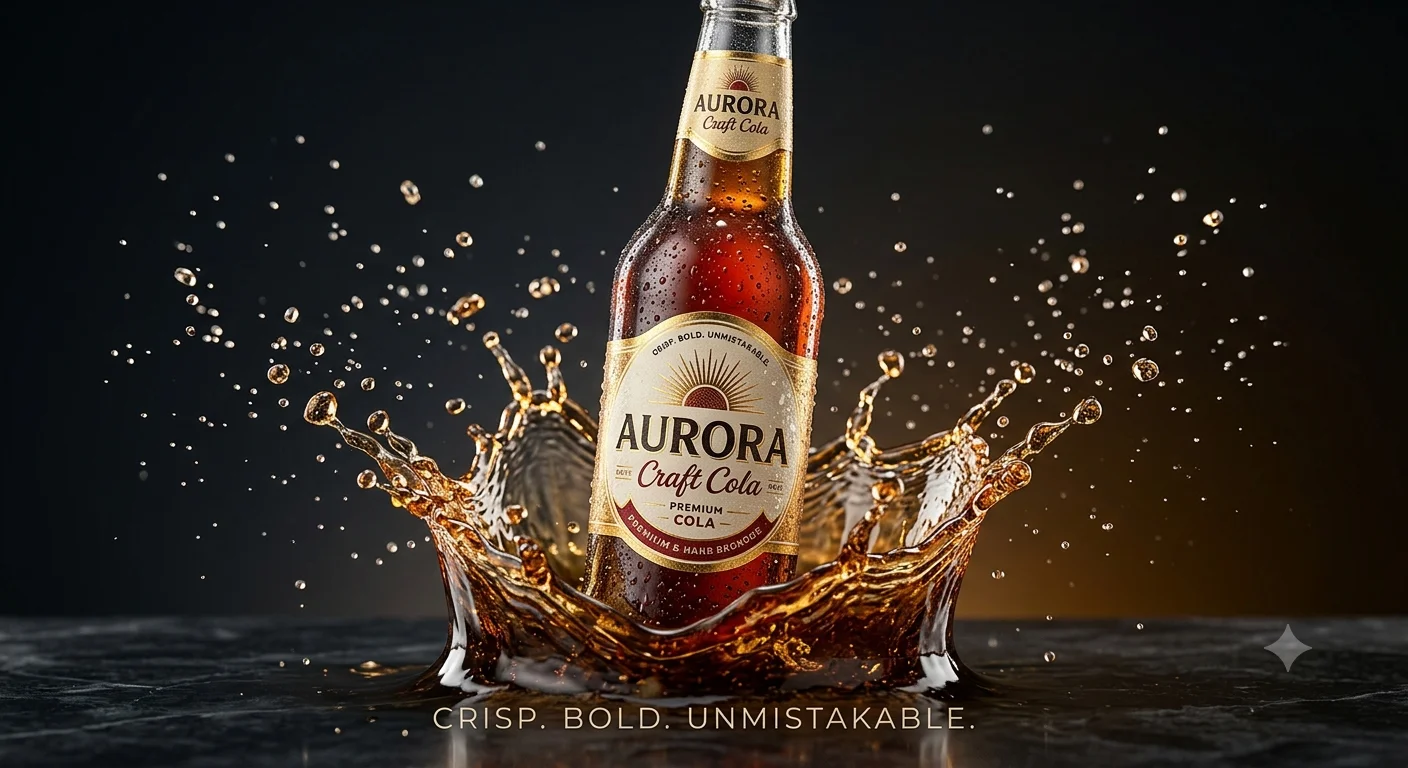
High-speed commercial splash photography look for drinks and liquid products.
Enhance this beverage photo into a high-speed commercial splash shot: frozen realistic liquid splash and droplets around the product, condensation on the surface, crisp studio lighting with clean reflections, vivid but natural color, sharp label detail, dark or clean gradient background, and an energetic ad-ready finish.
Enhance this beverage photo into a high-speed commercial splash shot: frozen realistic liquid splash and droplets around the product, condensation on the surface, crisp studio lighting with clean reflections, vivid but natural color, sharp label detail, dark or clean gradient background, and an energetic ad-ready finish.
Recommended Tech Stack: Adobe Photoshop (Generative Fill / Firefly), Midjourney v6 (Vary Region / Inpainting), Lightroom, Magnific AI, and Topaz Photo AI. Choose tools according to the edit required; not every tool is needed for every image.
Quick Implementation Guide:
- Open the source image and select the target area or subject in your editor or generative tool.
- Apply this prompt for beverage splash product shot, specifying the intended lighting, texture, object, or color changes while stating which details must remain unchanged.
- Blend the result with the original using masks and adjustment layers; refine edges, tonal curves, and color balance, then inspect the image at full size.
Real-World Use Case Example: Preparing consistent e-commerce catalog images, paid-ad creatives, or premium product listings.
34. Muted Earth-Tone Editorial Grade
COLOR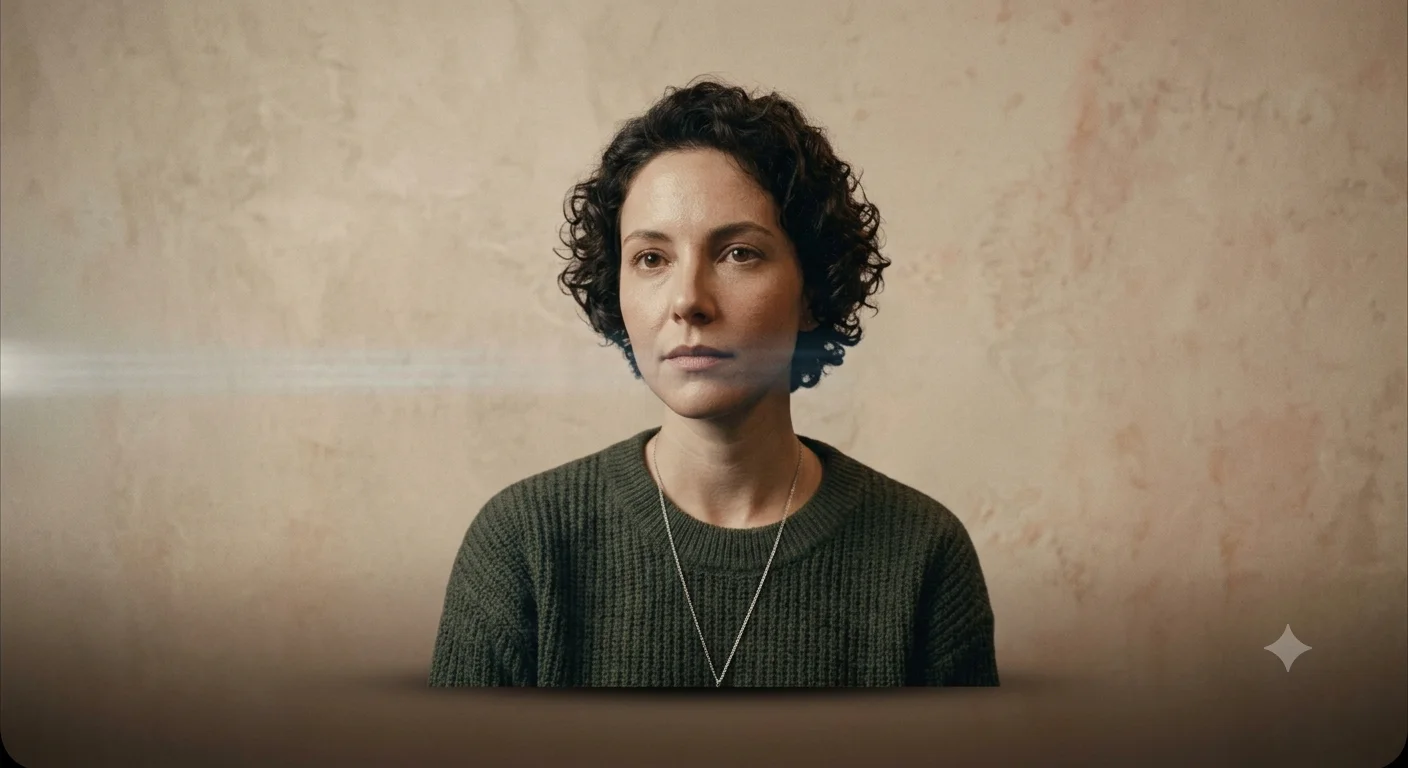
Desaturated, earthy minimalist grade popular in current lifestyle and interior editorial content.
Apply a muted earth-tone editorial grade: desaturate blues and greens toward neutral, warm up shadows slightly with a terracotta undertone, soften overall contrast, keep whites slightly warm rather than clinical, gentle film-like clarity, and a calm minimalist lifestyle-editorial mood.
Apply a muted earth-tone editorial grade: desaturate blues and greens toward neutral, warm up shadows slightly with a terracotta undertone, soften overall contrast, keep whites slightly warm rather than clinical, gentle film-like clarity, and a calm minimalist lifestyle-editorial mood.
Recommended Tech Stack: Adobe Photoshop (Generative Fill / Firefly), Midjourney v6 (Vary Region / Inpainting), Lightroom, Magnific AI, and Topaz Photo AI. Choose tools according to the edit required; not every tool is needed for every image.
Quick Implementation Guide:
- Open the source image and select the target area or subject in your editor or generative tool.
- Apply this prompt for muted earth-tone editorial grade, specifying the intended lighting, texture, object, or color changes while stating which details must remain unchanged.
- Blend the result with the original using masks and adjustment layers; refine edges, tonal curves, and color balance, then inspect the image at full size.
Real-World Use Case Example: Creating a consistent visual look across a social campaign, editorial series, or photo collection.
35. Black & White Documentary Portrait
PORTRAIT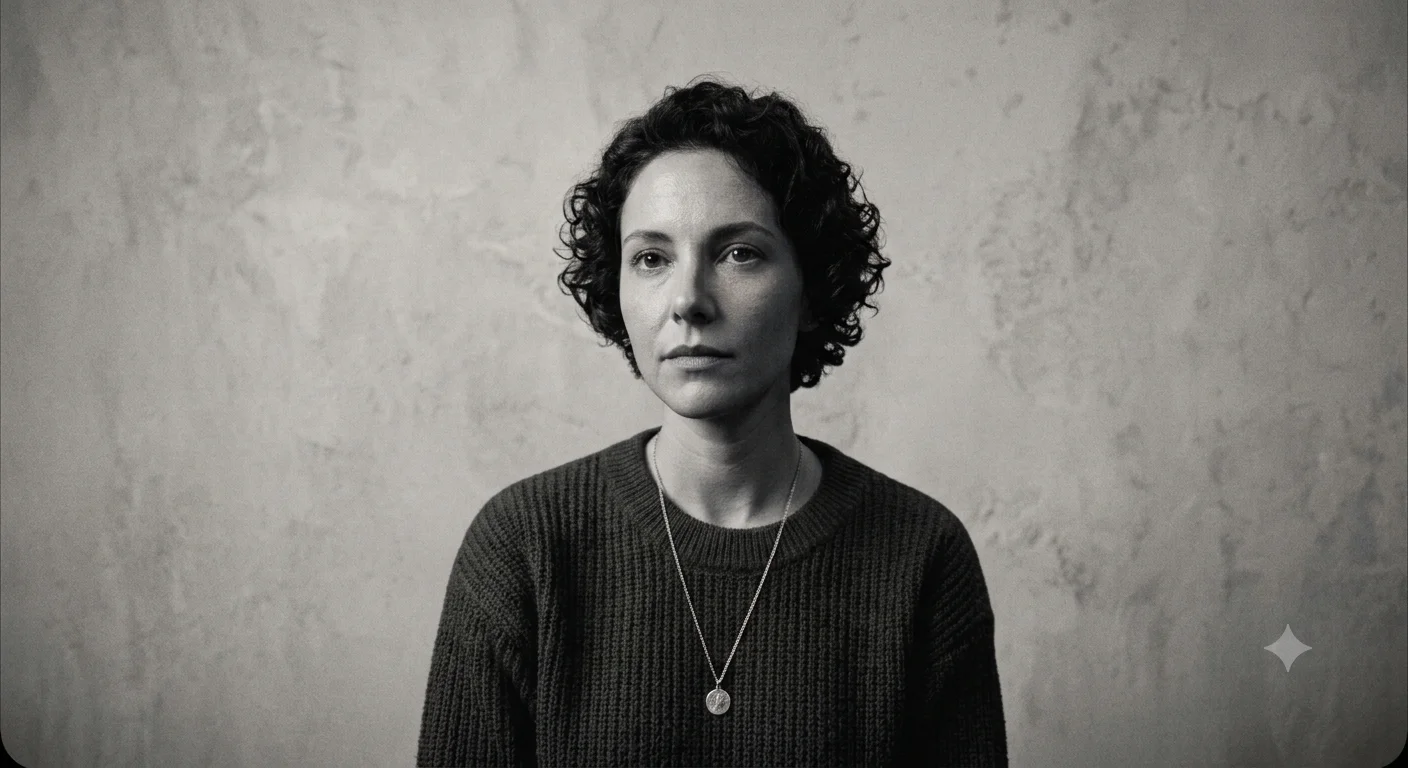
Raw, high-detail monochrome portrait in a documentary photojournalism style.
Convert this portrait into a black-and-white documentary-style photograph: rich tonal range from deep blacks to clean whites, preserve authentic skin and fabric texture, natural unposed expression, subtle grain, realistic ambient lighting rather than studio light, and a raw photojournalistic feel with no artificial smoothing.
Convert this portrait into a black-and-white documentary-style photograph: rich tonal range from deep blacks to clean whites, preserve authentic skin and fabric texture, natural unposed expression, subtle grain, realistic ambient lighting rather than studio light, and a raw photojournalistic feel with no artificial smoothing.
Recommended Tech Stack: Adobe Photoshop (Generative Fill / Firefly), Midjourney v6 (Vary Region / Inpainting), Lightroom, Magnific AI, and Topaz Photo AI. Choose tools according to the edit required; not every tool is needed for every image.
Quick Implementation Guide:
- Open the source image and select the target area or subject in your editor or generative tool.
- Apply this prompt for black & white documentary portrait, specifying the intended lighting, texture, object, or color changes while stating which details must remain unchanged.
- Blend the result with the original using masks and adjustment layers; refine edges, tonal curves, and color balance, then inspect the image at full size.
Real-World Use Case Example: Retouching studio portraits, professional headshots, wedding photographs, or creator profile images while preserving natural identity and skin texture.
36. Replace Background with Cozy Café Interior
BACKGROUND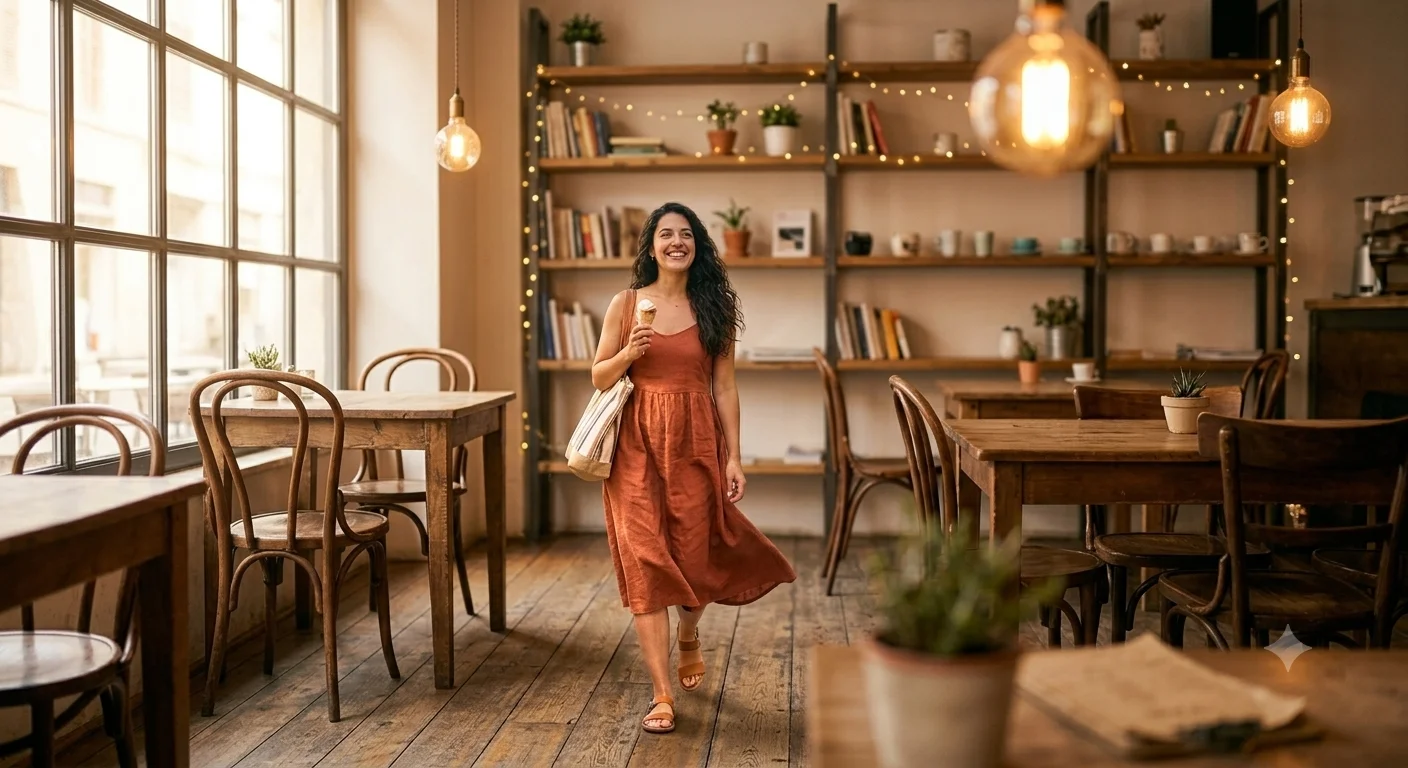
Warm, softly blurred café interior background for lifestyle and creator-style portraits.
Replace the background with a cozy café interior: warm ambient window light, softly blurred tables and shelving in the depth of field, realistic bokeh from string lights or pendant lamps, matched color temperature on the subject, natural contact shadow, and an inviting lifestyle-content atmosphere.
Replace the background with a cozy café interior: warm ambient window light, softly blurred tables and shelving in the depth of field, realistic bokeh from string lights or pendant lamps, matched color temperature on the subject, natural contact shadow, and an inviting lifestyle-content atmosphere.
Recommended Tech Stack: Adobe Photoshop (Generative Fill / Firefly), Midjourney v6 (Vary Region / Inpainting), Lightroom, Magnific AI, and Topaz Photo AI. Choose tools according to the edit required; not every tool is needed for every image.
Quick Implementation Guide:
- Open the source image and select the target area or subject in your editor or generative tool.
- Apply this prompt for replace background with cozy café interior, specifying the intended lighting, texture, object, or color changes while stating which details must remain unchanged.
- Blend the result with the original using masks and adjustment layers; refine edges, tonal curves, and color balance, then inspect the image at full size.
Real-World Use Case Example: Cleaning up travel, event, or campaign photos while keeping subject edges, perspective, and lighting believable.
37. Skincare Tube/Jar 360 Studio Shot
PRODUCT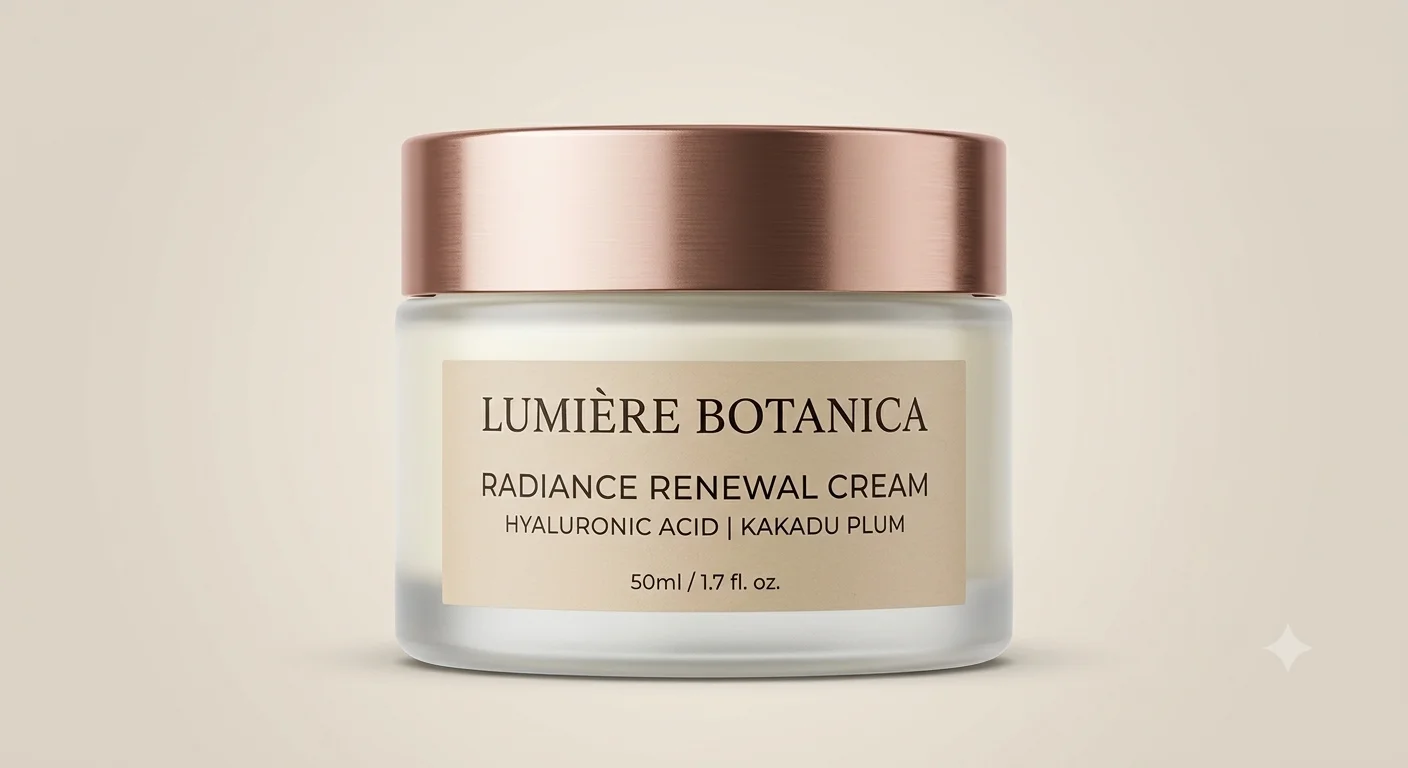
Clean, high-end studio shot with a soft product-on-product shadow, built for ecommerce listings.
Enhance this skincare tube or jar photo for a studio ecommerce listing: seamless light gradient background, soft realistic shadow directly beneath the product, sharpen and straighten label text and edges, remove fingerprints and dust, subtle glossy highlight along the cap, accurate true-to-life color, and export at high resolution.
Enhance this skincare tube or jar photo for a studio ecommerce listing: seamless light gradient background, soft realistic shadow directly beneath the product, sharpen and straighten label text and edges, remove fingerprints and dust, subtle glossy highlight along the cap, accurate true-to-life color, and export at high resolution.
Recommended Tech Stack: Adobe Photoshop (Generative Fill / Firefly), Midjourney v6 (Vary Region / Inpainting), Lightroom, Magnific AI, and Topaz Photo AI. Choose tools according to the edit required; not every tool is needed for every image.
Quick Implementation Guide:
- Open the source image and select the target area or subject in your editor or generative tool.
- Apply this prompt for skincare tube/jar 360 studio shot, specifying the intended lighting, texture, object, or color changes while stating which details must remain unchanged.
- Blend the result with the original using masks and adjustment layers; refine edges, tonal curves, and color balance, then inspect the image at full size.
Real-World Use Case Example: Retouching studio portraits, professional headshots, wedding photographs, or creator profile images while preserving natural identity and skin texture.
38. High-Contrast Monochrome Fine Art Grade
COLOR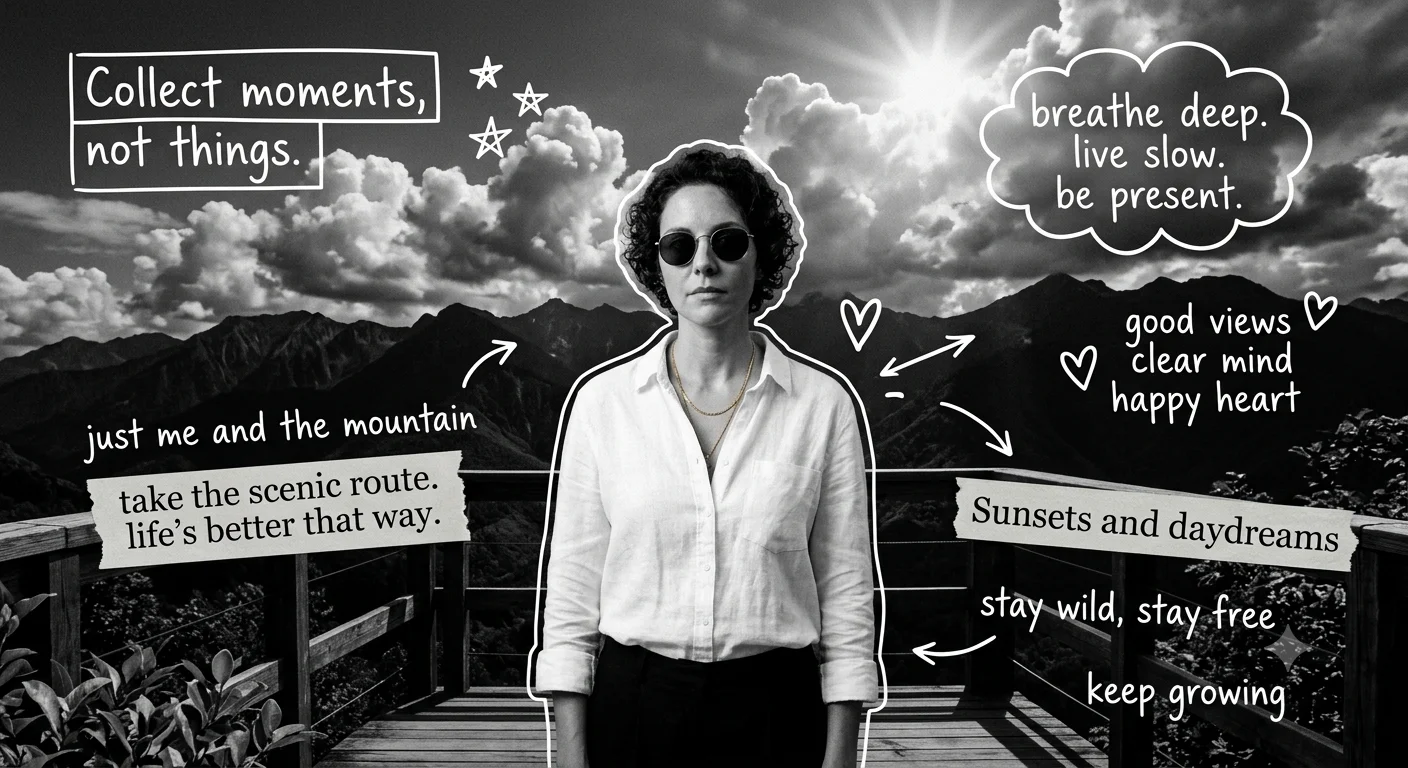
Bold black-and-white fine-art grade with deep blacks and sculpted highlights.
Apply a high-contrast monochrome fine-art grade: deep pure blacks, bright controlled highlights, strong tonal separation between subject and background, fine grain for texture, sharp micro-contrast on detail areas, and a gallery-print quality finish rather than a simple desaturation.
Apply a high-contrast monochrome fine-art grade: deep pure blacks, bright controlled highlights, strong tonal separation between subject and background, fine grain for texture, sharp micro-contrast on detail areas, and a gallery-print quality finish rather than a simple desaturation.
Recommended Tech Stack: Adobe Photoshop (Generative Fill / Firefly), Midjourney v6 (Vary Region / Inpainting), Lightroom, Magnific AI, and Topaz Photo AI. Choose tools according to the edit required; not every tool is needed for every image.
Quick Implementation Guide:
- Open the source image and select the target area or subject in your editor or generative tool.
- Apply this prompt for high-contrast monochrome fine art grade, specifying the intended lighting, texture, object, or color changes while stating which details must remain unchanged.
- Blend the result with the original using masks and adjustment layers; refine edges, tonal curves, and color balance, then inspect the image at full size.
Real-World Use Case Example: Creating a consistent visual look across a social campaign, editorial series, or photo collection.
39. Soft Golden-Hour Glamour Portrait
PORTRAIT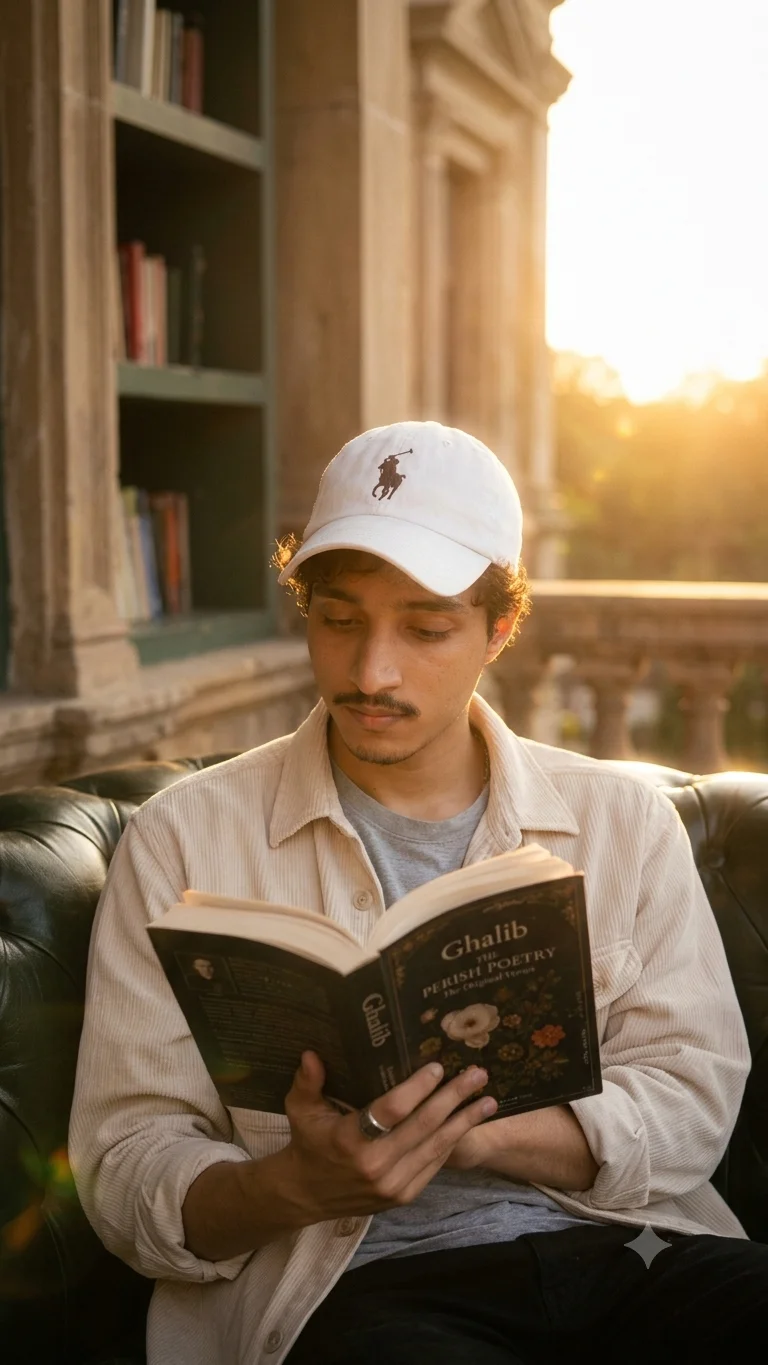
Warm backlit glamour look with soft glow, kept natural rather than overly airbrushed.
Edit this portrait into a soft golden-hour glamour look: warm backlighting with gentle lens flare, soft glow around hair edges, natural skin retouch that keeps texture, warm color temperature throughout, subtle bloom on highlights, and a dreamy but believable outdoor-lit finish.
Edit this portrait into a soft golden-hour glamour look: warm backlighting with gentle lens flare, soft glow around hair edges, natural skin retouch that keeps texture, warm color temperature throughout, subtle bloom on highlights, and a dreamy but believable outdoor-lit finish.
Recommended Tech Stack: Adobe Photoshop (Generative Fill / Firefly), Midjourney v6 (Vary Region / Inpainting), Lightroom, Magnific AI, and Topaz Photo AI. Choose tools according to the edit required; not every tool is needed for every image.
Quick Implementation Guide:
- Open the source image and select the target area or subject in your editor or generative tool.
- Apply this prompt for soft golden-hour glamour portrait, specifying the intended lighting, texture, object, or color changes while stating which details must remain unchanged.
- Blend the result with the original using masks and adjustment layers; refine edges, tonal curves, and color balance, then inspect the image at full size.
Real-World Use Case Example: Retouching studio portraits, professional headshots, wedding photographs, or creator profile images while preserving natural identity and skin texture.
40. Replace Background with Snowy Mountain Landscape
BACKGROUND
Crisp winter mountain backdrop with cool natural light and realistic atmospheric depth.
Replace the background with a snowy mountain landscape: crisp cool daylight, realistic atmospheric haze between distant peaks, soft light reflected off snow onto the subject, natural shadow direction, clean edge masking around hair and clothing, subtle breath-fog effect if appropriate, and a fresh outdoor-winter atmosphere.
Replace the background with a snowy mountain landscape: crisp cool daylight, realistic atmospheric haze between distant peaks, soft light reflected off snow onto the subject, natural shadow direction, clean edge masking around hair and clothing, subtle breath-fog effect if appropriate, and a fresh outdoor-winter atmosphere.
Recommended Tech Stack: Adobe Photoshop (Generative Fill / Firefly), Midjourney v6 (Vary Region / Inpainting), Lightroom, Magnific AI, and Topaz Photo AI. Choose tools according to the edit required; not every tool is needed for every image.
Quick Implementation Guide:
- Open the source image and select the target area or subject in your editor or generative tool.
- Apply this prompt for replace background with snowy mountain landscape, specifying the intended lighting, texture, object, or color changes while stating which details must remain unchanged.
- Blend the result with the original using masks and adjustment layers; refine edges, tonal curves, and color balance, then inspect the image at full size.
Real-World Use Case Example: Cleaning up travel, event, or campaign photos while keeping subject edges, perspective, and lighting believable.
Optimizing Your Photo Editing Workflow with AI
AI can make photo editing faster and easier, but the best results still begin with a clear plan. Before opening an editing tool, take a moment to look at your original image and decide what actually needs improvement. You might want to brighten a portrait, remove an unwanted object, clean up a product background, restore an old photograph, or give a travel photo a more cinematic look. Starting with one specific goal helps you avoid unnecessary edits and keeps the final image looking natural.
Choose your tool based on the job. Adobe Photoshop Generative Fill can help with removing distractions or changing selected areas, while Lightroom is useful for exposure, white balance, contrast, and color correction. Tools such as Topaz Photo AI or Magnific AI may help when an image needs denoising, sharpening, or upscaling. The important thing is not to use every tool on every photo, but to choose the one that solves your particular problem.
For a reliable workflow, keep your original image untouched and make edits on a duplicate, separate layer, or non-destructive adjustment layer whenever possible. Write prompts that explain the subject, the requested change, the lighting, the texture, and the details that must remain unchanged. Make one major adjustment at a time, compare each result with the original, and save useful versions along the way. This simple habit makes it easier to correct mistakes, maintain consistency across a project, and deliver polished images without losing the character of the original photograph.
Step-by-Step Guide: Enhancing and Retouching Images from Prompts
A successful AI photo edit starts before you enter the prompt. First, identify the main problem with your image. Is the lighting too harsh? Is the background distracting? Does the portrait need subtle skin retouching, or does the product photo need cleaner edges and more balanced colors? A clear objective gives the AI a more useful direction than a vague request such as “make this picture look professional.”
Next, upload a good-quality source image to your chosen editor and select the area you want to change, if the tool supports selections or masks. Describe the result in everyday language, but include enough visual detail to guide the edit. For example, instead of simply asking to improve a portrait, request softer natural lighting, balanced highlights, realistic skin texture, and a clean background while preserving the person's facial features, expression, hairstyle, and pose. For product photography, specifically ask the tool to retain the product's shape, logo, label, and original colors.
Generate a few variations when your tool allows it, then compare them carefully rather than choosing the first result automatically. Look closely at hair edges, hands, fabric, reflections, shadows, and transitions between the edited and untouched areas. If something looks artificial, refine the prompt, adjust the selection, or try a separate editing pass. Once you are satisfied, blend the result using masks, layer adjustments, or color correction where needed. Finally, export the image at the appropriate dimensions and file format for its intended use, whether that is a website, social media post, online store, or print project.
The Science Behind High-Precision AI Image Editing Prompts
The secret to a more reliable AI editing prompt is to explain both what should change and what should stay exactly as it is. AI tools can sometimes interpret a broad instruction too freely, altering details that were never meant to be edited. A well-written prompt reduces this uncertainty by identifying the target area, the desired change, the visual style, and any important limitations. Think of it as giving an editor a clear creative brief rather than asking them to guess what you have in mind.
For stronger results, describe the image's subject, the specific editing operation, the desired lighting, the relevant textures, and the relationship between colors and shadows. You can also mention the level of realism you expect. For example: “Remove the unwanted object on the left and naturally reconstruct the wall behind it. Match the existing wall texture, perspective, and lighting. Preserve the main subject, original framing, shadows, and all visible text.” This instruction is much easier to evaluate than a general request to improve the photograph.
If the output does not match your intention, avoid adding too many new instructions at once. Narrow the selection, simplify the wording, and handle separate tasks in individual passes. You may get better results by removing an object first and correcting the lighting afterward, rather than asking the tool to perform several complex changes simultaneously. Always compare the edited image with the source, especially when accuracy matters. For commercial and e-commerce images, check that product dimensions, logos, labels, colors, and other factual details have not been unintentionally changed.
Best Practices for Preserving Detail in AI-Edited Photography
One of the biggest challenges in AI photo editing is improving an image without making it look overprocessed. Excessive smoothing can remove natural skin texture, aggressive sharpening can create bright halos around edges, and repeated enhancement can introduce details that were never present in the original photograph. To avoid these problems, preserve an untouched copy of your image and use masks, adjustment layers, and other non-destructive editing techniques whenever your software supports them.
When writing your prompt, mention the details that matter most for the type of photograph you are editing. For portraits, ask for realistic skin texture, natural pores, individual hair strands, and authentic facial features. For fashion or product images, emphasize fabric weave, stitching, clean edges, accurate geometry, and readable labels. For landscapes, pay attention to foliage, clouds, fine structures, and natural transitions between light and shadow. These specific instructions can help guide the edit, although the final result should always be checked manually.
Review your image at two levels: fit-to-screen to judge the overall appearance, and 100% zoom to inspect fine details. Look for distorted fingers, unusual hair patterns, inconsistent reflections, artificial textures, halos, and broken background edges. If you are using an AI upscaler, apply it when the image needs additional resolution or detail, rather than treating it as an automatic final step for every photograph. Compare the enhanced version with the original and make sure the added detail looks believable. Before exporting, choose a resolution and compression level suited to the image's destination, and retain a layered working file if you expect future revisions.
Unlocking Advanced Color Grading and Compositing with Expert Prompts
Color grading is about more than applying a fashionable filter. It helps establish the mood of a photograph, direct the viewer's attention, and create a consistent visual style across a collection of images. When prompting an AI tool, describe the feeling you want to create alongside the visual details that produce it. You might ask for warm golden highlights, cooler shadows, soft contrast, restrained saturation, natural skin tones, and subtle film grain for a cinematic portrait. For a bright product campaign, you may prefer clean whites, controlled highlights, accurate product colors, and gentle shadows that make the subject stand out.
Compositing requires similar attention to detail because elements taken from different images need to feel as though they belong in the same scene. Describe the relationship between the subject and the background, including camera perspective, light direction, shadow placement, edge softness, reflections, and atmospheric depth. For example, when placing a product into a lifestyle scene, ask for lighting that matches the environment, a believable contact shadow beneath the product, and reflections consistent with nearby surfaces. These details help the composite feel more cohesive than simply placing one image over another.
After generating the initial result, refine the image with curves, masks, local color adjustments, and selective exposure corrections. Check that skin tones remain believable and that important product or brand colors are accurate. Pay particular attention to the edges of composited subjects, since mismatched sharpness, lighting, or shadows can make an otherwise convincing edit look artificial. If the image will be used in a professional campaign, keep a layered working file so you can adjust the foreground, background, and color grade independently. A thoughtful final review will usually make a bigger difference than repeatedly adding more effects to the prompt.
AI Prompt Templates for Advanced Photo Editing & Visual Enhancement
Use these AI prompt templates to perform high-quality photo retouching, background removal, color correction, upscaling, and creative image manipulation. These prompts are designed for tools like Photoshop, Lightroom, Midjourney, DALL E, Stable Diffusion, and other AI image editors to help you create professional, sharp, and visually stunning images for social media, websites, ads, and branding.
How Can AI Prompts Improve Photo and Image Editing?
AI prompts improve photo and image editing by helping users enhance photos, remove backgrounds, apply color grading, and create professional visuals using AI tools. They simplify complex editing tasks, save time, and allow beginners and professionals to achieve high-quality results consistently.
Frequently Asked Questions
What was updated on this page for Oct 2026?
This page was reviewed on Oct 11, 2026, with clearer prompt guidance and practical workflows for photo retouching, background edits, image enhancement, and color grading.
What are AI photo editing prompts?
AI photo editing prompts are text instructions used in AI tools to edit, enhance, retouch, and transform images automatically.
Which AI tools support these photo editing prompts?
These prompts work with tools like Photoshop AI, Midjourney, DALL E, ChatGPT, Gemini, Claude AI, Blackbox Ai, Stable Diffusion, and other AI image editors.
Are AI photo editing prompts beginner-friendly?
Yes. Beginners can simply copy the prompt, paste it into an AI tool, and generate results instantly.
Can I use these prompts for social media and ads?
Yes. They are ideal for Instagram posts, reels, YouTube thumbnails, ads, and branding visuals.
How often are AI photo editing prompts updated?
Prompts are updated regularly to match new trends and AI improvements.